User Management
Manage workspace members, control access levels, and maintain operational security through Fystack's User Management module. Add collaborators, assign roles appropriate to their responsibilities, and update permissions as your team evolves.
Role Overview
Each user in a Fystack workspace is assigned a role that defines their permissions. Roles are enforced at both the API and UI level to ensure least-privilege access across all operations.
| Role | Description | Key Capabilities |
|---|---|---|
| Owner | Workspace creator with full, unrestricted access | Manage billing, assign all roles, delete workspace |
| Admin | Full control over the Workspace and all wallets within it | Create/manage wallets, invite users, configure settings |
| Signer | Can review and approve or cancel transactions | Approve or reject pending transactions, view all wallets |
| Proposer | Can create and propose transactions but cannot approve them | Initiate transactions, view wallet balances |
| Viewer | Read-only access to the Workspace and wallets | View transactions, balances, and reports |
| Guest | Limited, temporary access to specific wallets or functionalities | Scoped read or action access as configured |
Only one Owner exists per workspace. The Owner role is automatically assigned to the account that created the workspace and cannot be transferred through the invite flow.
How to Invite a User
Step 1: Open User Management
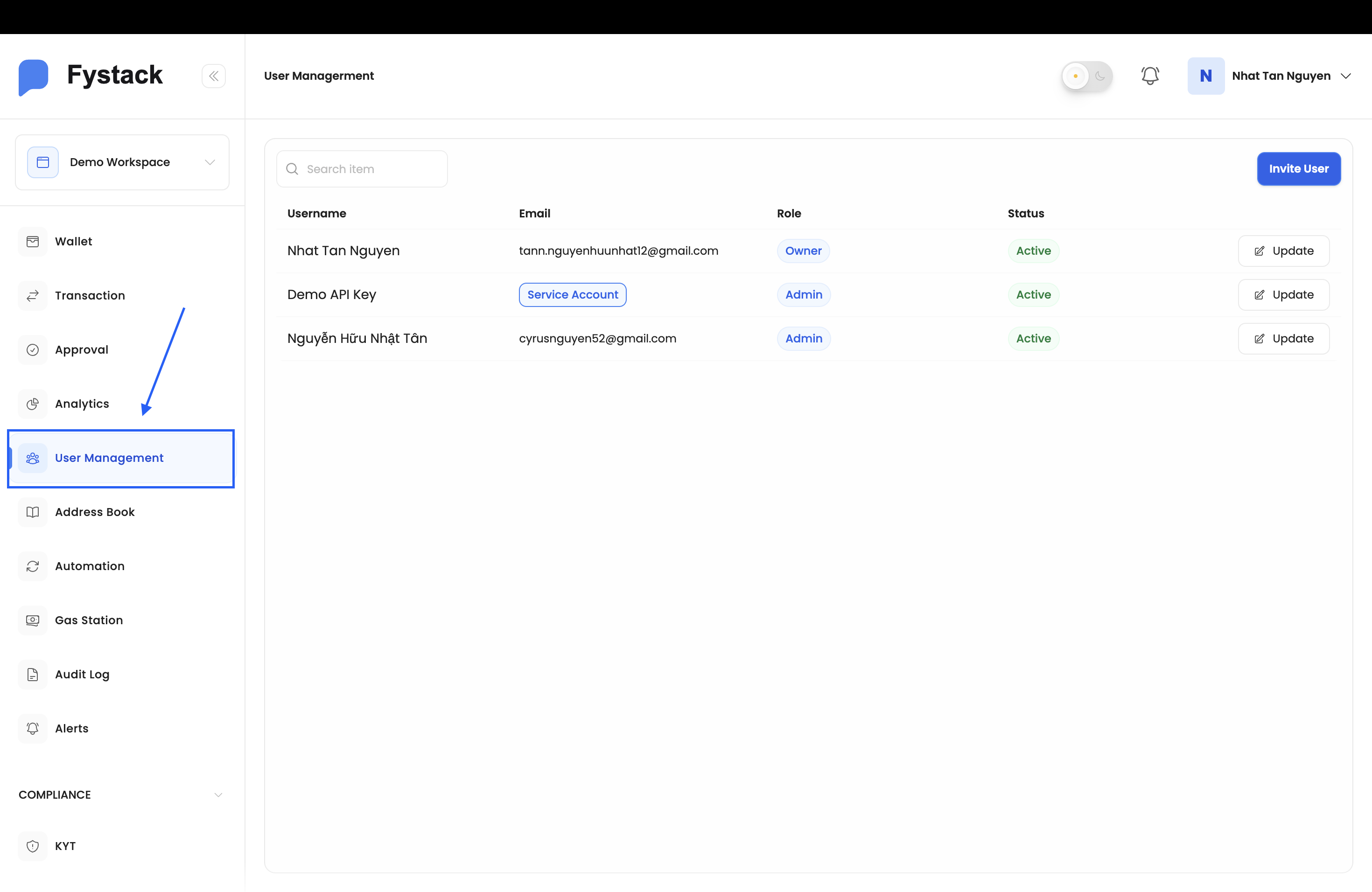
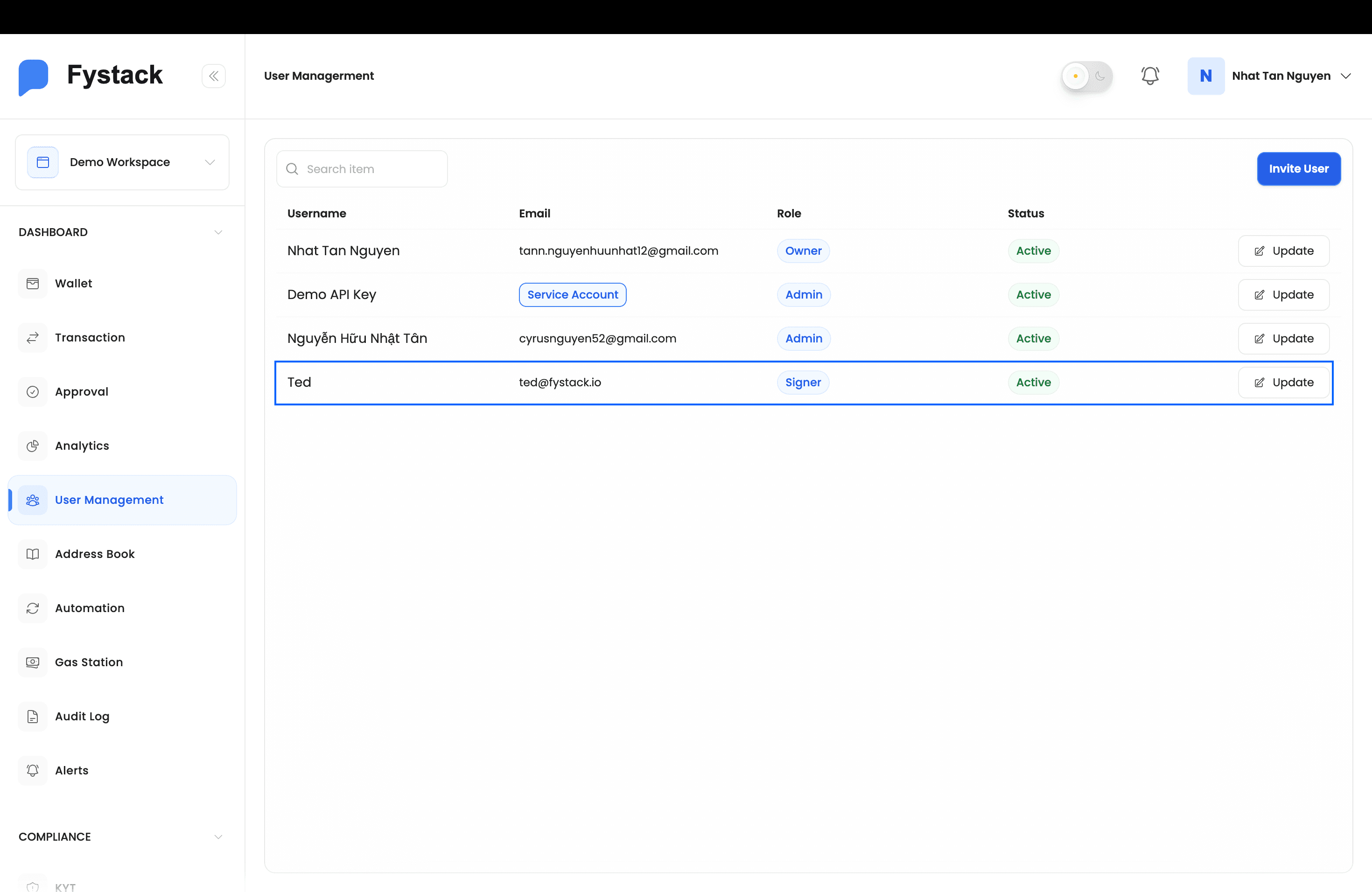
After signing in, click User Management in the left sidebar. You will see a list of all current workspace members with their email, role, and status.
Step 2: Click "Invite User"
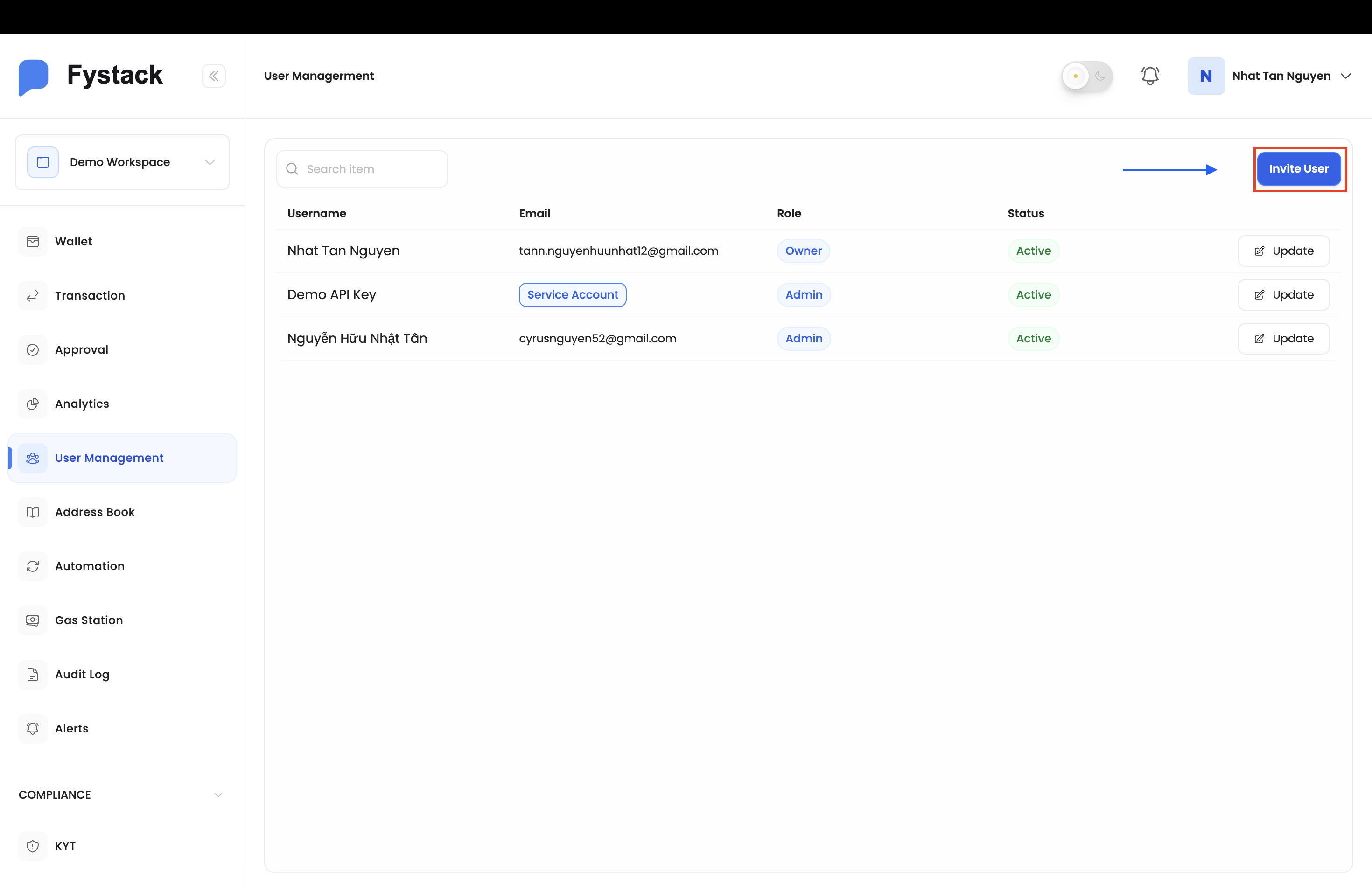
Click the Invite User button in the top-right corner of the User Management page.
Step 3: Fill in Invitation Details
In the Invite User modal, complete the following fields:
- Email: the invitee's email address (e.g.
ted@fystack.io) - Username: a display name for the user within the workspace
- Select Role: choose the access level appropriate for this user:
- Admin: Full control over the Workspace and all wallets within it
- Signer: Can review and approve or cancel transactions
- Proposer: Can create and propose transactions but cannot approve them
- Viewer: Read-only access to the Workspace and wallets
- Guest: Limited, temporary access to specific wallets or functionalities
Click Send Invitation to dispatch the email.
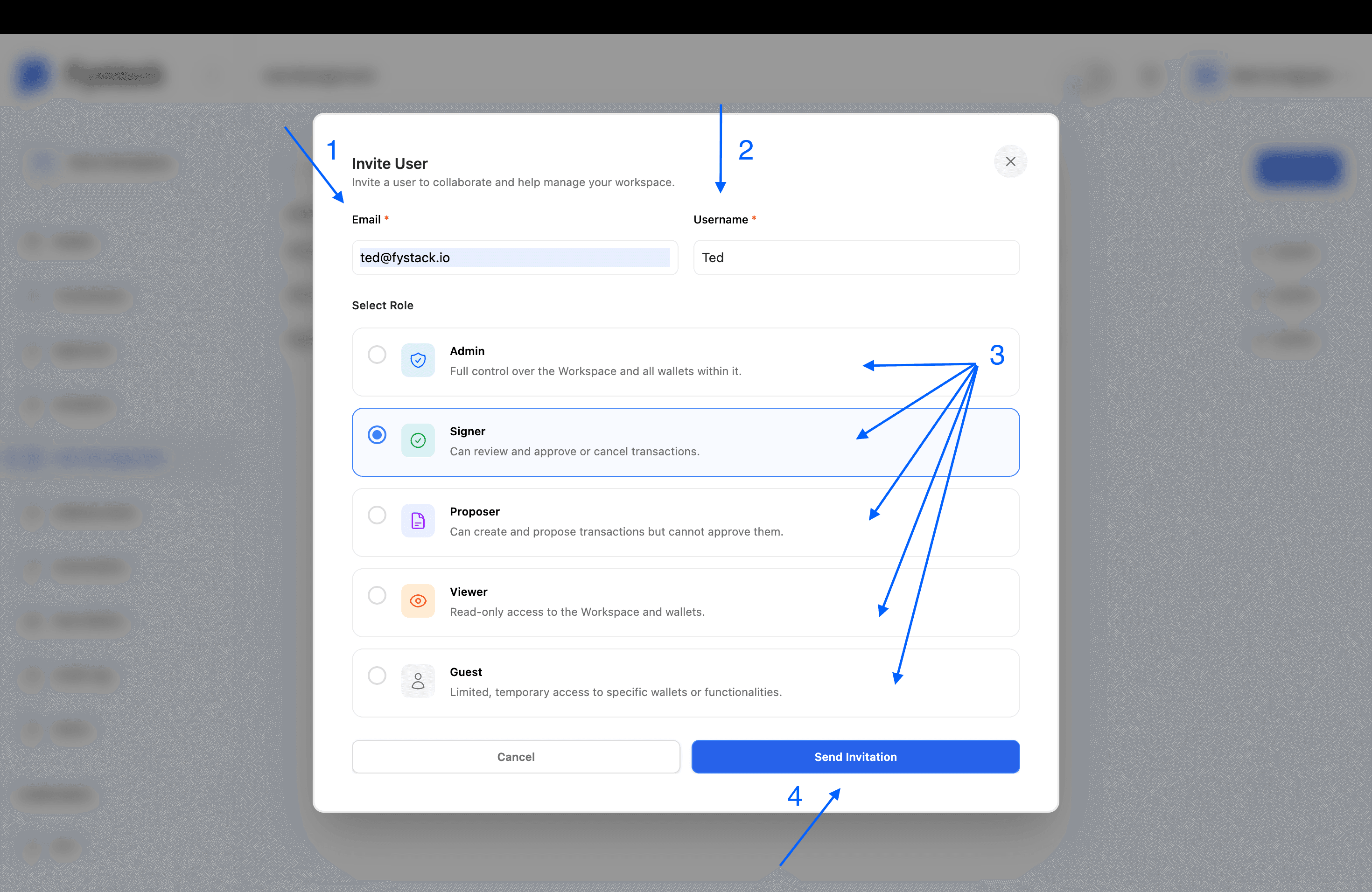
Select the role that matches the user's operational responsibility. For transaction workflows requiring maker-checker controls, pair a Proposer (creates transactions) with a Signer (approves them).
Step 4: Invitee Accepts the Email
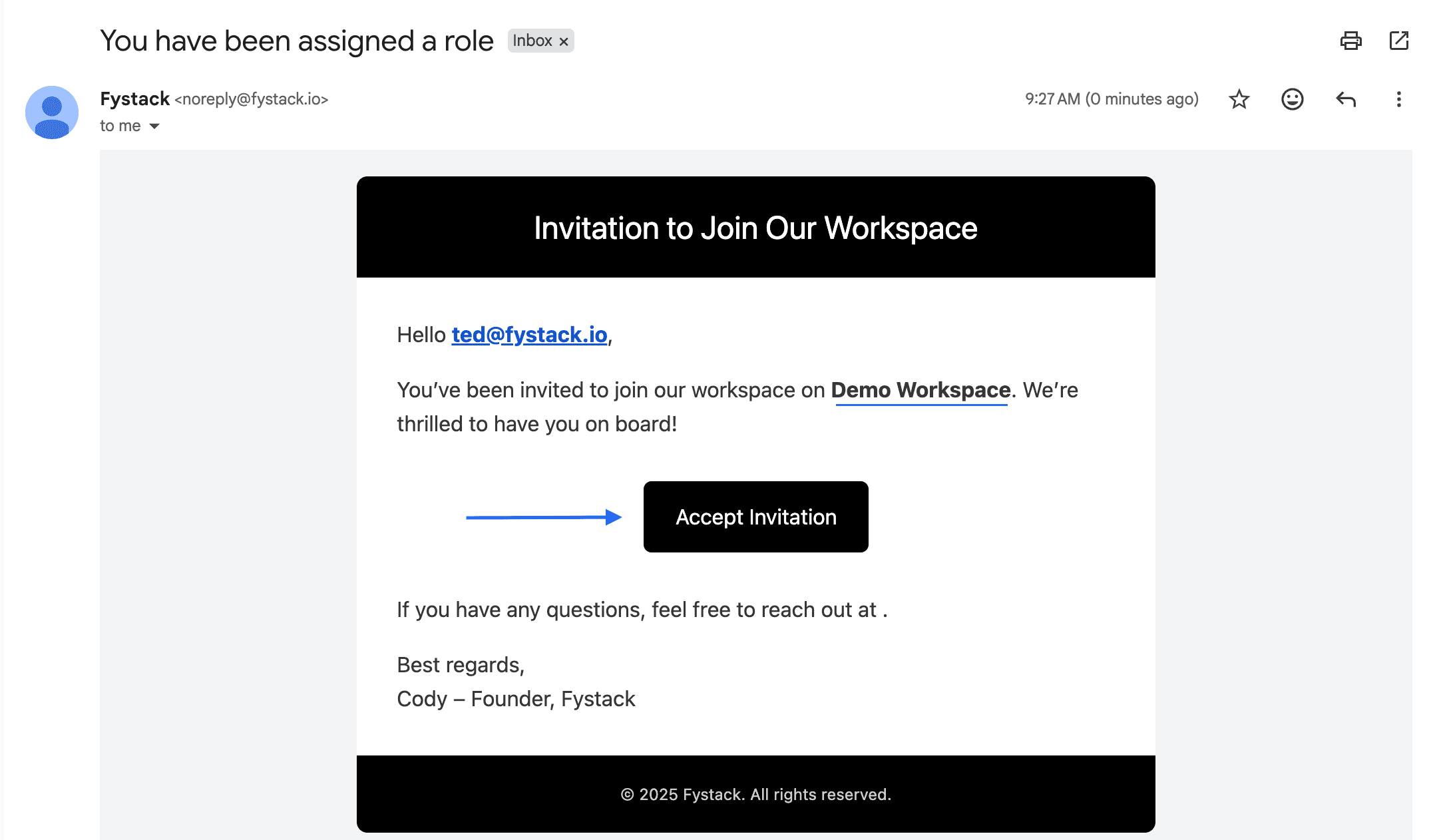
The invitee receives an email from noreply@fystack.io with the subject "You have been assigned a role". They must click Accept Invitation to activate their workspace access.
Step 5: User Becomes Active
Once the invitation is accepted, the new user appears in the User Management list with Active status and their assigned role. They can now log in and access the workspace according to their role permissions.
Updating a User's Role or Status
To change a member's role or deactivate their access after they have joined:
- Locate the user in the User Management list
- Click the Update button (pencil icon) on the right side of their row
- Select a new role or toggle their status
- Confirm the change
Deactivating a user immediately revokes their login access without removing their workspace history. All past transactions and associations they created remain intact for audit purposes.
Best Practices
- Assign the least-privilege role that allows the user to perform their tasks
- Use Proposer and Signer together to enforce maker-checker approval on transactions
- Group your Signers into an Approval Group and assign it to each wallet, so withdrawals need several signatures rather than one
- Regularly review the member list and deactivate accounts that are no longer needed
- Reserve Admin for users who genuinely need to manage wallets or workspace settings. Use Viewer for read-only stakeholders.