Workspace
A Workspace is the top-level organizational unit in Fystack. It acts as an isolated environment where you manage wallets, users, transactions, and settings independently from other workspaces. This makes it ideal for separating clients, business units, or environments (e.g. production vs. staging) under a single Fystack account.
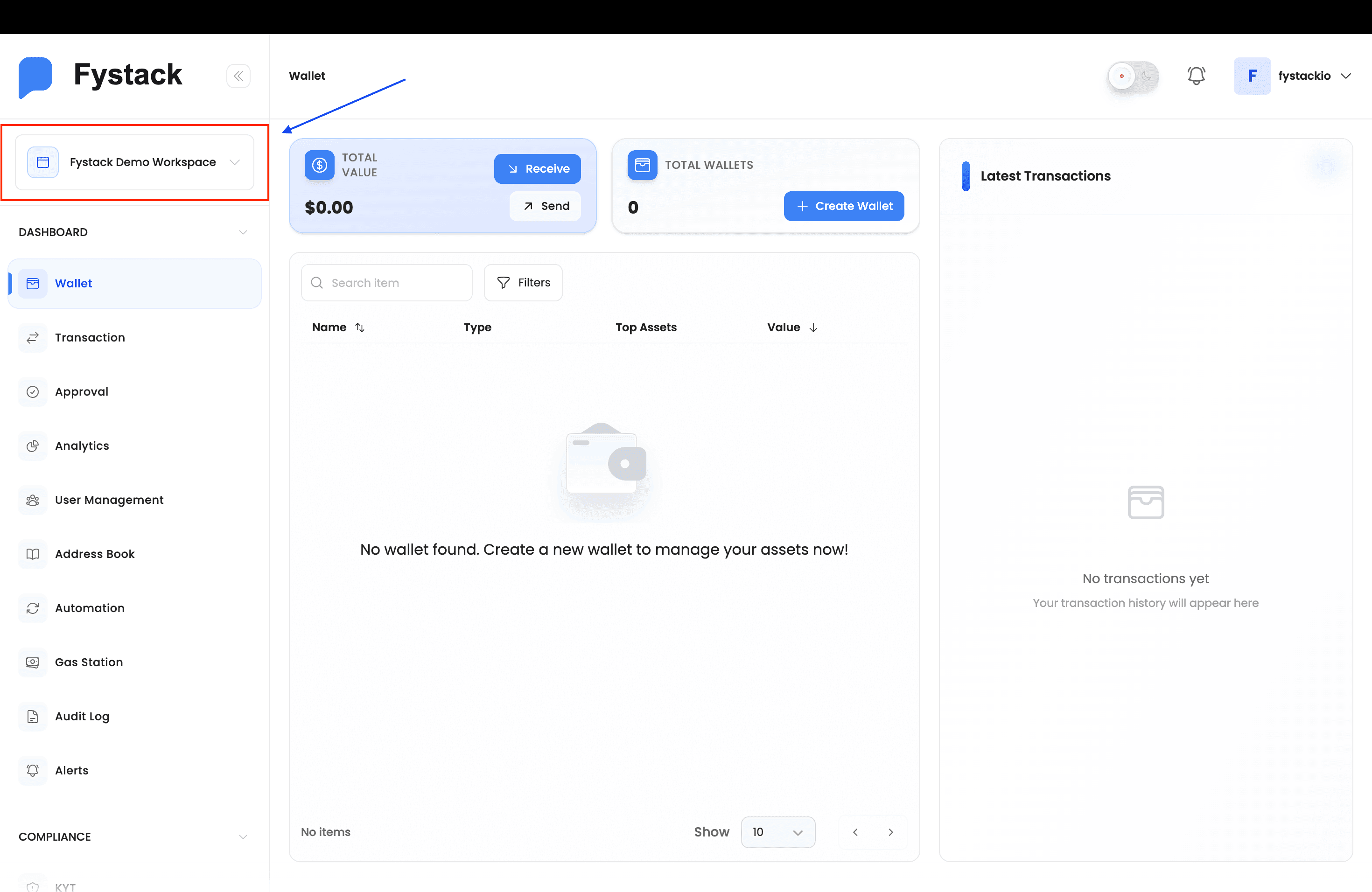
Key Concepts
- Isolation — Each workspace has its own wallets, user roles, API keys, and transaction history. Data does not bleed between workspaces.
- Multi-workspace — A single Fystack account can belong to multiple workspaces with different roles in each (e.g. Owner in one, Signer in another).
- Default workspace — One workspace can be marked as the default, so it is automatically selected when you log in.
- Role scoping — User roles (Owner, Admin, Signer, Proposer, Viewer, Guest) are enforced per workspace. A user's role in workspace A has no bearing on workspace B.
How to Create a Workspace
Step 1 — Sign In to Fystack
Go to the Fystack login page and authenticate using your email and password or via Continue with Google.
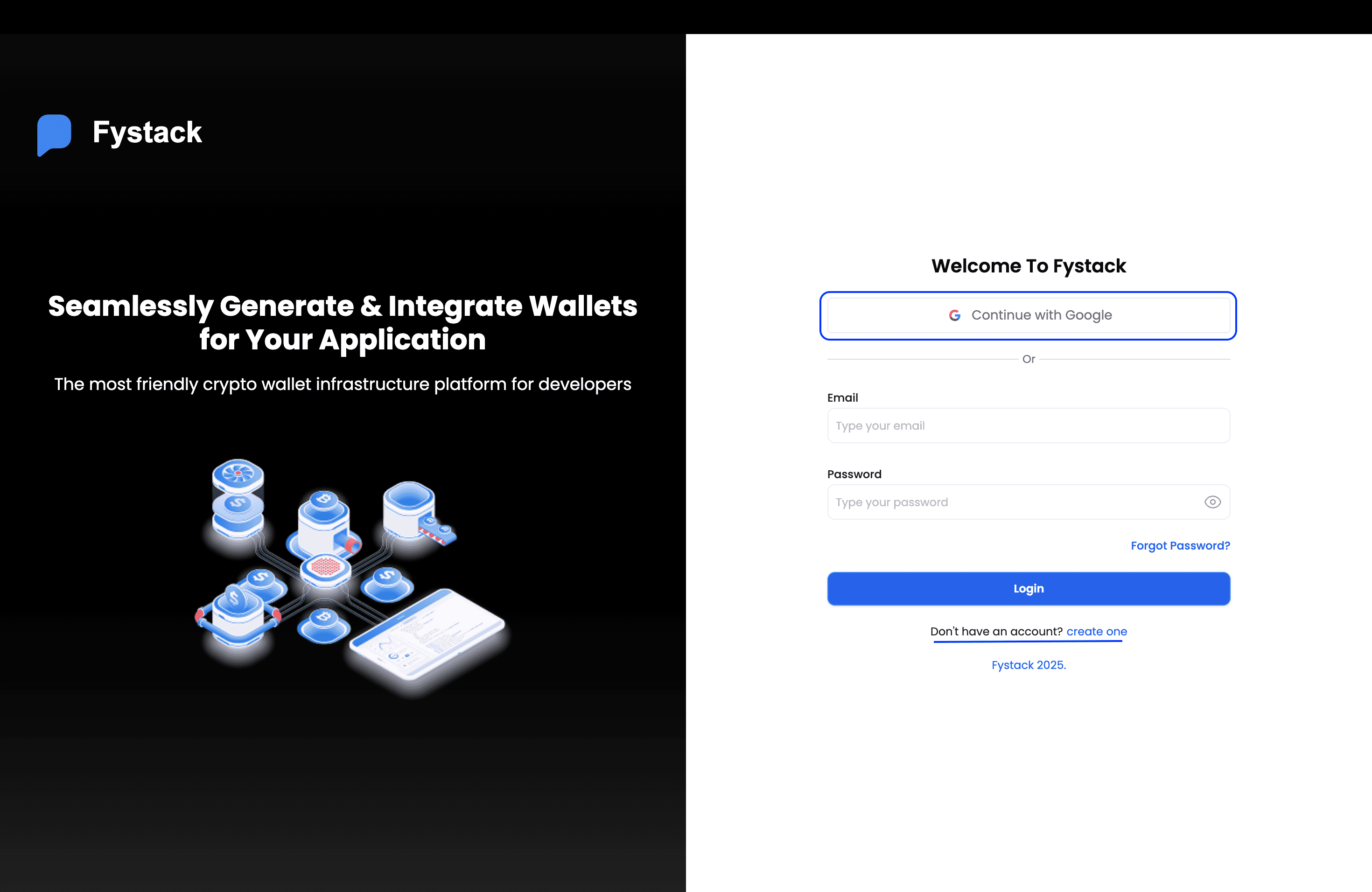
Step 2 — Select a Workspace or Create a New One
After a successful login, Fystack shows the Workspace Selector — a list of all workspaces your account belongs to, along with your role in each. Click a workspace to enter it.
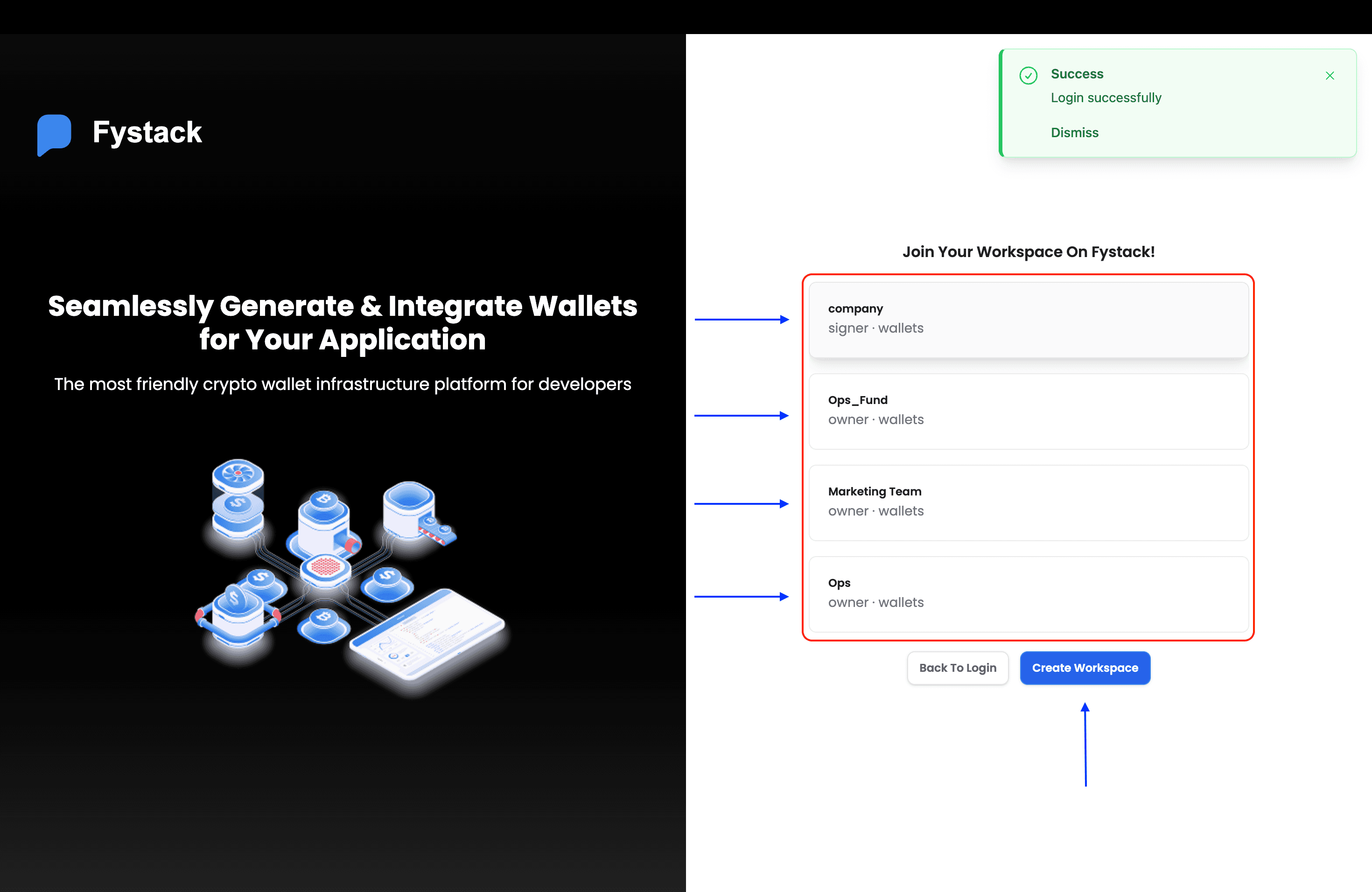
In this example, the company workspace is selected (role: Signer). If this is your first time using Fystack or you want a fresh environment, click Create Workspace directly from this screen to skip straight to Step 4.
Step 3 — Navigate the Workspace and Find the Workspace Switcher
Once inside a workspace, you can see all the workspaces your account belongs to directly from the sidebar. Click the workspace name at the top-left to expand the list. Here you can jump between workspaces or scroll to the bottom to find Create New Workspace.
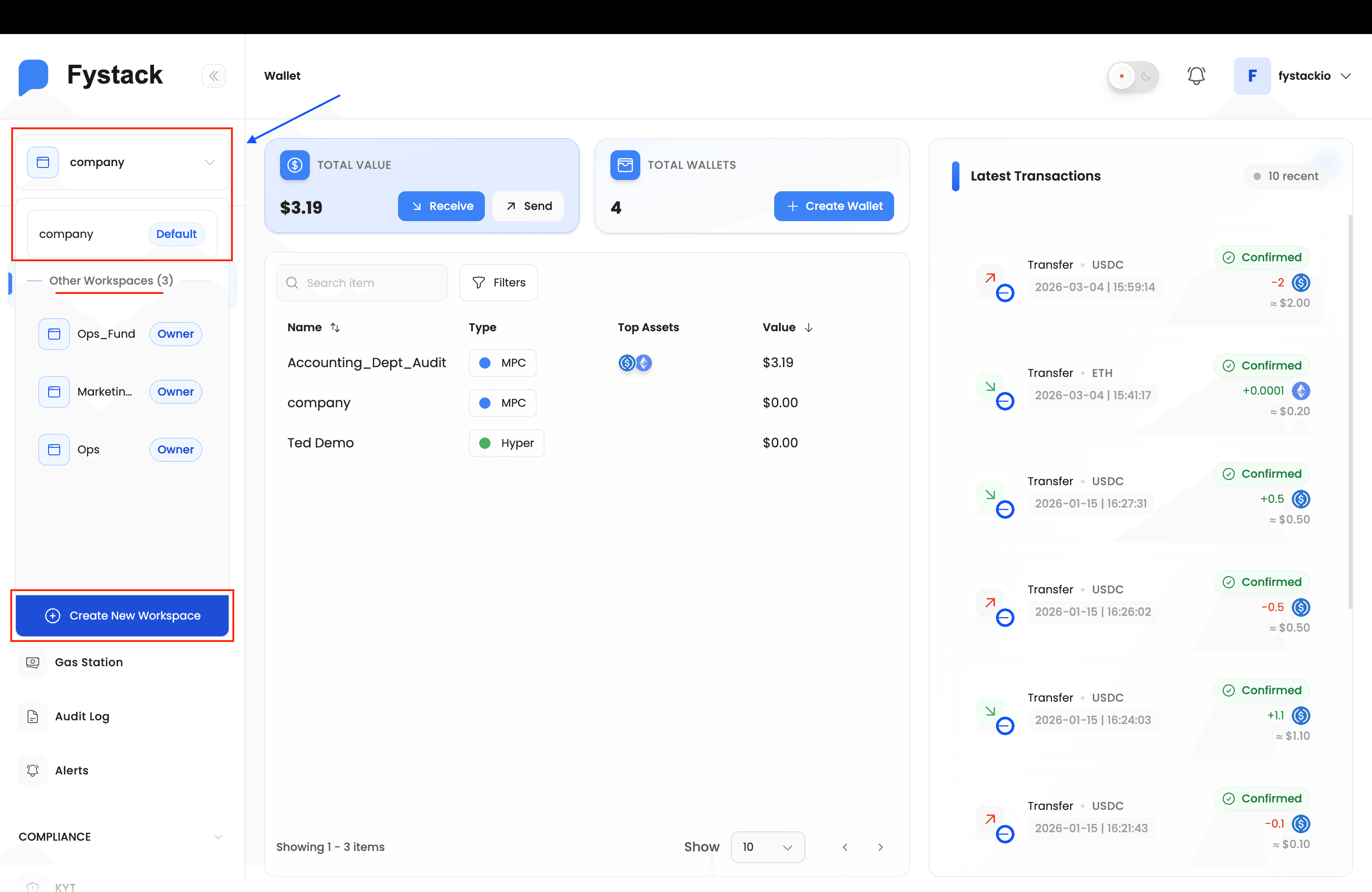
This is how most users create additional workspaces — from within an existing one, without ever logging out.
Step 4 — Fill in the Workspace Details
Click Create New Workspace (sidebar) or Create Workspace (login selector) to open the creation modal. Provide:
- Name — a descriptive label for the workspace (e.g.
Fystack Demo Workspace,Ops_Fund,Marketing Team). - Set as default workspace (optional) — toggle this on if you want Fystack to land you in this workspace automatically on every subsequent login.
Click Create Workspace to confirm.
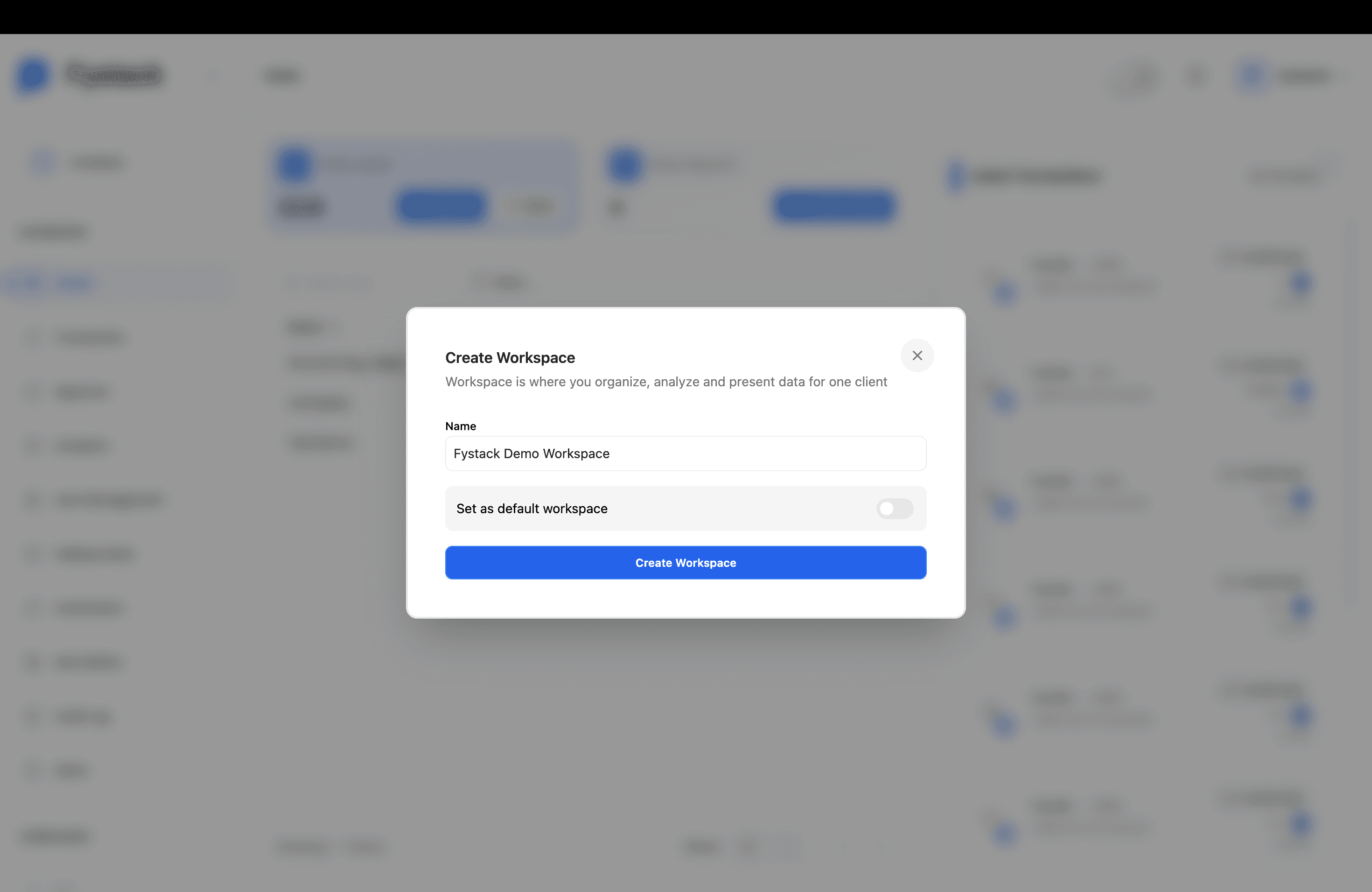
Choose a name that clearly reflects the team or purpose. Workspace names must be unique within your account.
Step 5 — Your New Workspace is Ready
Fystack immediately switches you into the new workspace. The workspace name appears in the top-left of the sidebar. Because it is brand new, the wallet list starts empty — click + Create Wallet to start managing assets.
Workspace Dashboard Overview
After entering a workspace, the main dashboard gives you an at-a-glance summary:
| Section | Description |
|---|---|
| Total Value | Aggregate USD value of all assets across all wallets in the workspace |
| Total Wallets | Number of wallets created inside the workspace |
| Latest Transactions | Real-time feed of the 10 most recent on-chain transactions across all wallets |
| Wallet List | Filterable and sortable table of all wallets with type, top assets, and current value |
Best Practices
- One workspace per client or environment — Keep production and staging assets fully separated to avoid accidental cross-environment transactions.
- Set a default workspace — If you work primarily in one workspace, mark it as default to reduce friction on every login.
- Name workspaces clearly — Prefer names like
Acme_ProductionorOps_Fundover generic names likeWorkspace 1, especially when managing multiple clients. - Review workspace membership regularly — Use User Management to audit who has access to each workspace and remove stale members promptly.