Asset Management
The Asset page lists every cryptocurrency asset configured for your workspace, along with its contract address, decimal precision, and current status. It lives under the Developers section of the sidebar and serves as the reference point for which tokens your wallets can send and receive.
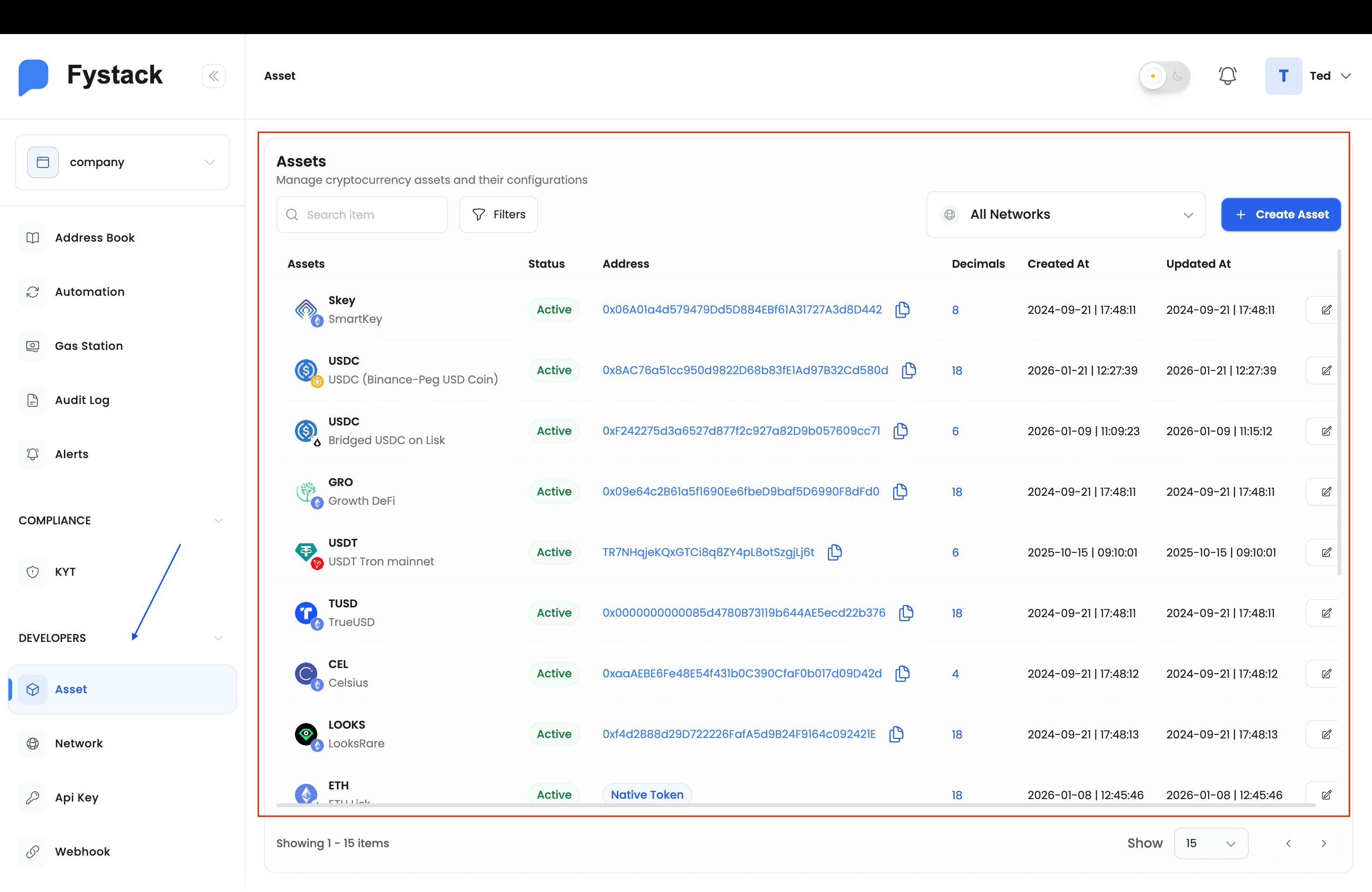
Each row in the asset list contains the following information:
| Column | Description |
|---|---|
| Asset | Token name and description (e.g. USDC — Binance-Peg USD Coin) |
| Status | Active means the asset is enabled and available for transactions |
| Address | The on-chain contract address. Native tokens (e.g. ETH, TRX) show "Native Token" instead of a contract address. |
| Decimals | The token's decimal precision, used to correctly display and calculate amounts |
| Created At / Updated At | Timestamps for when the asset was added and last modified |
Supported Networks
Fystack currently supports assets on the following networks:
| Network | Native Token |
|---|---|
| Ethereum | ETH |
| Base | ETH |
| Polygon | POL |
| Solana | SOL |
| BNB Chain | BNB |
| TRON | TRX |
| Lisk | LSK |
| Bitcoin | BTC |
Filtering Assets
Click Filters to narrow the asset list by two properties:
- Whitelisted: filter by whether the asset is on your workspace whitelist
- Native Asset: filter to show only native chain tokens (e.g. ETH, TRX) or only contract-based tokens
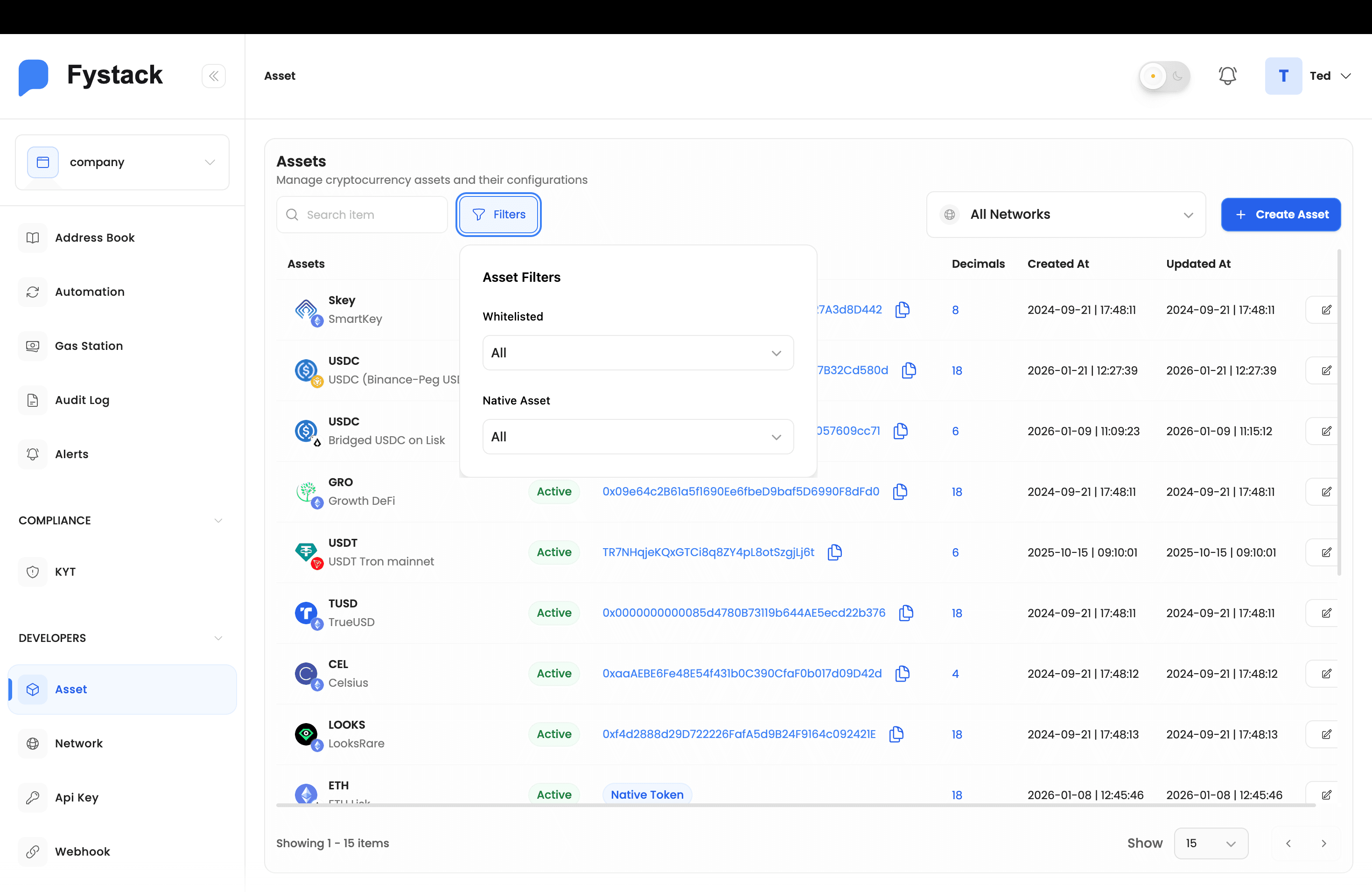
You can also use the All Networks dropdown in the top-right corner to filter by a specific chain.
Requesting a New Asset
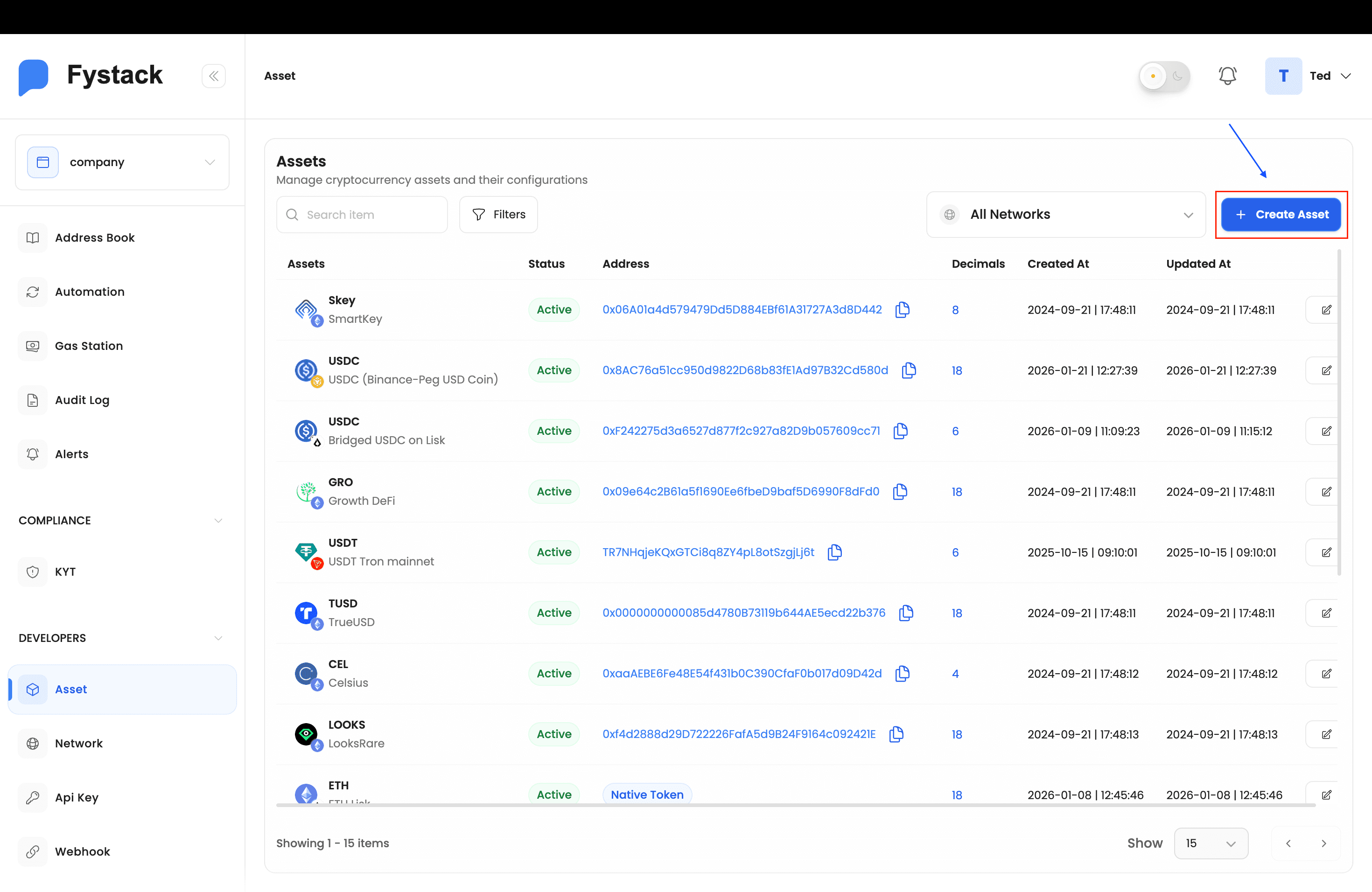
If the token you need is not in the list, click + Create Asset to submit a request.
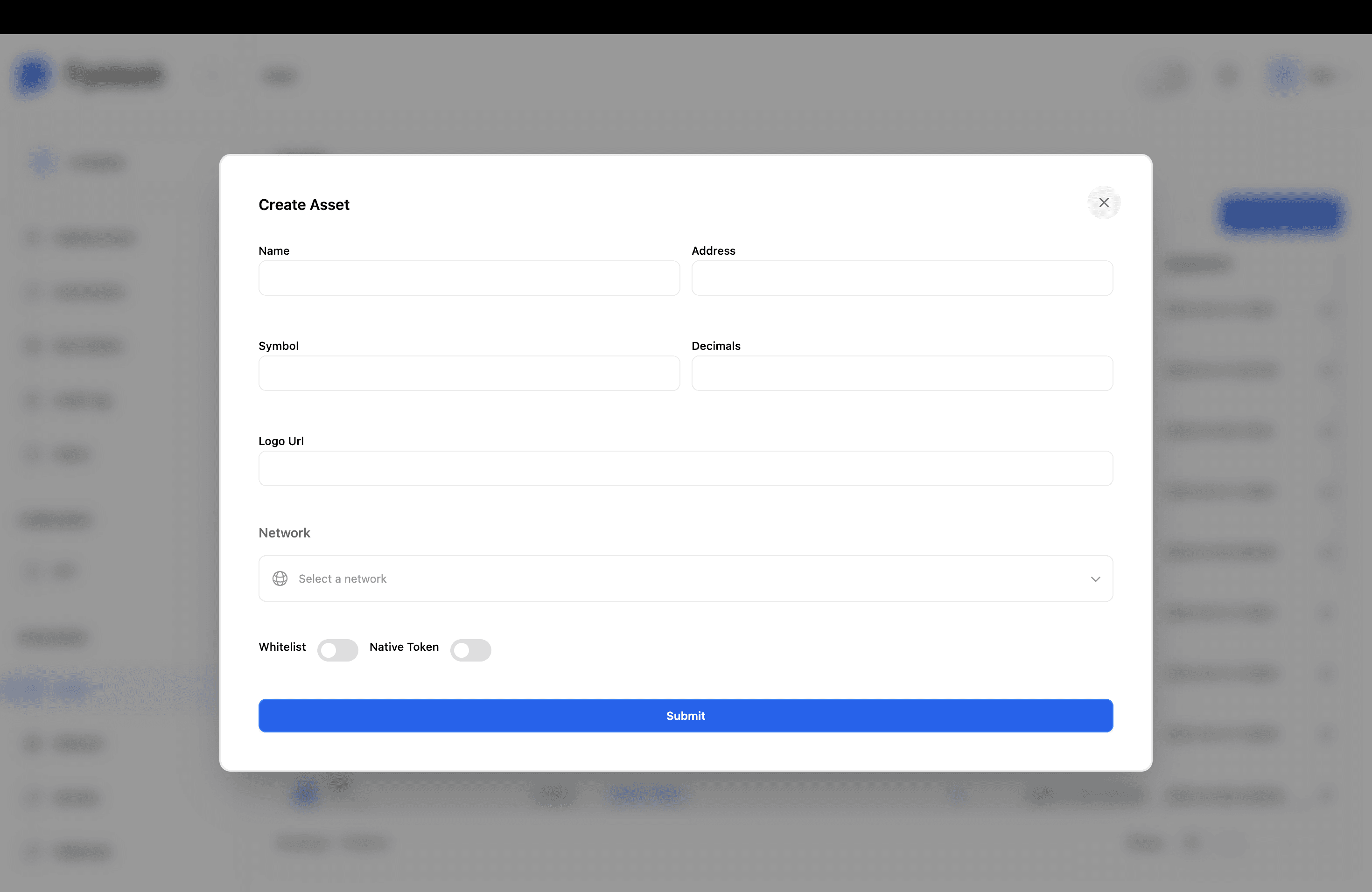
Fill in the Create Asset form with the following details:
- Name: the full token name (e.g.
USD Coin) - Symbol: the ticker symbol (e.g.
USDC) - Address: the on-chain contract address of the token
- Decimals: the token's decimal precision (check the token's official documentation or block explorer)
- Logo URL: a publicly accessible URL to the token's logo image
- Network: the chain the token lives on
- Whitelist: toggle on to add the token to your workspace whitelist
- Native Token: toggle on only if this is a chain's native gas token
Click Submit to send the request.
Asset creation is not self-service. After you submit the form, the Fystack team reviews and activates the asset on your behalf. Contact Fystack support if you need an asset added urgently.