Approval Groups
An approval group is a named set of workspace members plus the number of signatures required from them before a sensitive action takes effect.
Each group carries three things:
- Members: the workspace users allowed to approve on behalf of this group
- Threshold: how many of those members must approve before the action proceeds
- Status: whether the group itself has been approved and is available for use
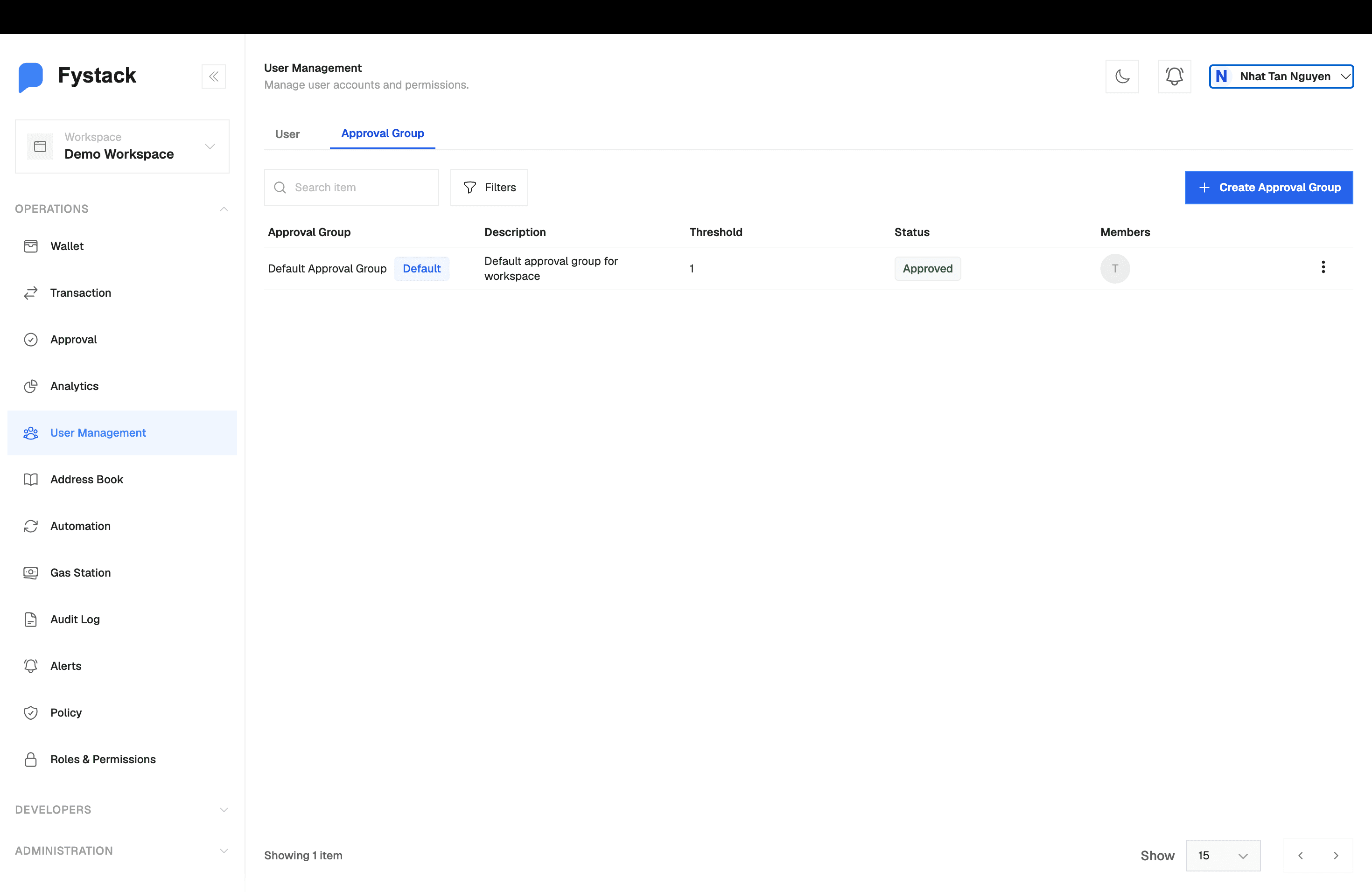
Every workspace ships with a Default Approval Group, created automatically with a threshold of 1. It reviews the creation of your other approval groups, so it exists before you need it.
Where Approval Groups Apply
A group takes effect once you attach it to something.
Attached to | What it gates |
|---|---|
A wallet | Only this group's members can approve withdrawals from the wallet, using the group's threshold. |
A policy | Creating, editing, or deleting the policy and its rules requires sign-off from this group before the change is applied. |
Another approval group | Creating a new group is itself an approval-gated action, reviewed by an existing group. |
Only the workspace Owner can create an approval group. Other roles can be added as members and can approve requests. See User Management for what each role can do.
How to Create an Approval Group
Step 1: Open the Approval Group Tab
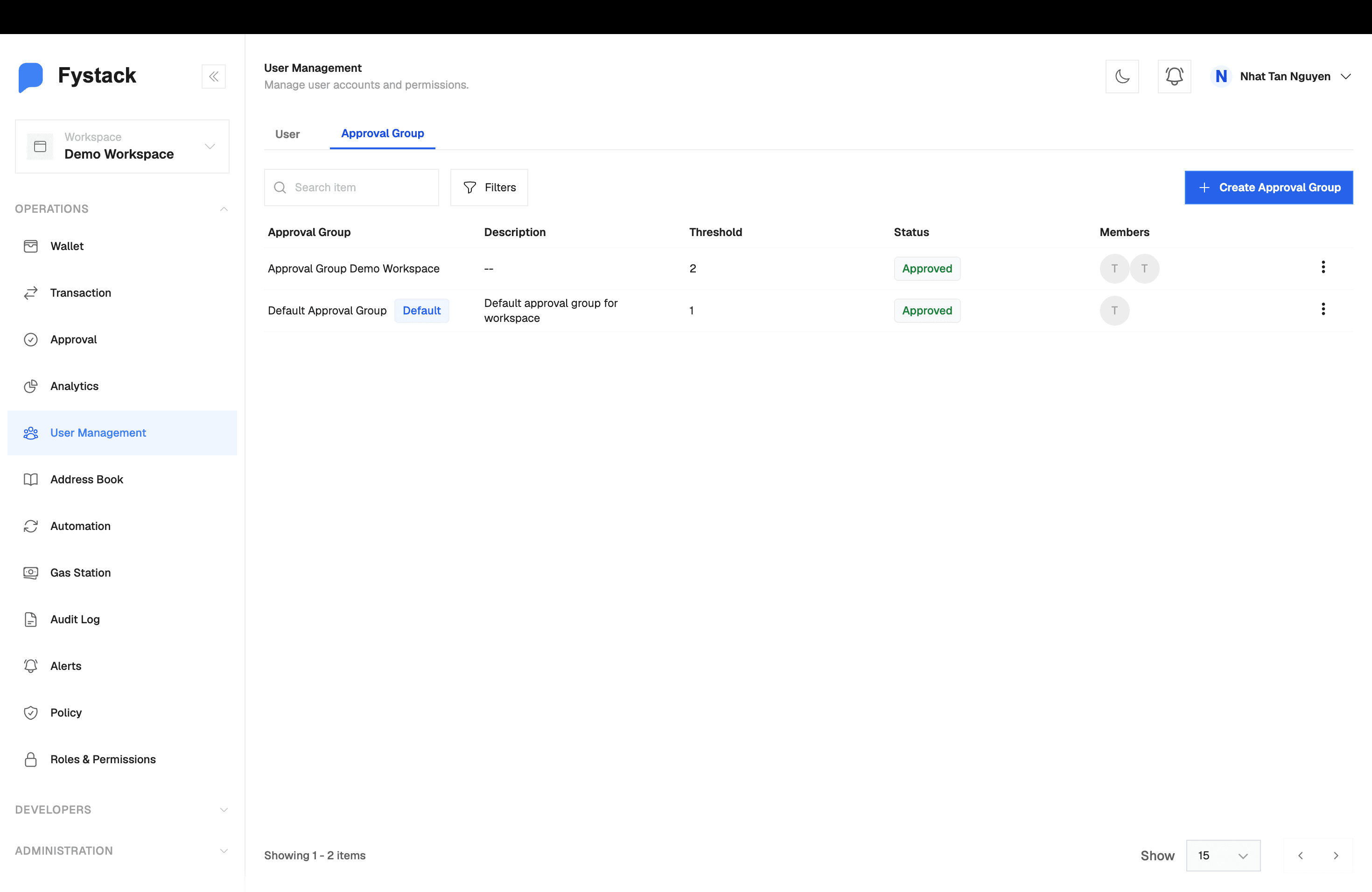
In the left sidebar, open User Management, then select the Approval Group tab. Existing groups are listed with their description, threshold, status, and member avatars. Click + Create Approval Group.
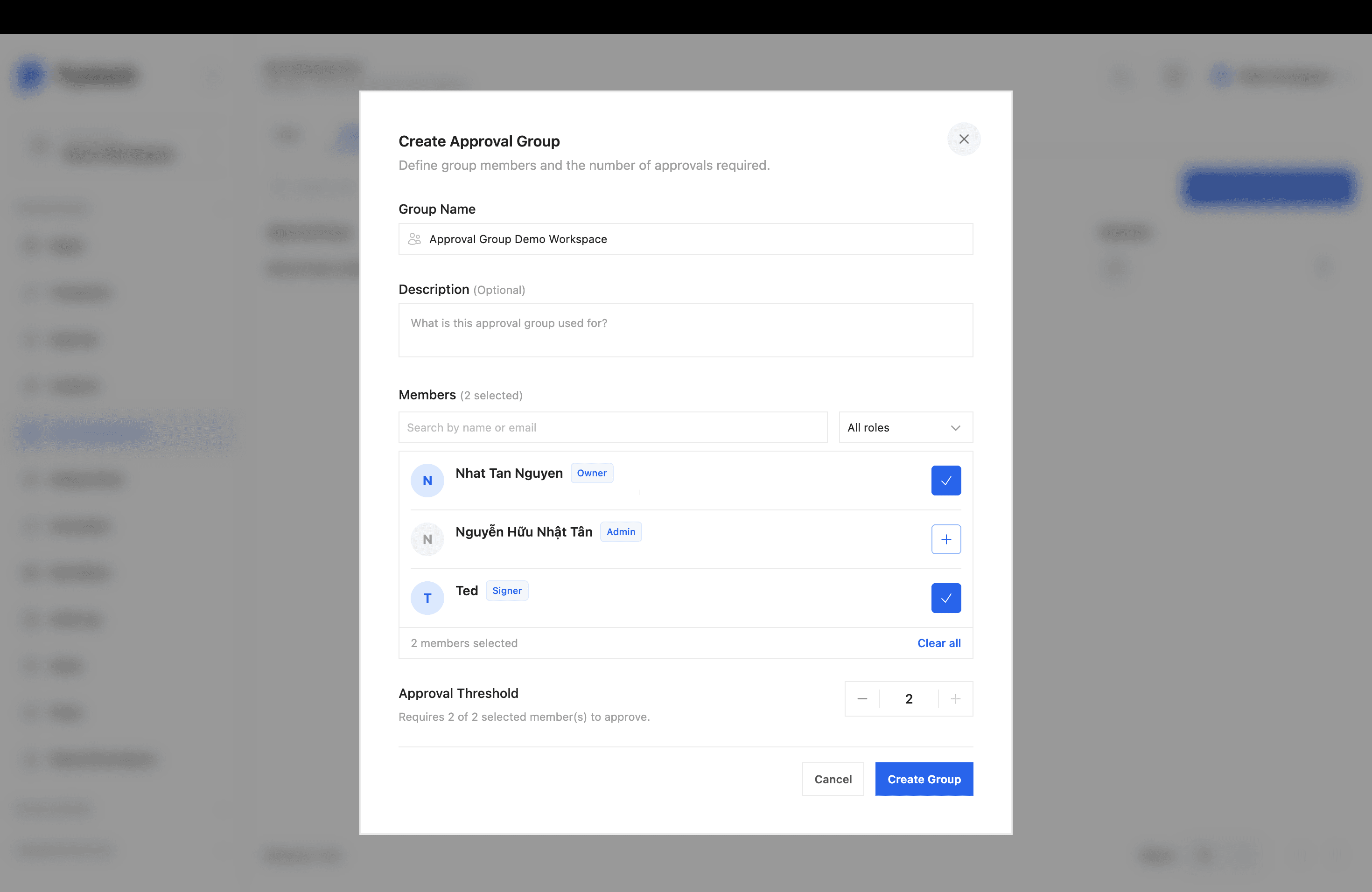
Step 2: Name the Group and Select Members
Fill in the Group Name, and optionally a Description. Name it after the group's job, such as Treasury Signers or Policy Reviewers.
Under Members, search by name or email, or filter by role. Each user shows their workspace role next to their name. Click a user to select them.
Step 3: Set the Approval Threshold
Use the stepper to choose how many members must approve. The form restates your choice underneath, for example "Requires 2 of 2 selected member(s) to approve."
The threshold cannot exceed the number of members you selected. A group with 2 members has a maximum threshold of 2. To require 3 signatures, add a third member first.
Click Create Group when the members and threshold are correct.
Step 4: Wait for the Creation Request to Be Approved
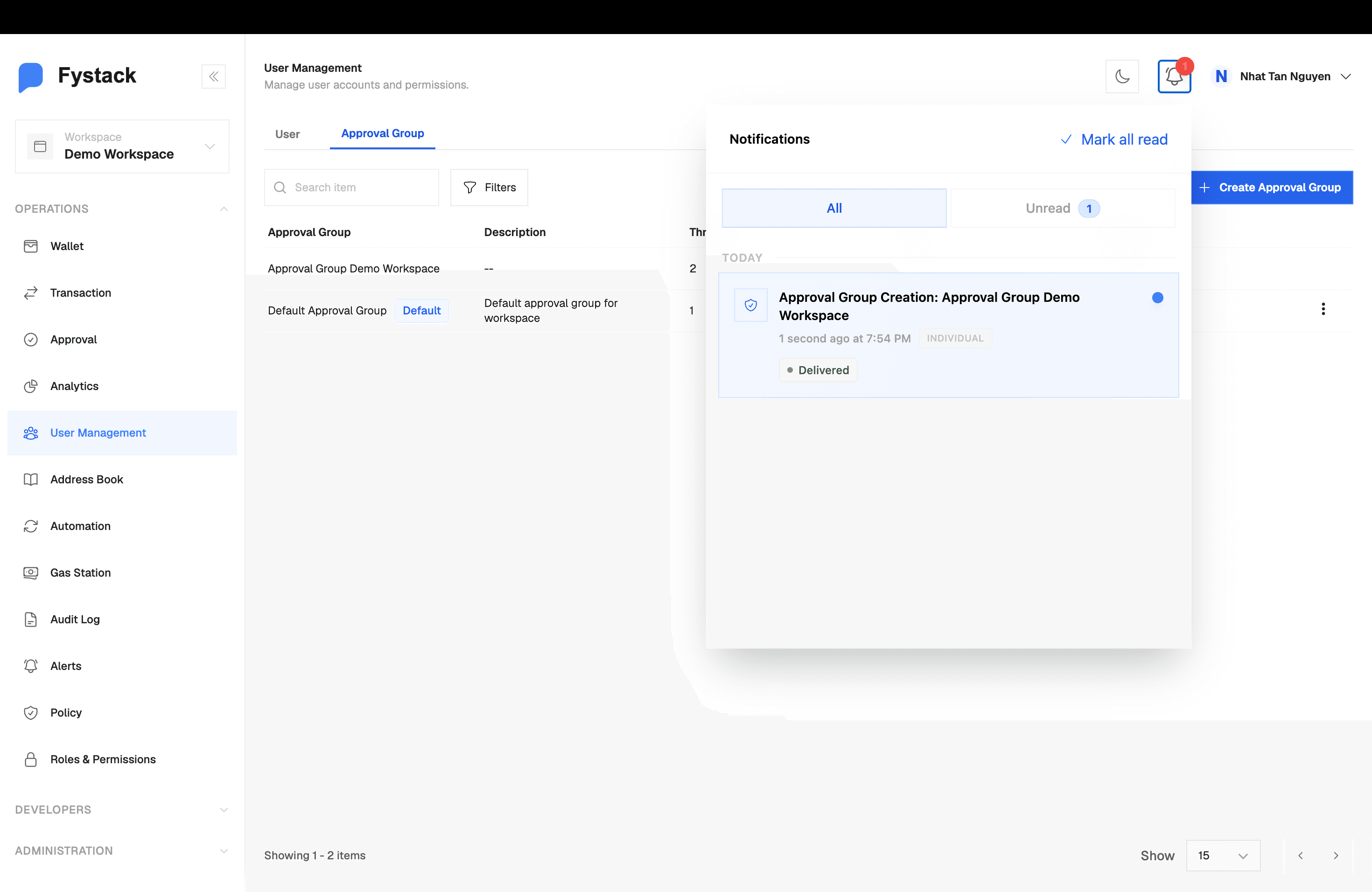
Creating the group raises an approval request that goes to an existing approval group, normally the Default Approval Group. The new group appears in the list immediately, but its status stays Pending until that request is signed off.
Reviewers are notified as soon as the request is raised.
Without this gate, one person could create a group containing only themselves, attach it to a wallet, and approve their own withdrawals.
Step 5: Review and Approve the Request
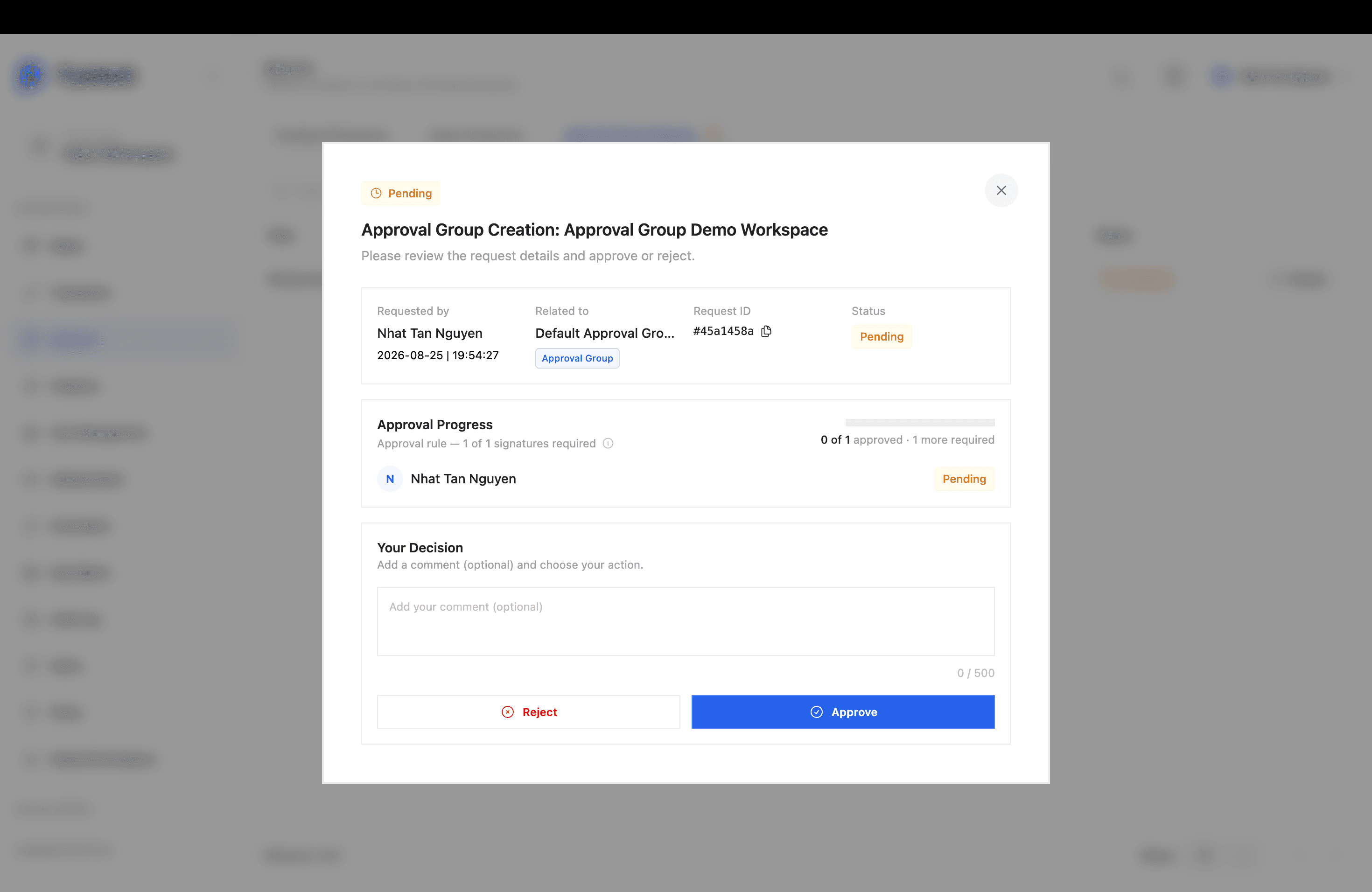
Reviewers open Approval in the sidebar and select the Approval Group Request tab, which shows a count badge when items are waiting. Each row lists when the request was raised, who raised it, which group is reviewing it, the title, the approval type, and the status. Click Review.
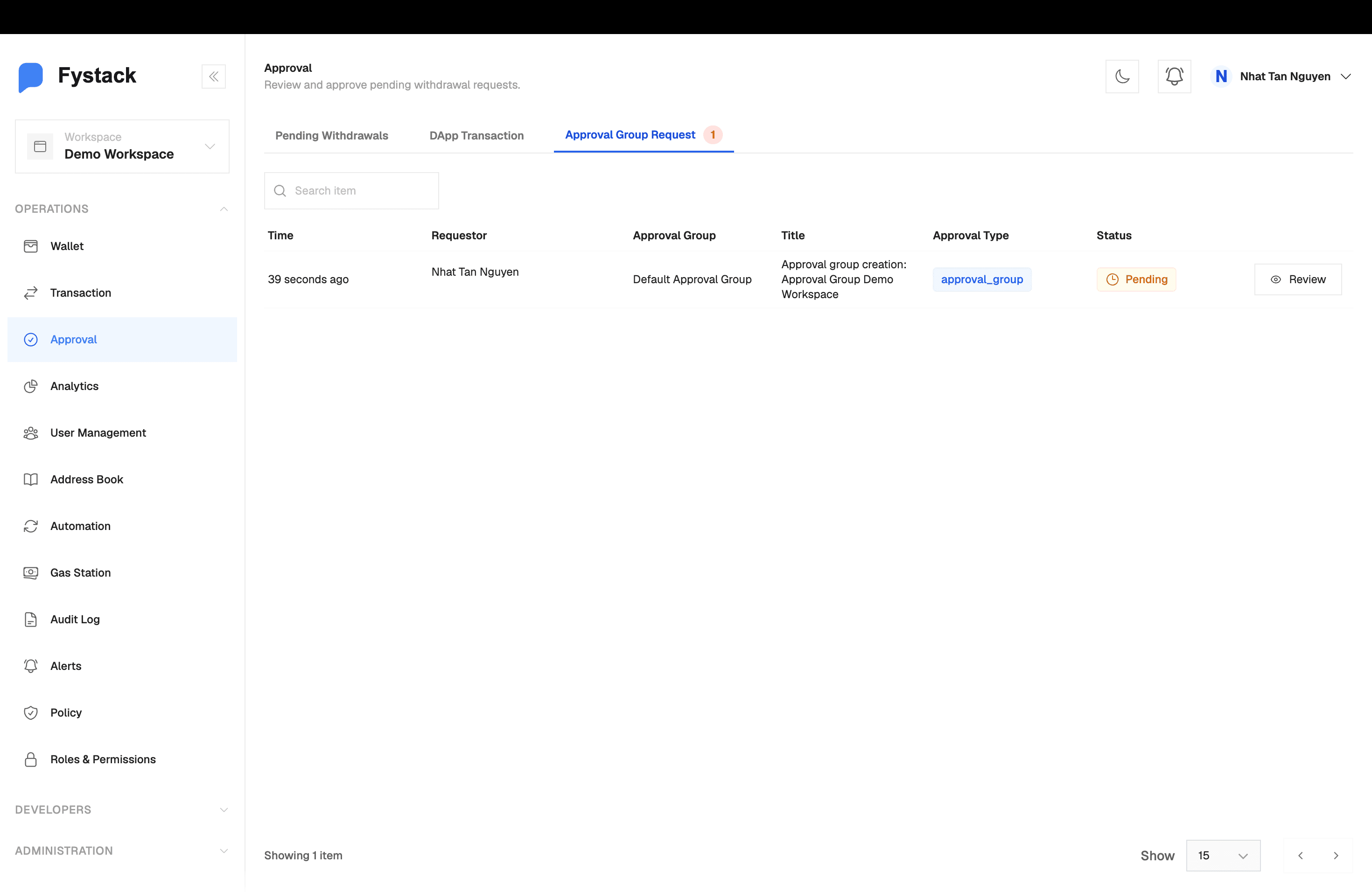
The dialog shows who requested the change, a copyable request ID for your records, and the Approval Progress with each reviewer's individual status. Add an optional comment, then click Approve or Reject. Comments are capped at 500 characters. Use one when you reject, so the requester knows what to fix.
Once the threshold is met, the group's status changes to Approved and it becomes selectable on wallets and policies.
Inspecting a Group
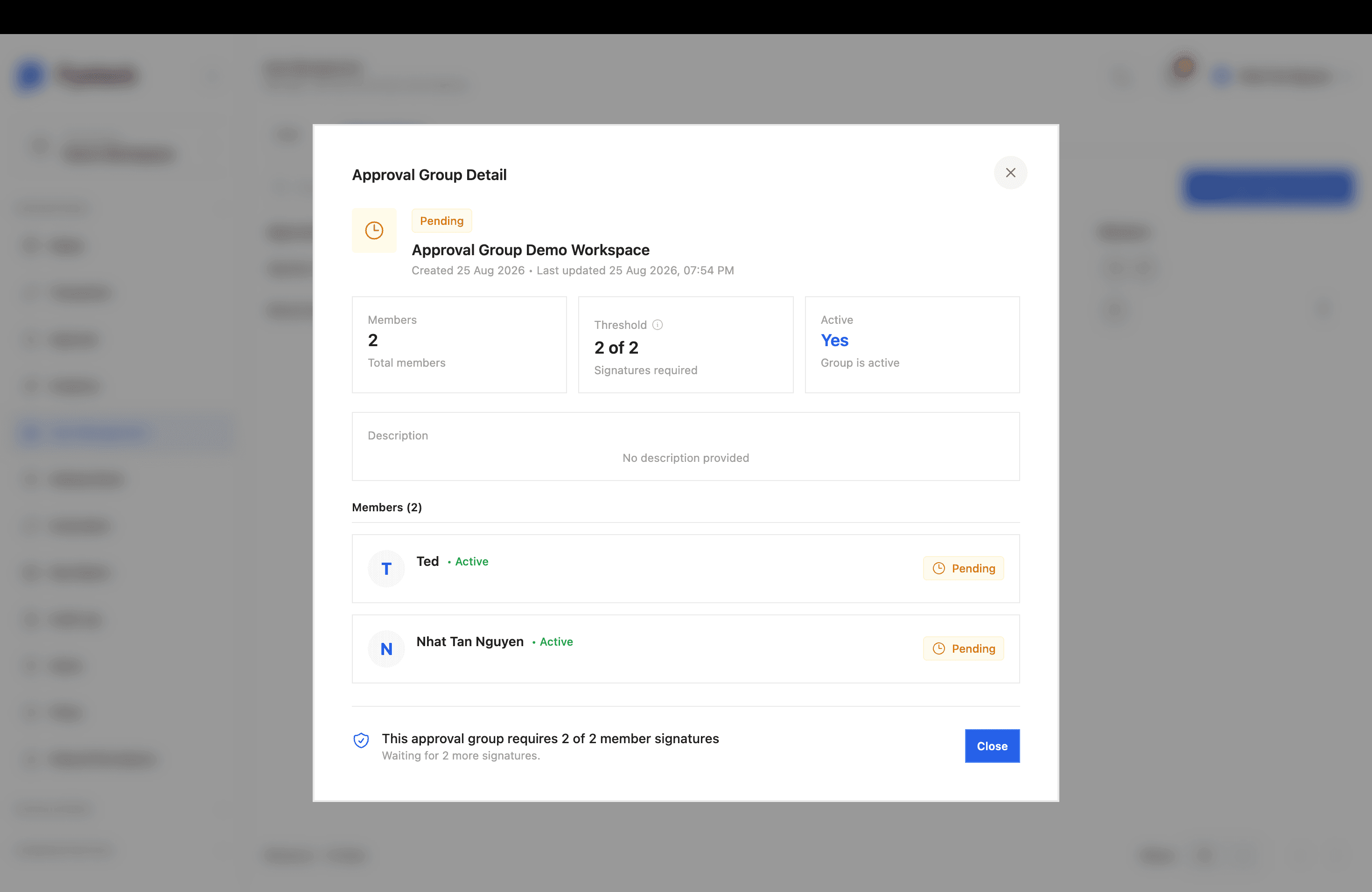
Open any group to see total members, the threshold, whether the group is active, and each member's approval status while a request is outstanding. The footer restates the rule and how many signatures are still missing.
Membership changes are approval-gated in the same way. Adding a user to a group raises its own request and needs sign-off before it applies, so nobody can quietly add themselves to a group that guards a wallet.
Approval Group Statuses
Status | Meaning |
|---|---|
Pending | The group has been proposed and is waiting on signatures from the reviewing group. It cannot be assigned to a wallet or policy yet. |
Approved | The group reached its reviewing group's threshold and is available for use across the workspace. |
Rejected | A reviewer declined the request and it did not take effect. Raise a new request to try again. |
Assigning a Group to a Wallet
At Wallet Creation
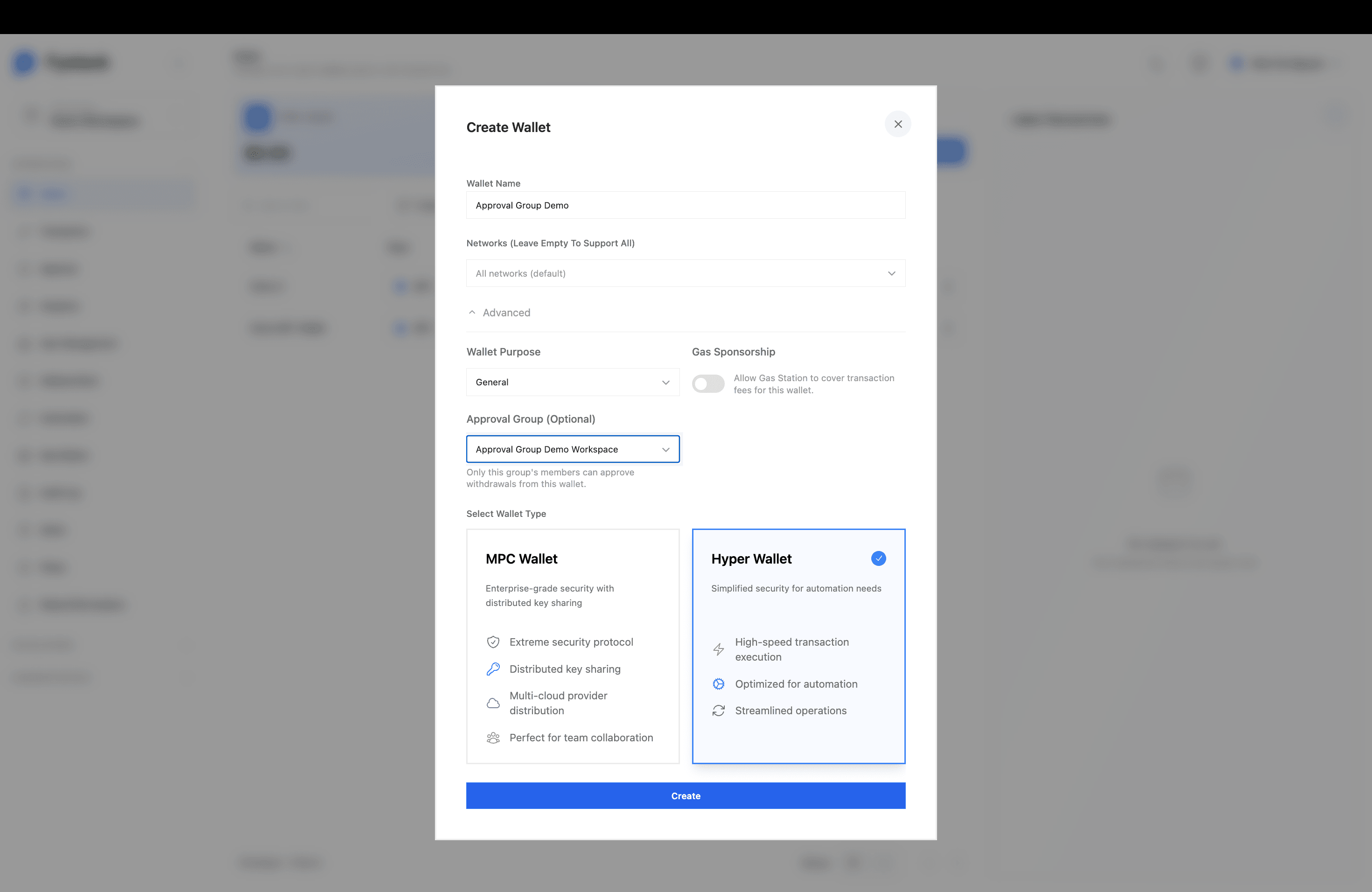
In the Create Wallet dialog, expand Advanced. The Approval Group (Optional) dropdown lists your approved groups. Only that group's members can then approve withdrawals from this wallet.
On an Existing Wallet
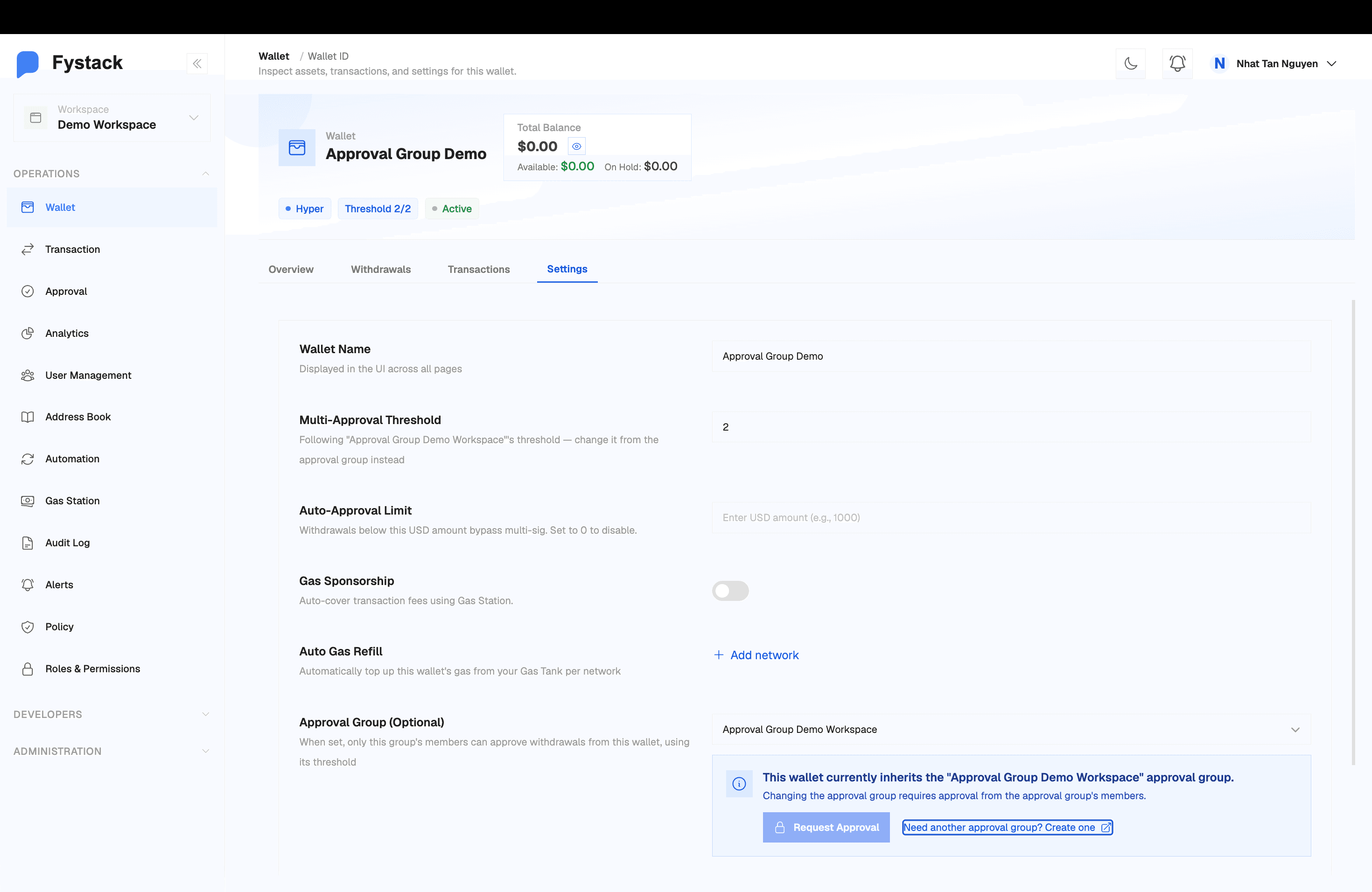
Open the wallet, then the Settings tab. The wallet header shows the threshold in force.
Two fields on this page work together with the group:
- Multi-Approval Threshold: follows the assigned group's threshold. To change how many signatures a wallet requires, change the threshold on the group.
- Auto-Approval Limit: withdrawals below this USD amount skip approval entirely. Set it to 0 so every withdrawal needs approval.
Changing which group a wallet uses is itself approval-gated. The page names the group the wallet inherits and offers a Request Approval action, so no single admin can swap a strict group for a permissive one.
Assigning a Group to a Policy
Every policy names an approval group, which decides who reviews that policy's rules before they take effect. See Policies for what policies do and how rule conditions are evaluated.
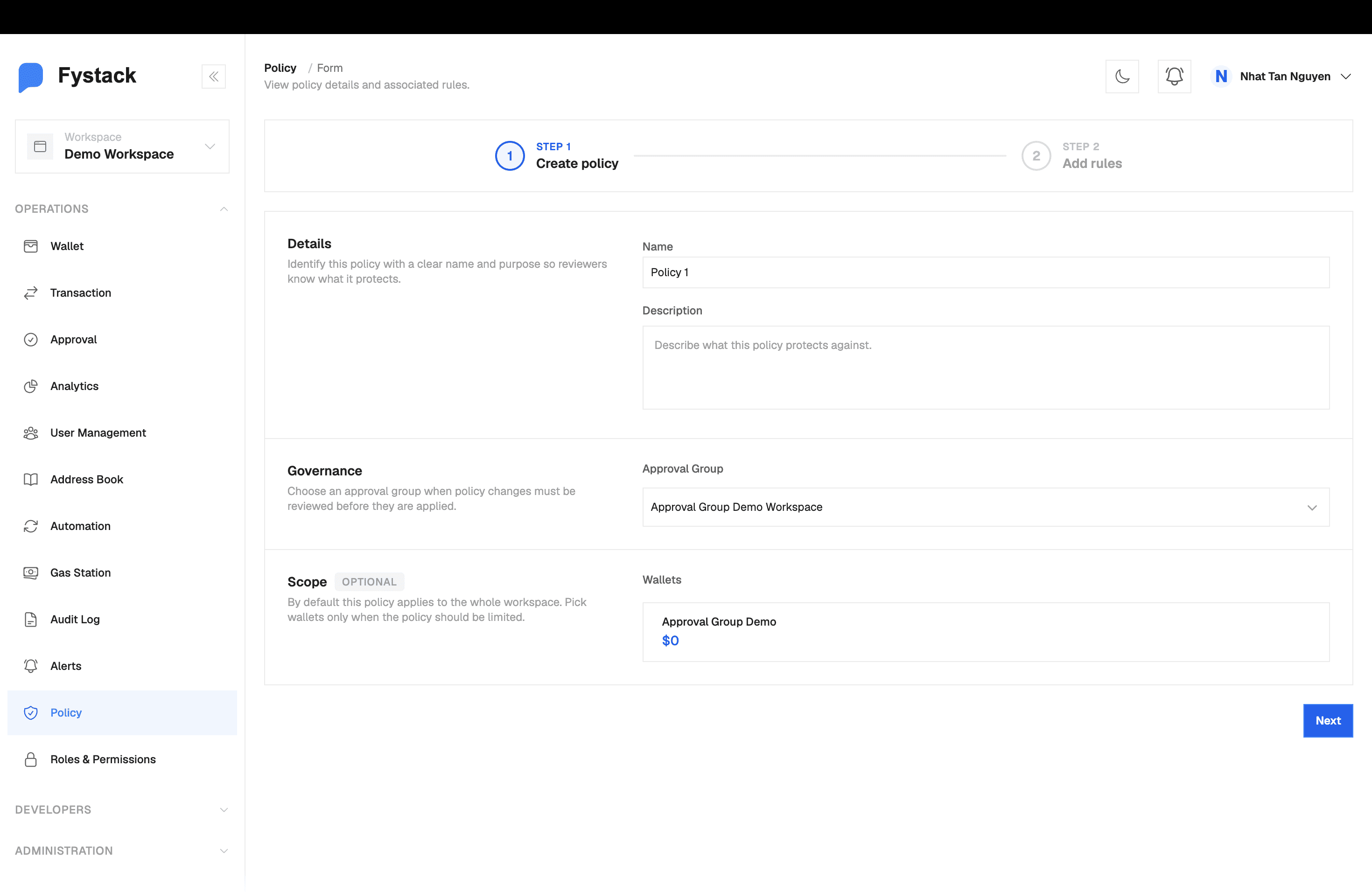
Choose the Governance Group
In the policy wizard, the Governance section holds the Approval Group dropdown. Pick the group whose members should be responsible for this policy.
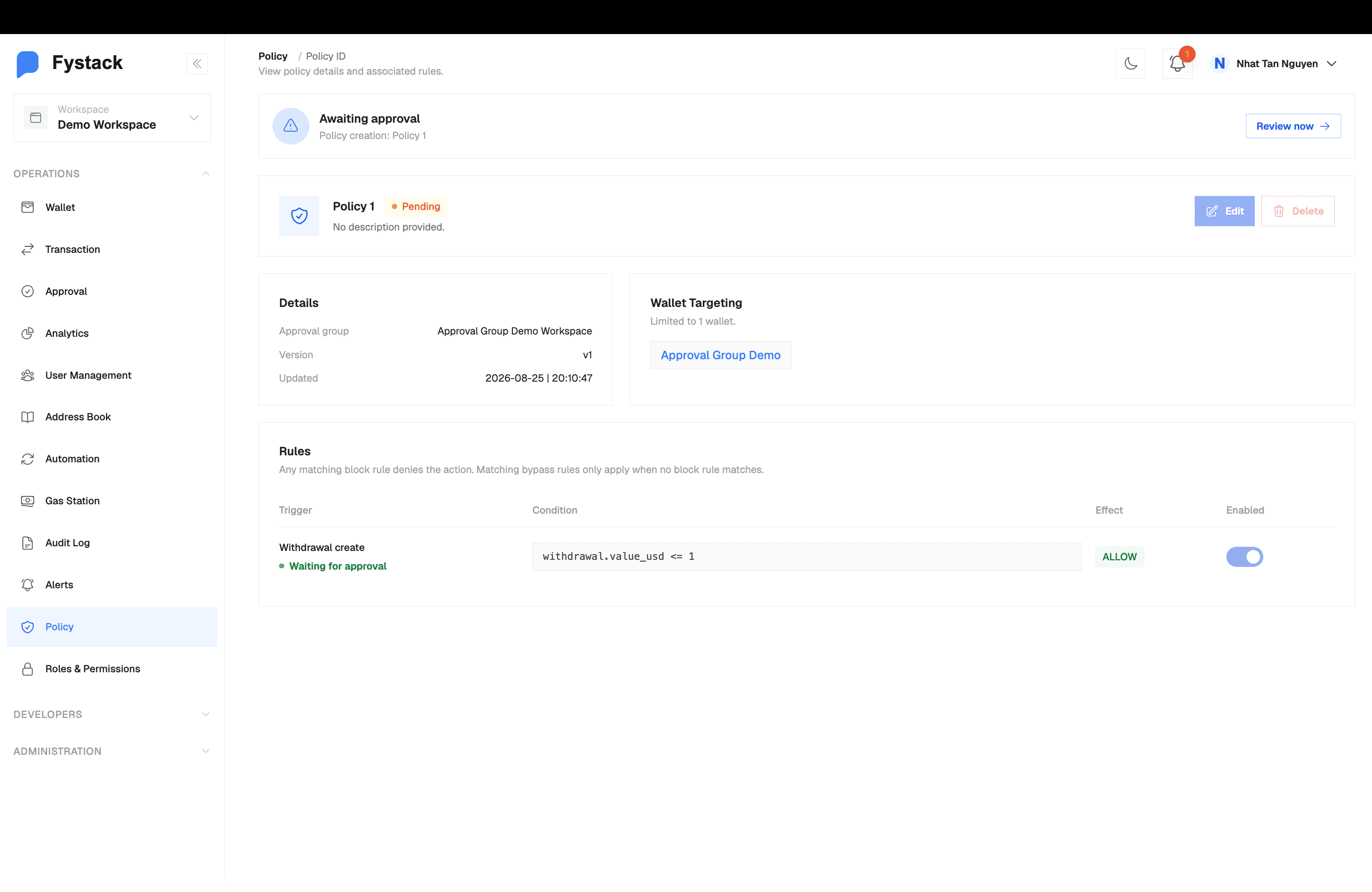
Wait for Approval
A newly created policy sits at Pending with an "Awaiting approval" banner, and its rules show as waiting for approval. The detail page names the approval group responsible.
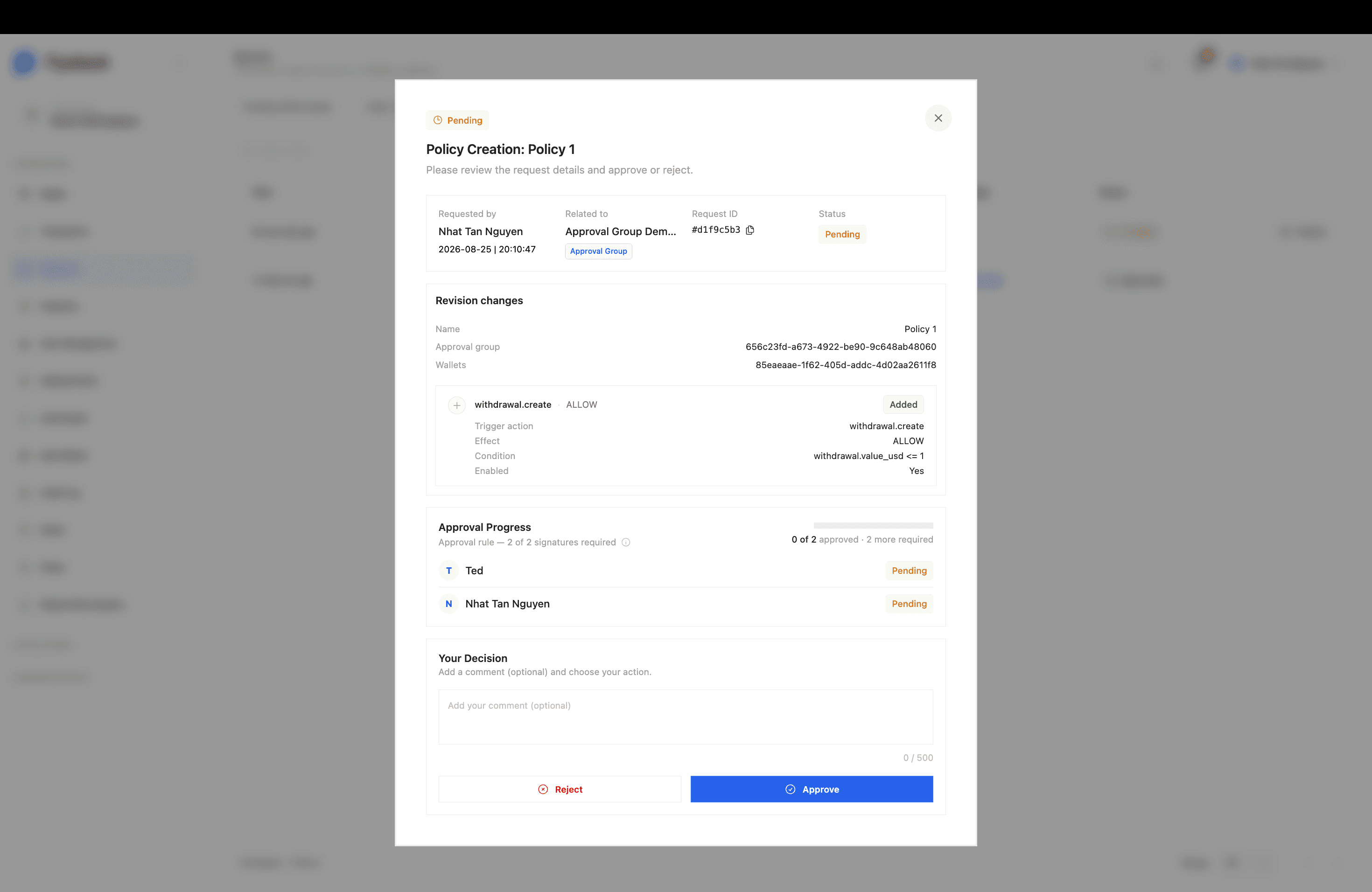
Review the Change
Policy approvals show Revision changes, a field-by-field breakdown of what is being added or modified, including each rule's trigger action, effect, condition, and enabled state. This is the record of what you signed off on.
The same gate applies to later changes. Editing a rule, adding a rule, or deleting the policy raises a new approval request, and nothing takes effect until the group signs off.
Approving a Withdrawal
When a wallet has an approval group assigned, a withdrawal from that wallet enters the approval queue instead of going straight to signing. It collects signatures from the group's members until the threshold is reached, then proceeds to execution.
Open the wallet and select the Withdrawals tab to see every request and where it stands. The header shows the threshold in force and a count of what is waiting. The balance panel separates Available from On Hold, so funds committed to pending withdrawals stay visible.
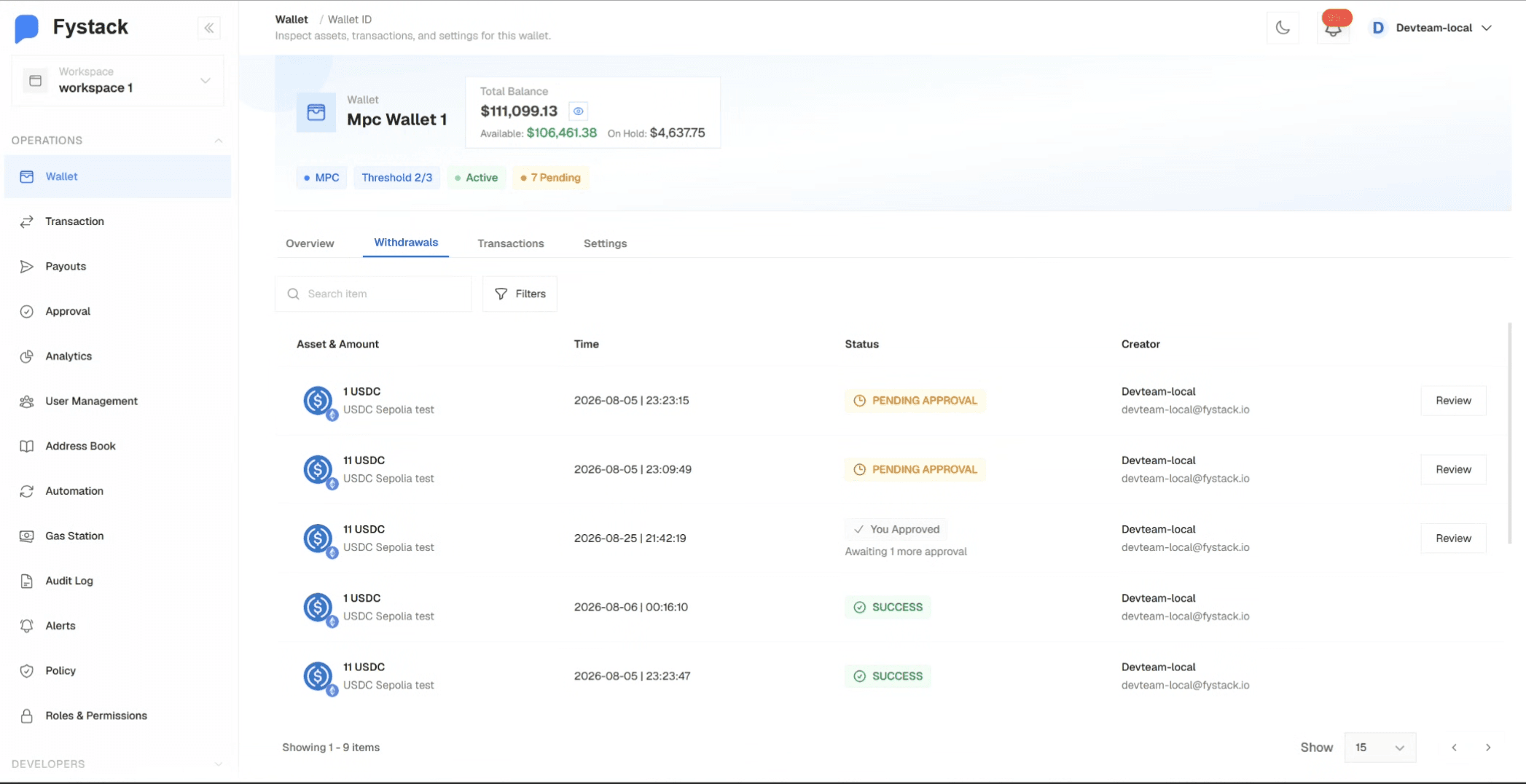
Status | Meaning |
|---|---|
Pending Approval | The request is waiting and no member of the group has signed yet. |
You Approved | Your signature is recorded and the request is short of the threshold. The row states how many more approvals are needed. |
Success | The threshold was met and the withdrawal was signed and broadcast. |
Tracking Who Has Signed
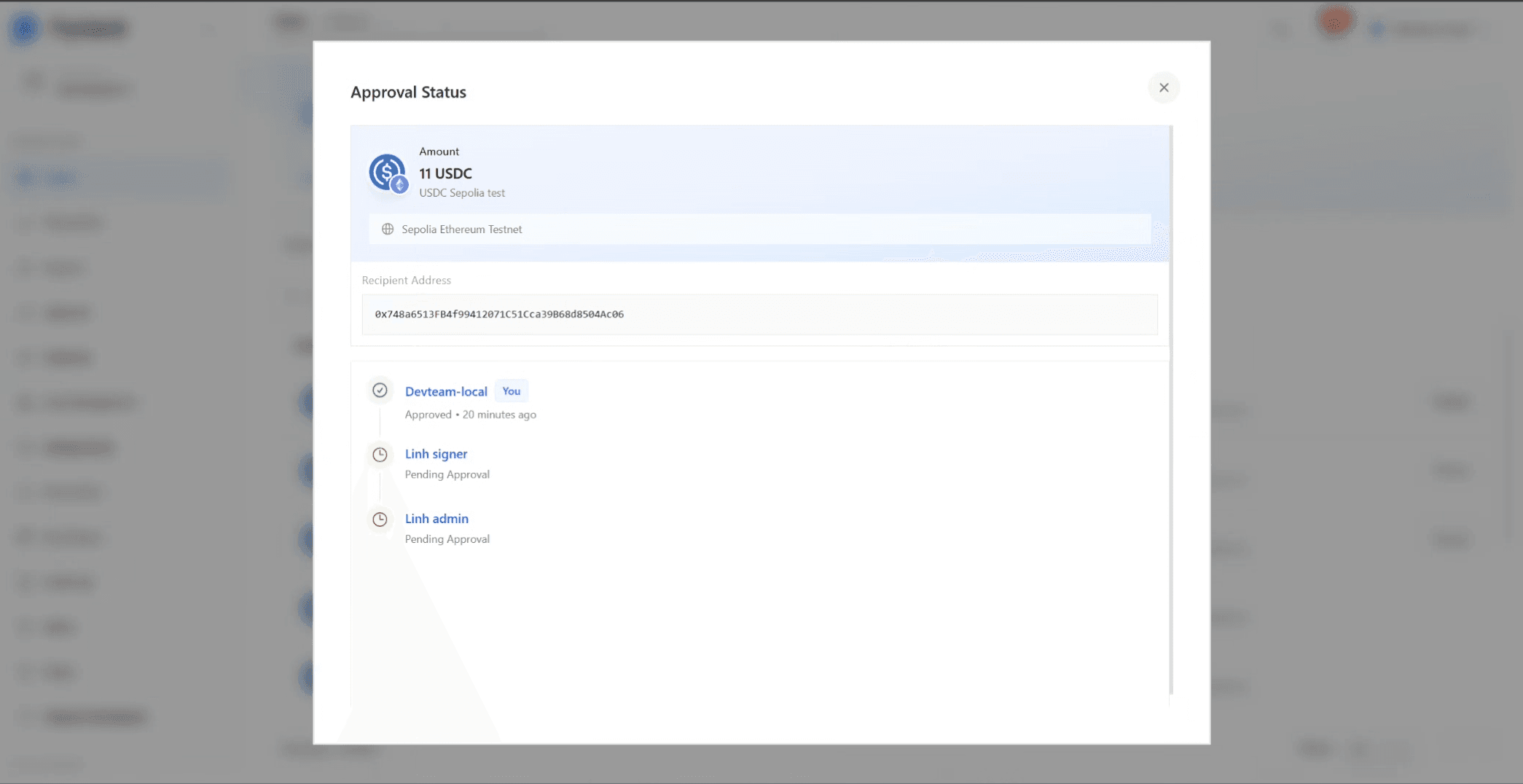
Open a pending withdrawal to see its approval timeline: the amount, network, and recipient address being approved, then each member of the group with their decision and when they made it.
Every signature is attributed to a named person, which is what makes the record useful when you need to answer an auditor or trace an unexpected transfer.
What Can Change the Path
- The withdrawal value falls under the wallet's Auto-Approval Limit, in which case it bypasses multi-signature approval.
- A policy rule matches with an Allow effect, which lets the withdrawal skip the approval queue.
- A policy rule matches with a Deny effect, which blocks the withdrawal outright. Deny always wins over Allow.
See Withdrawal for the full request and execution flow, and Policies for how rules are evaluated.
Best Practices
- Give every production wallet an approval group with a threshold of at least 2, so no single compromised account can move funds
- Size the group larger than the threshold, for example 3 members with a threshold of 2, so one person being unavailable does not freeze operations
- Keep Auto-Approval Limit at 0 on wallets holding real balance, since any withdrawal below that amount is signed and sent without a second person seeing it
- Keep the reviewing group for policies separate from the people who propose policy changes, which preserves the maker-checker split described in User Management
- Name groups after their responsibility rather than after individuals, so the group survives staff changes