Two-Factor Authentication
Fystack supports two methods of two-factor authentication (2FA) to protect your account: Passkey (biometrics or security keys) and TOTP (time-based one-time passwords via an authenticator app). Both can be configured independently or together. You can also set your preferred method, the one Fystack prompts first during login.
Passkeys are the recommended approach for most users. They rely on your device's built-in authentication (fingerprint, Face ID, or PIN) and are resistant to phishing since they are bound to the exact domain of the application.
Navigating to Security Settings
Click your account avatar in the top-right corner of the dashboard and select Security from the dropdown menu.
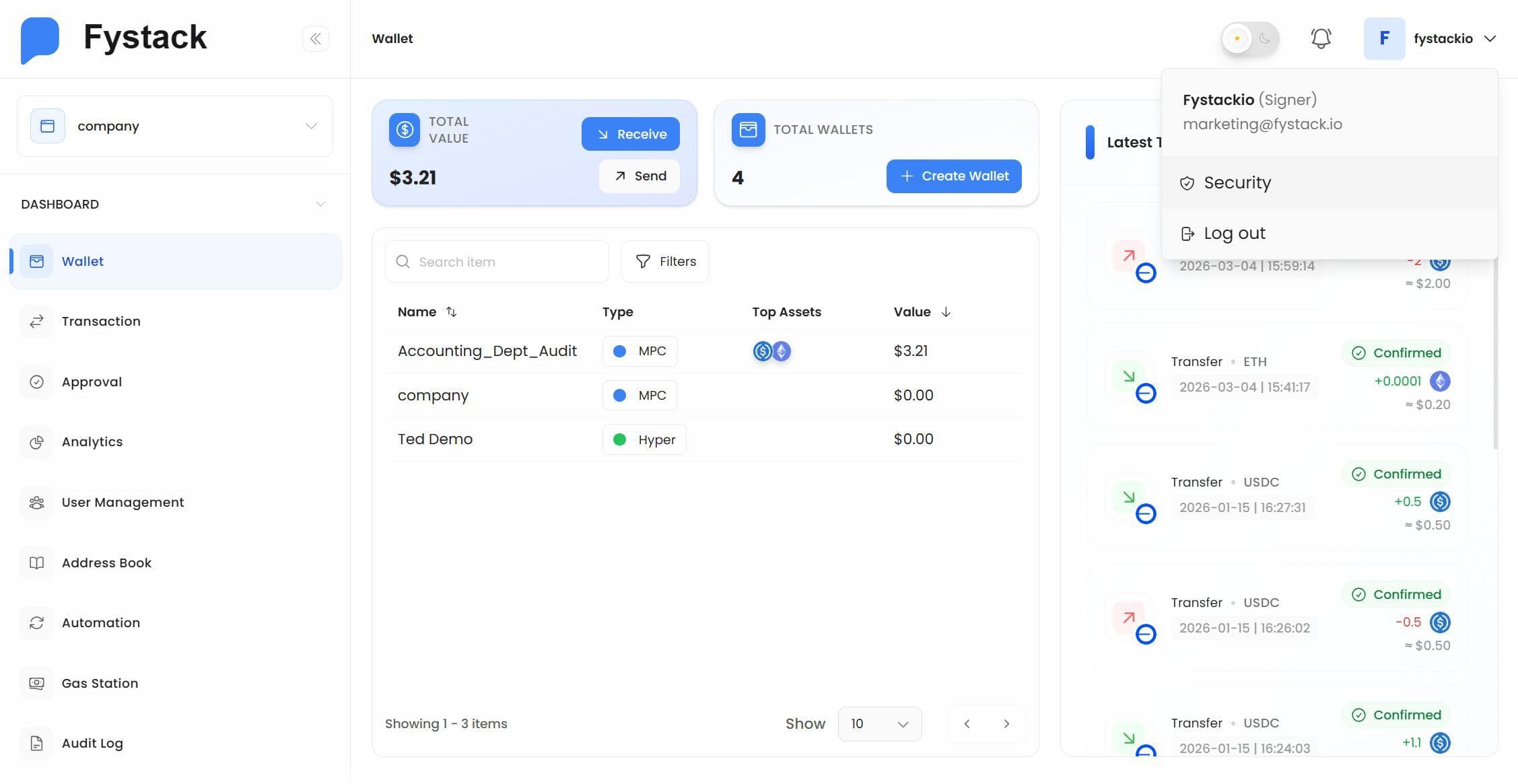
This opens the User Settings page, where you can manage your Two-Factor Authentication methods.
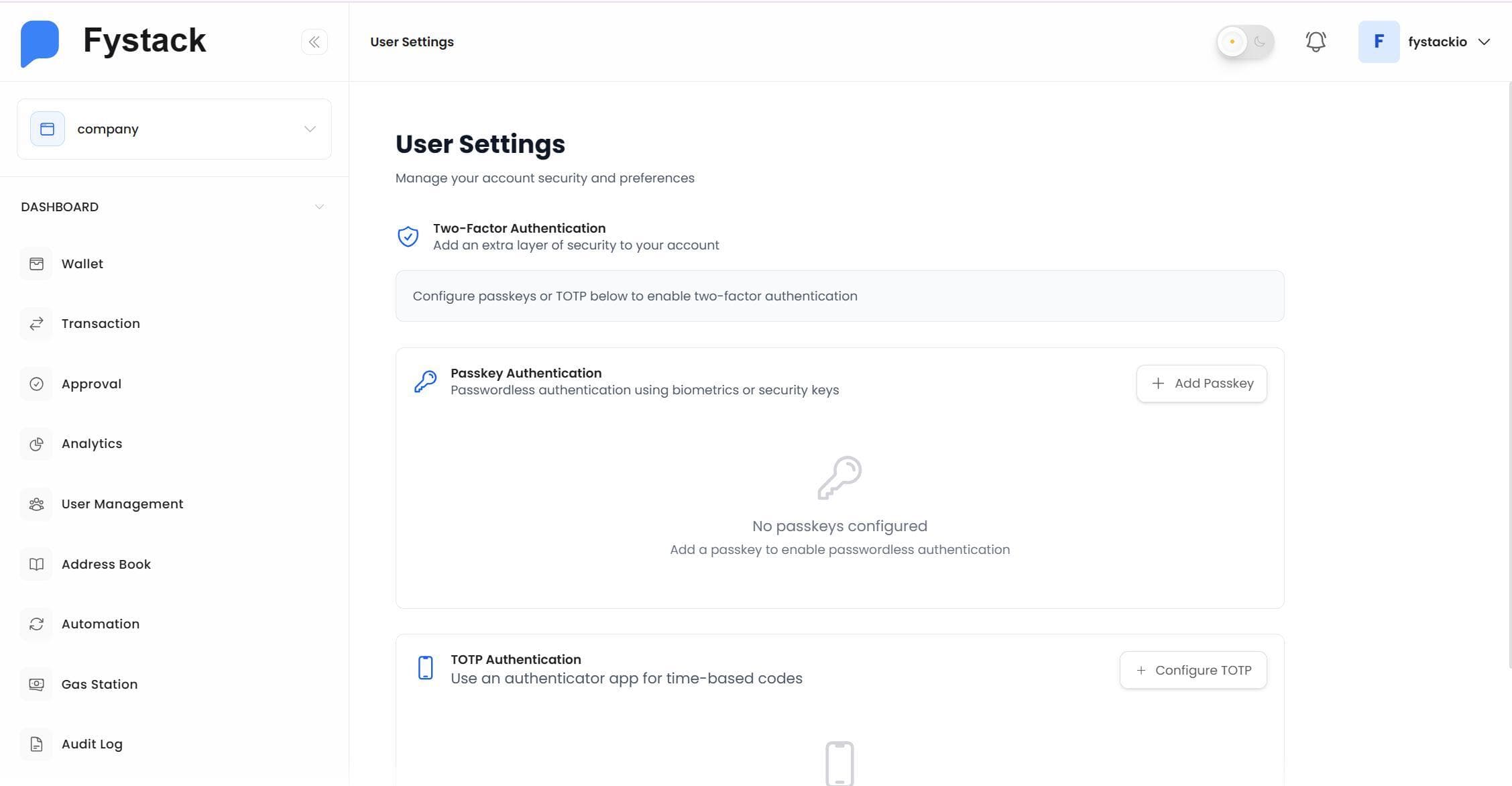
The page has two independent sections:
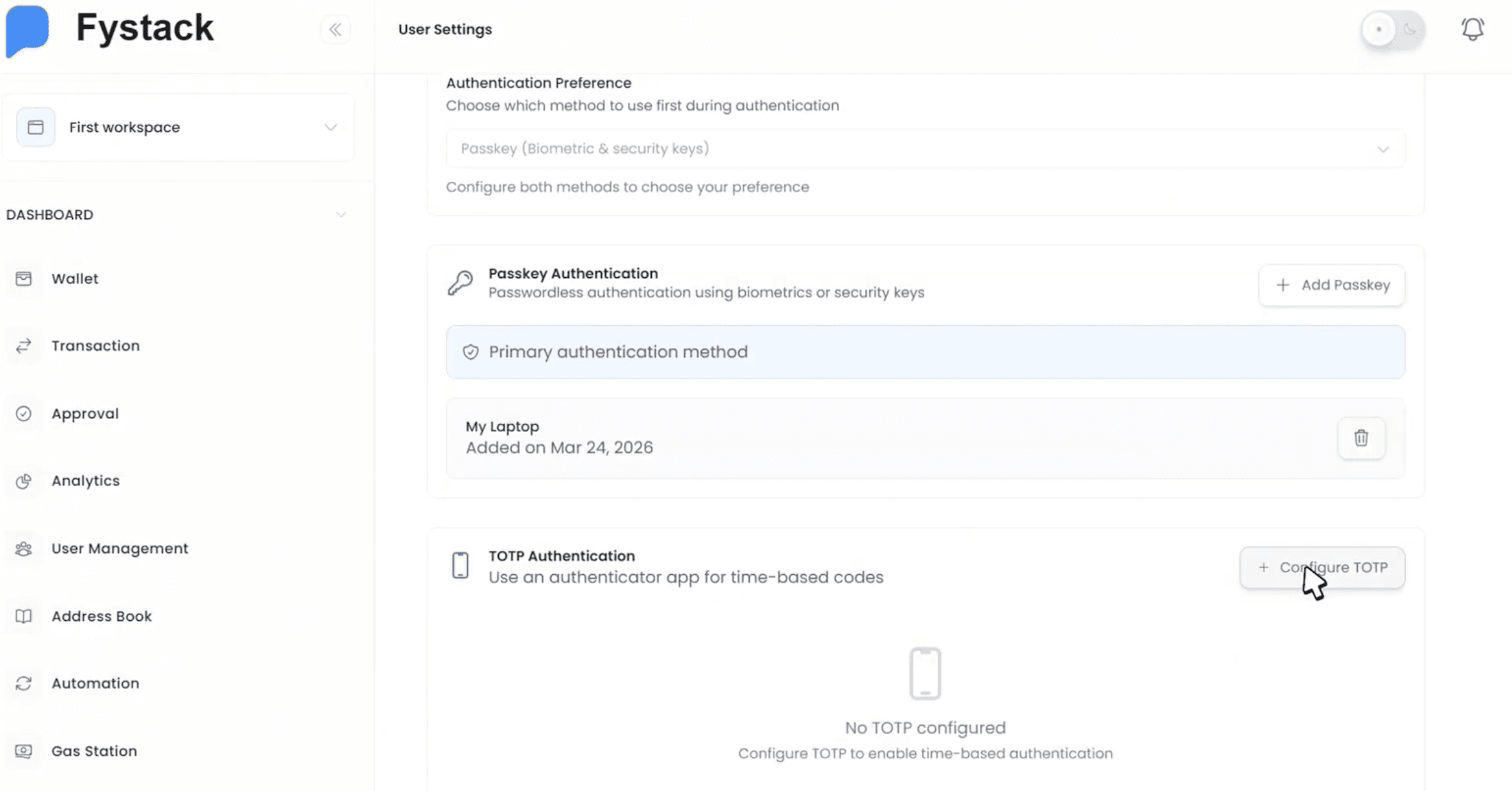
- Passkey Authentication: passwordless authentication using biometrics or security keys
- TOTP Authentication: time-based codes from an authenticator app (Google Authenticator, Authy, etc.)
Setting Up Passkey Authentication
Step 1: Open the Register dialog
In the Passkey Authentication section, click + Add Passkey. A dialog appears asking you to name your passkey — use something descriptive like "My Laptop" or "iPhone 15" to identify the device later.
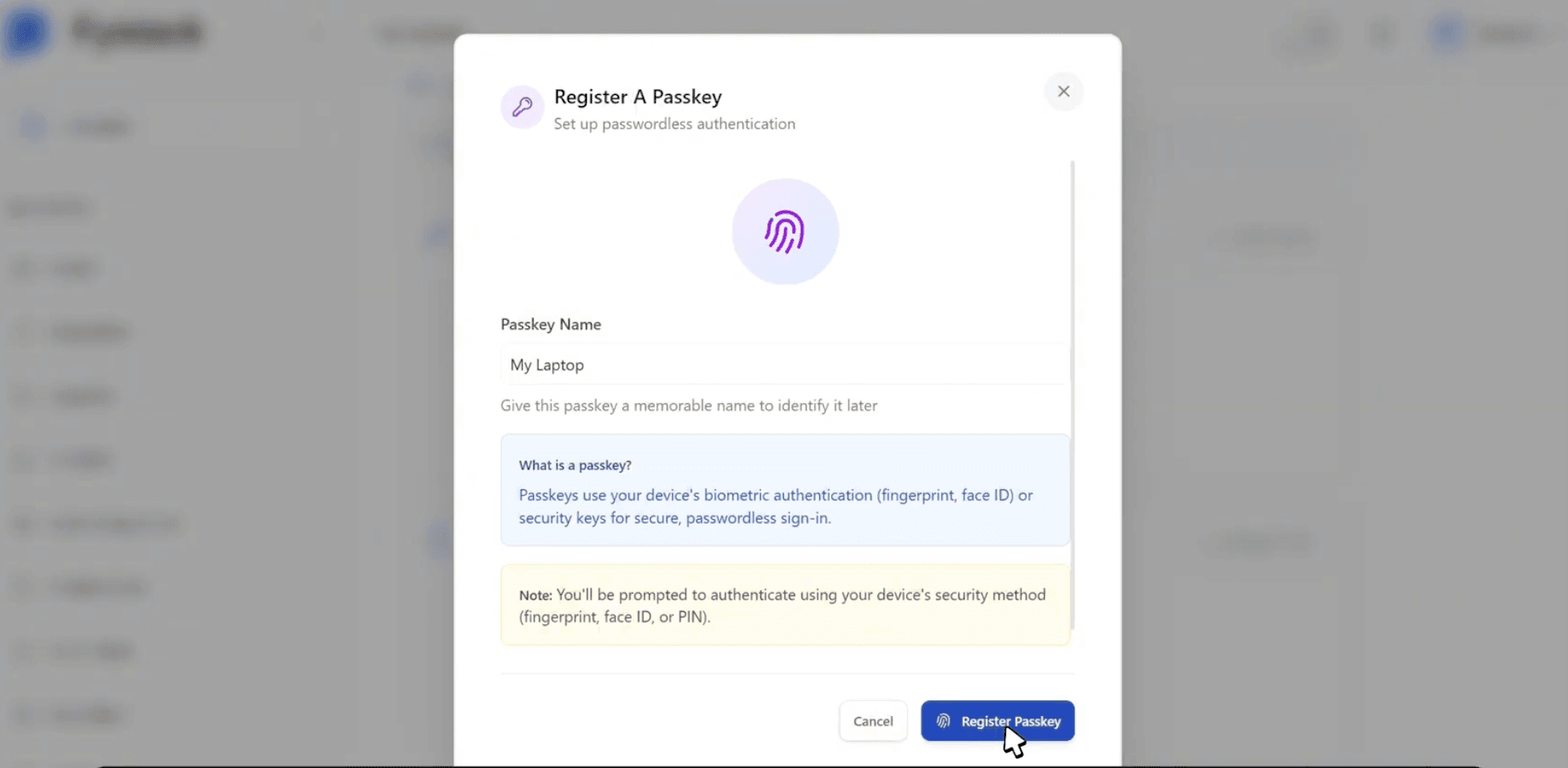
Click Register Passkey to proceed.
Step 2: Choose where to save your passkey
Your browser or operating system will prompt you to choose where to store the passkey. Options typically include your password manager (e.g., Google Password Manager) or a physical security key or nearby phone.
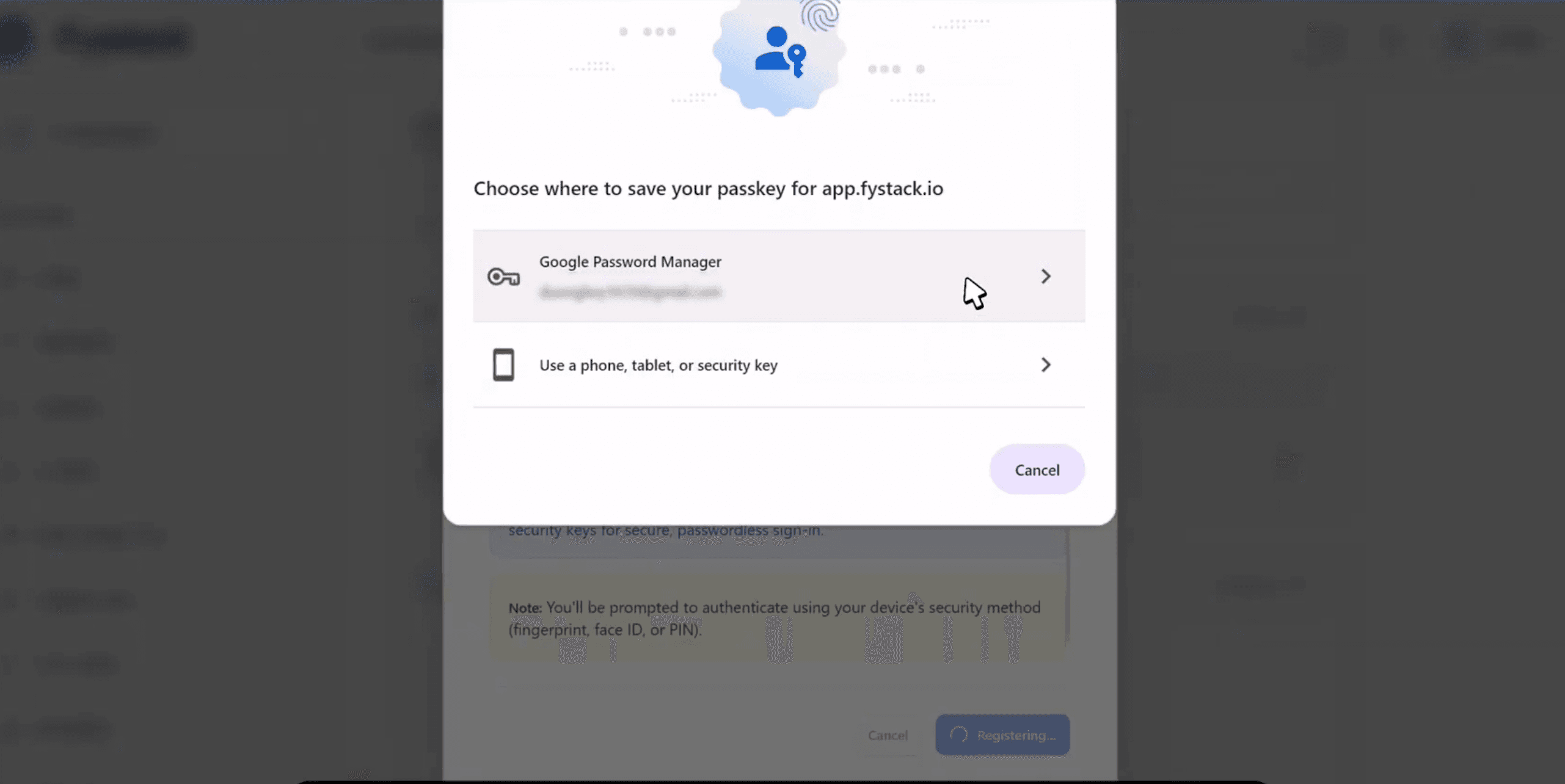
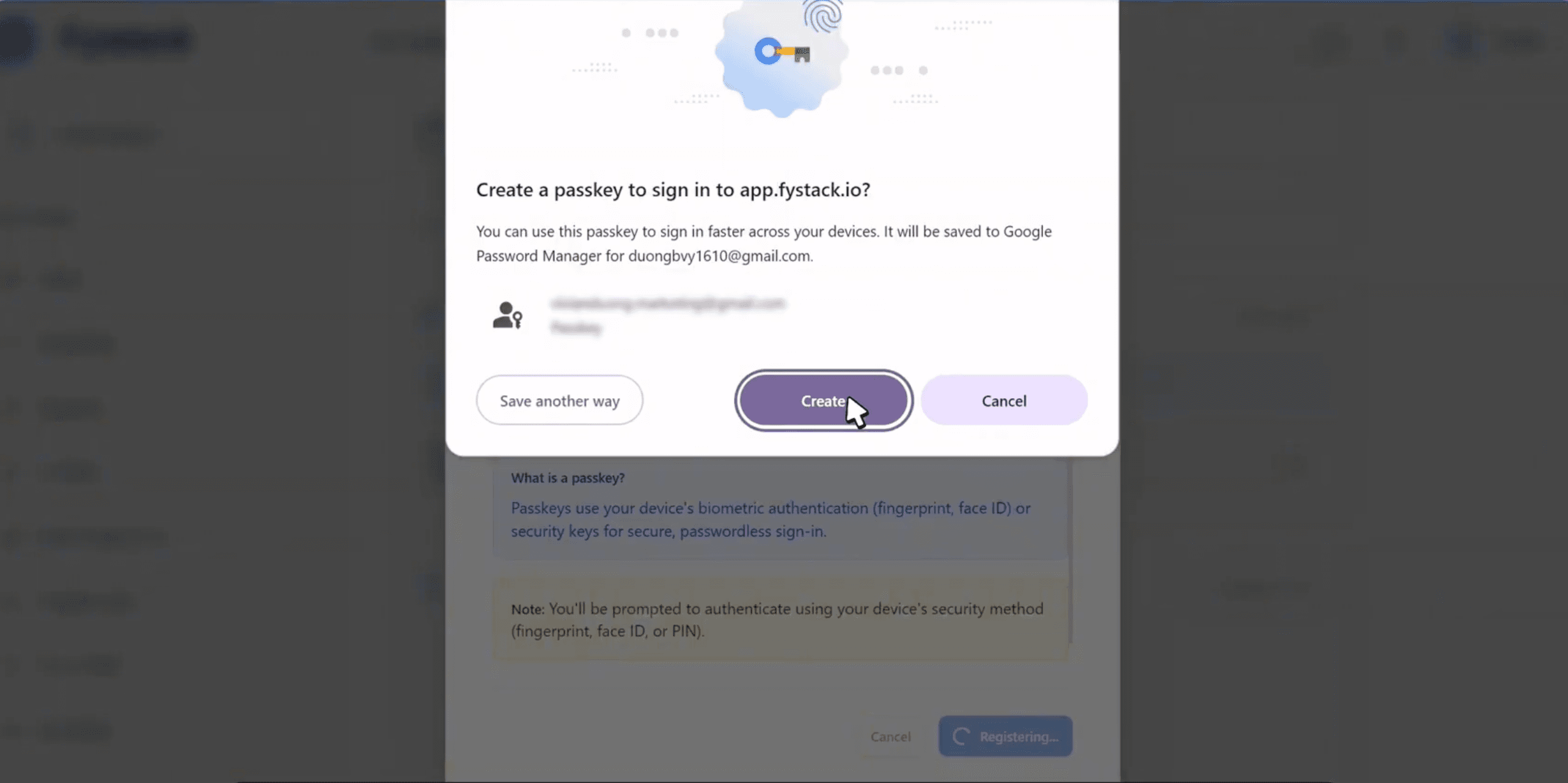
Step 3: Create the passkey
After selecting a storage location, the browser will ask you to confirm the creation of a passkey for app.fystack.io. Click Create to proceed.
Step 4: Verify with your device
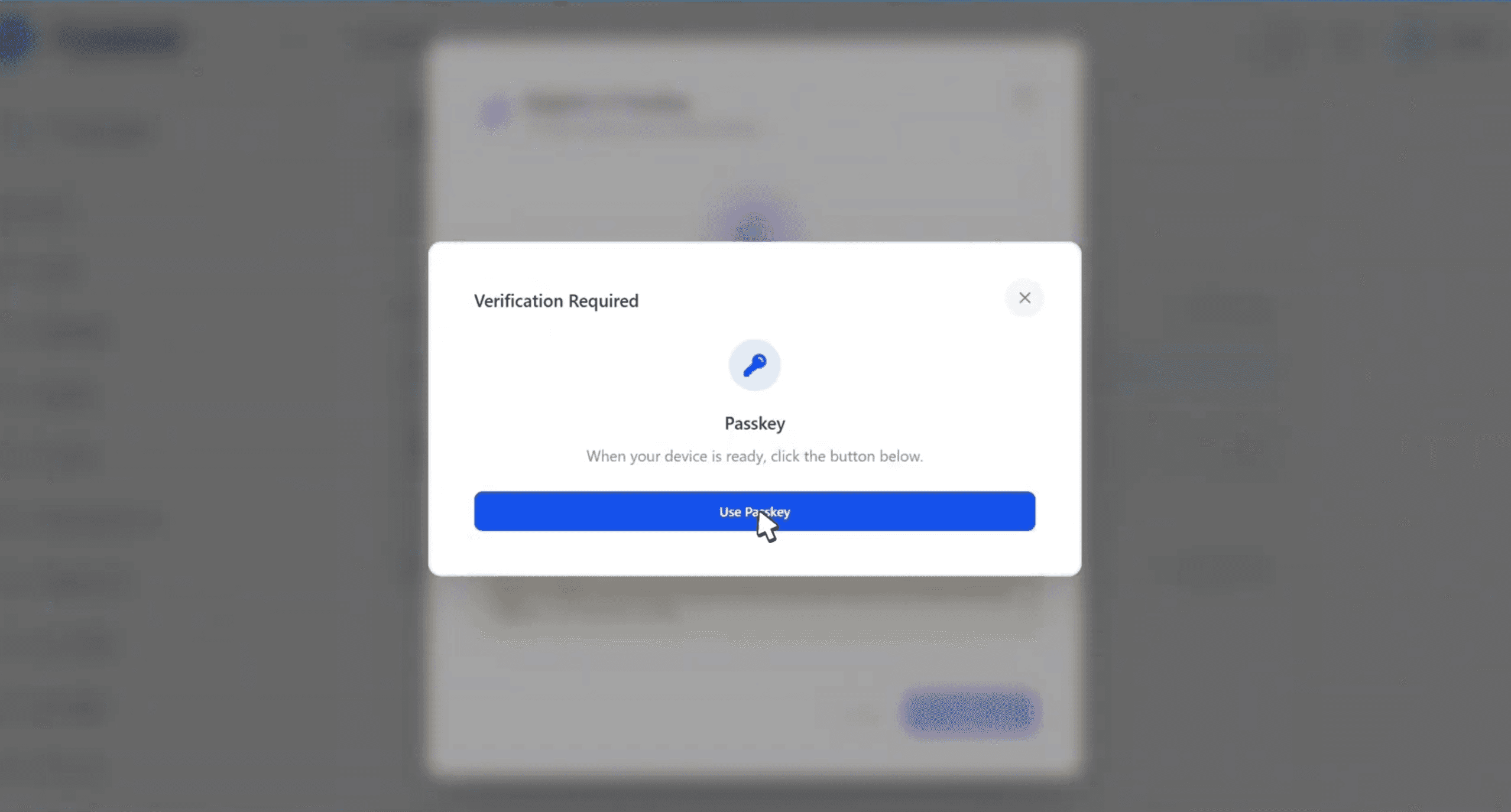
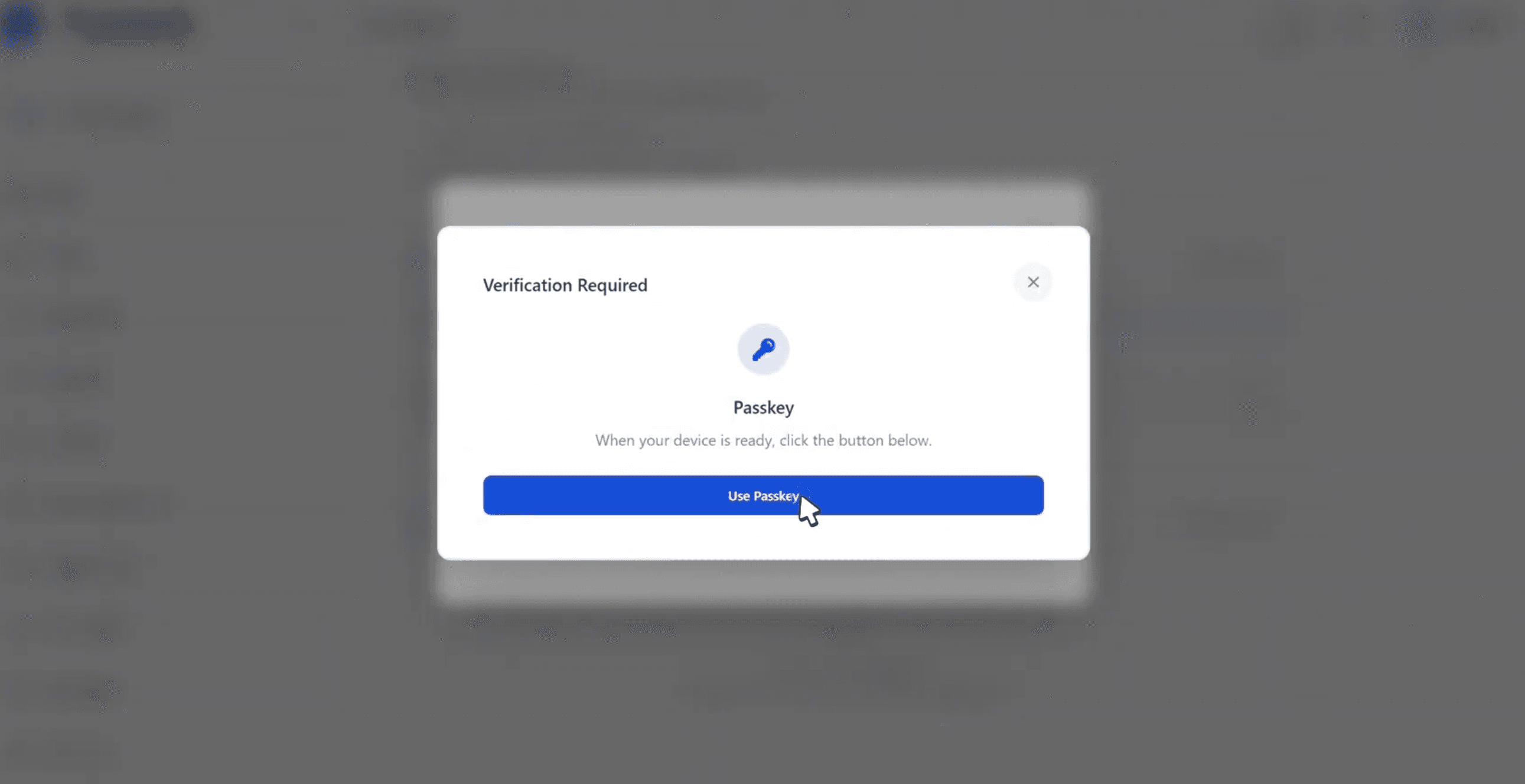
A Verification Required prompt will appear. Click Use Passkey and authenticate using your device's method (fingerprint, Face ID, or PIN).
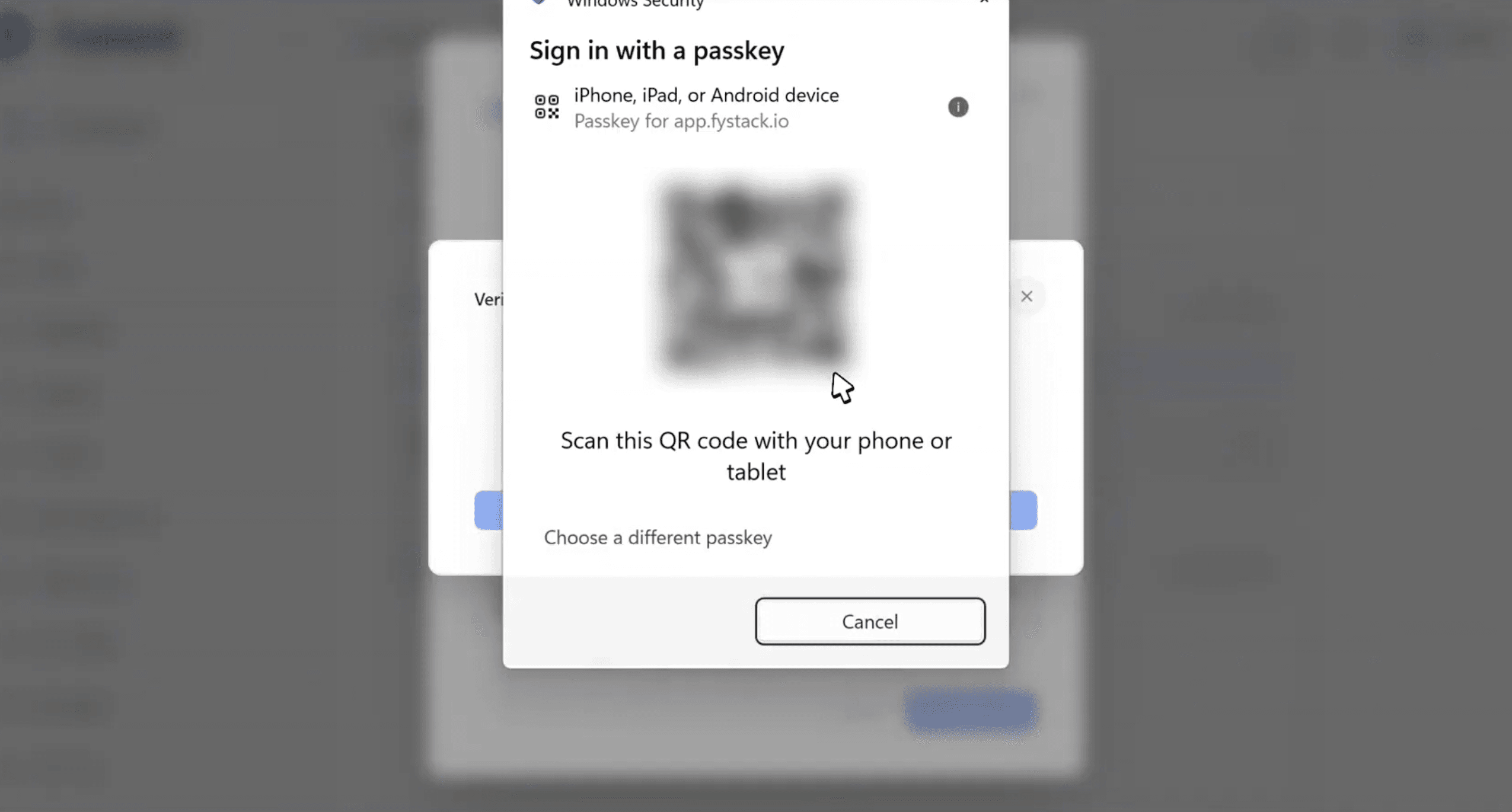
If you are on a desktop and want to authenticate with your phone or tablet instead, you can scan the QR code that appears after clicking Use Passkey.
Step 5: Passkey setup complete
Once authentication succeeds, your passkey appears under the Passkey Authentication section as the Primary authentication method, with the device name and registration date.
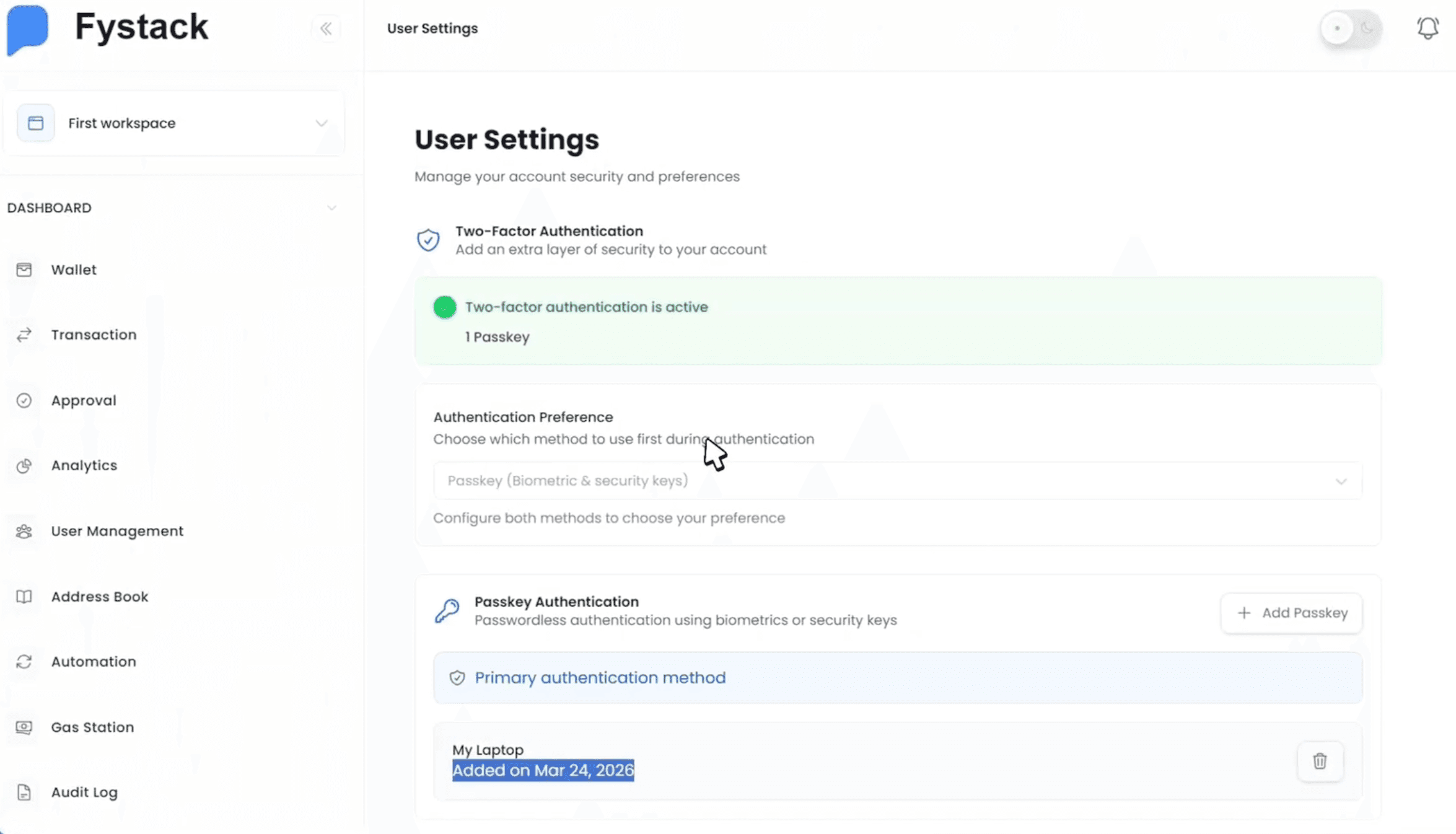
You can register multiple passkeys — one per device. This is useful if you need to authenticate from both a laptop and a phone.
Setting Up TOTP Authentication
TOTP requires an authenticator app such as Google Authenticator, Authy, or 1Password. It generates a fresh 6-digit code every 30 seconds and works as a second layer on top of your password or passkey.
Step 1: Open the TOTP configuration
Scroll down to the TOTP Authentication section and click Configure TOTP.
Step 2: Scan the QR code
A dialog titled Turn On 2-Step Verification displays a QR code. Open your authenticator app and scan this QR code to link it to your Fystack account. If your app does not support scanning, click Or enter the code manually to copy the secret key.
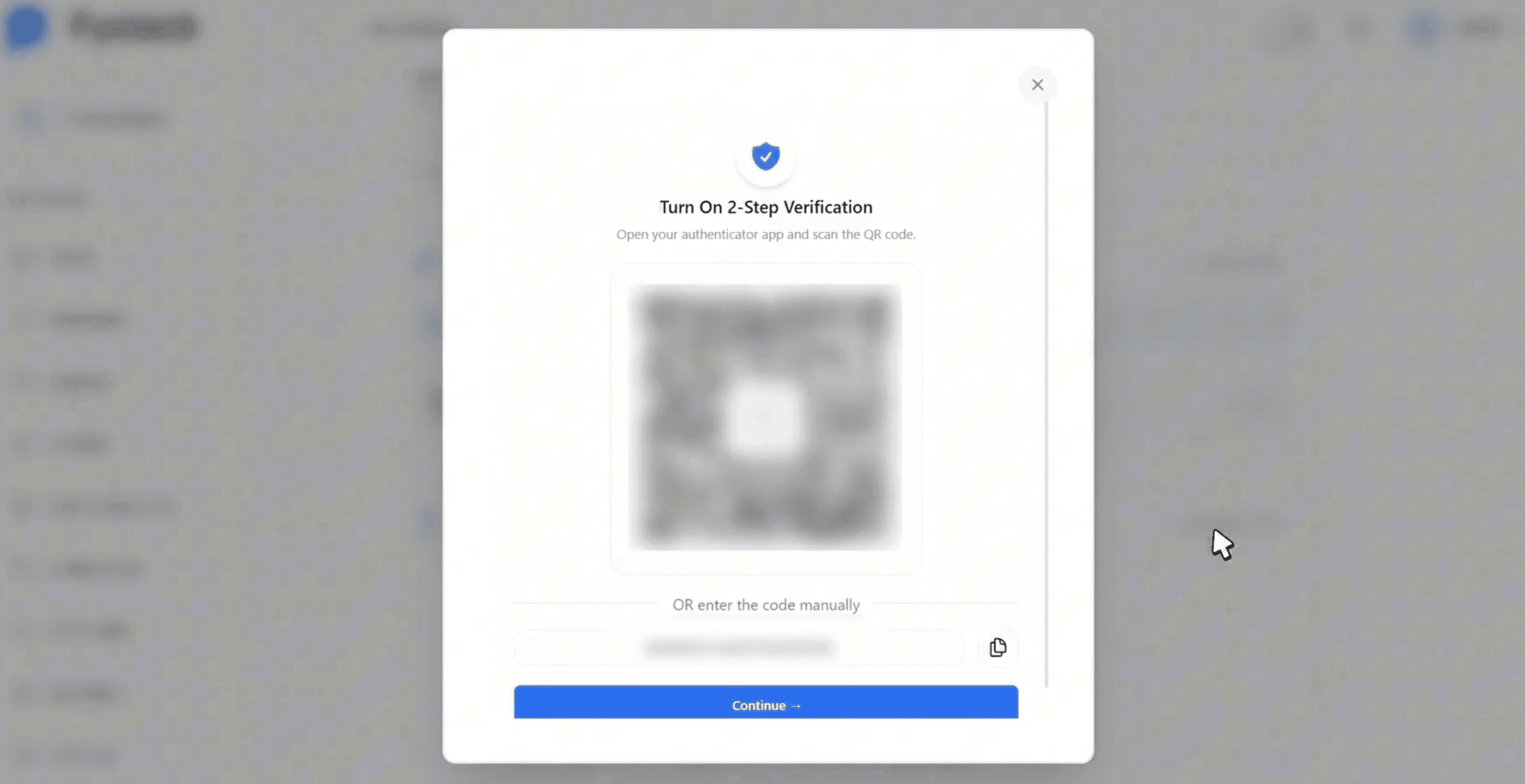
Click Continue after scanning.
Step 3: Enter the verification code
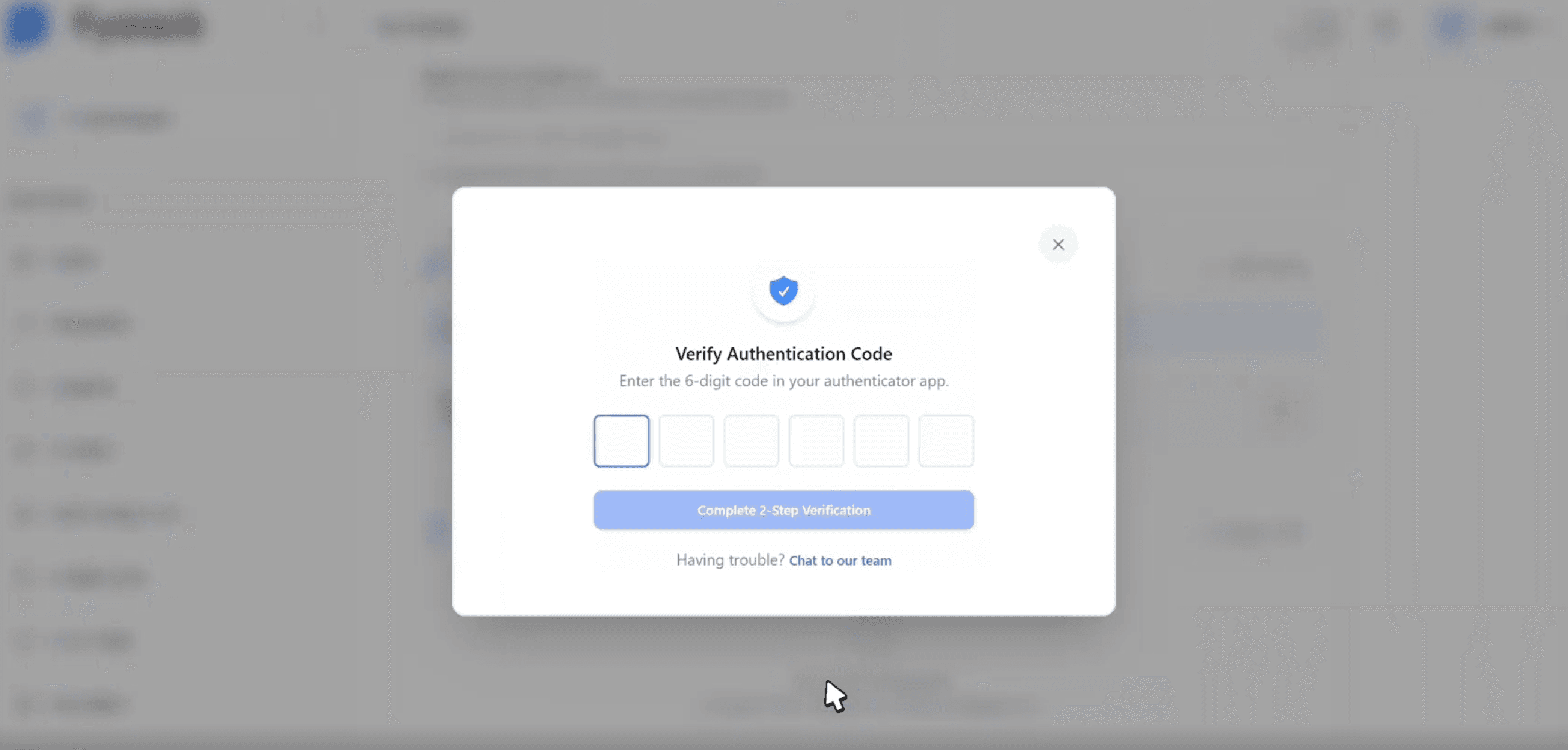
Your authenticator app will display a 6-digit code. Enter it into the Verify Authentication Code dialog and click Complete 2-Step Verification.
Step 4: Confirm with your passkey
To protect against unauthorized changes, Fystack requires a passkey verification before enabling TOTP. A Verification Required prompt appears. Click Use Passkey and authenticate with your device.
Step 5: TOTP setup complete
A success notification confirms that TOTP authentication is now active. The TOTP Authentication section shows a green "TOTP is configured" indicator, and the Two-Factor Authentication banner at the top reflects both active methods.
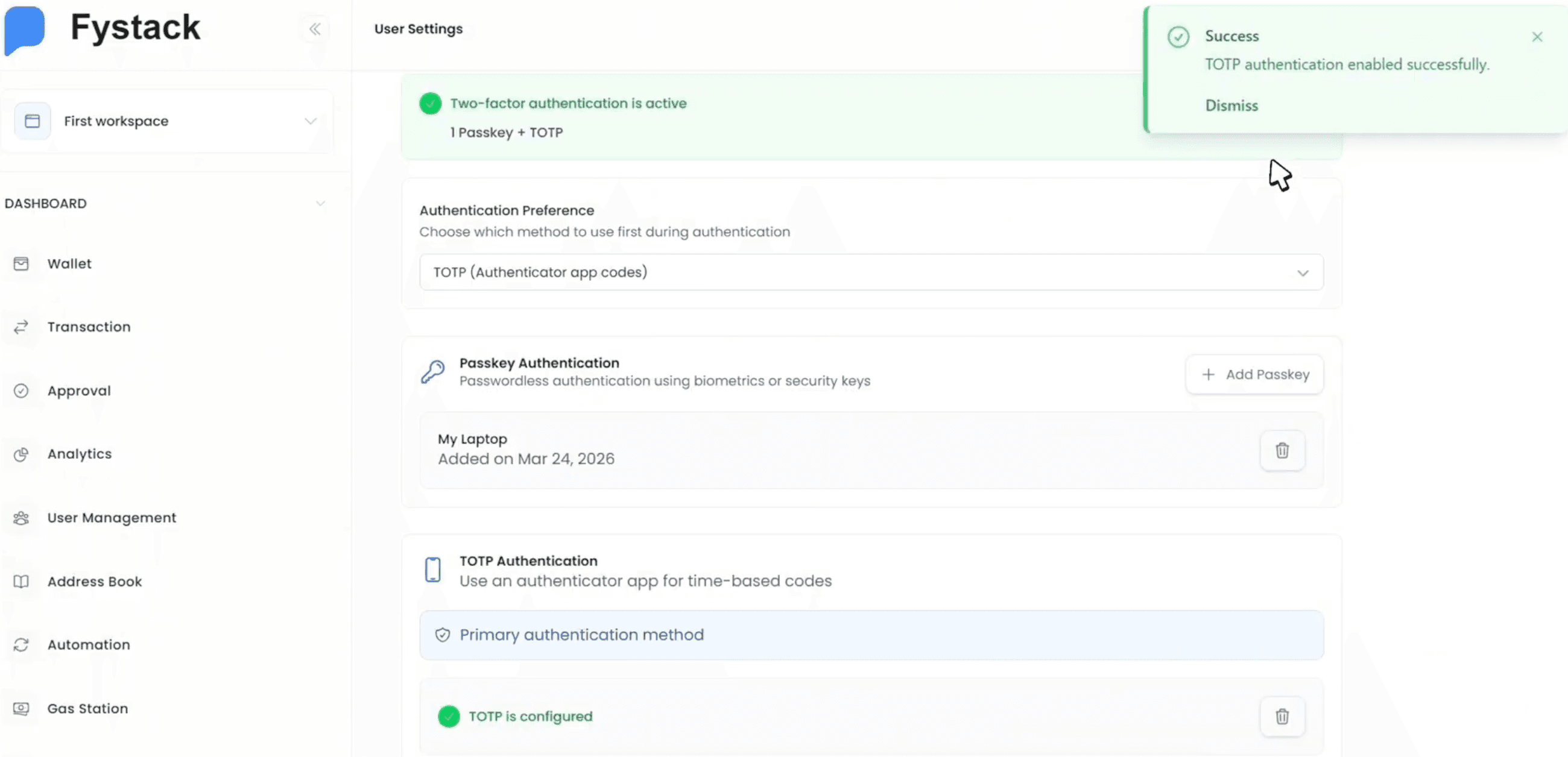
Recommendation: configure both Passkey and TOTP for the highest level of account protection. If one method becomes unavailable, you can fall back to the other.
Best Practices
- Register a passkey on each device you use regularly. This avoids QR-code cross-device prompts on your primary machine and keeps authentication fast.
- Use TOTP as a backup method, not a replacement for Passkey. If you lose access to your device, TOTP from a separate phone provides a reliable recovery path.
- Periodically review your registered passkeys under User Settings and remove any that belong to devices you no longer use or own.