Key Recovery
Fystack Recovery rebuilds a wallet's private keys offline from a threshold of key shares. Use it to leave Fystack, migrate a wallet, or regain funds if Fystack is unavailable.
Recovery materializes the full private key and removes the wallet's threshold security. Only run it on an offline machine, and only for recovery or migration.
Overview
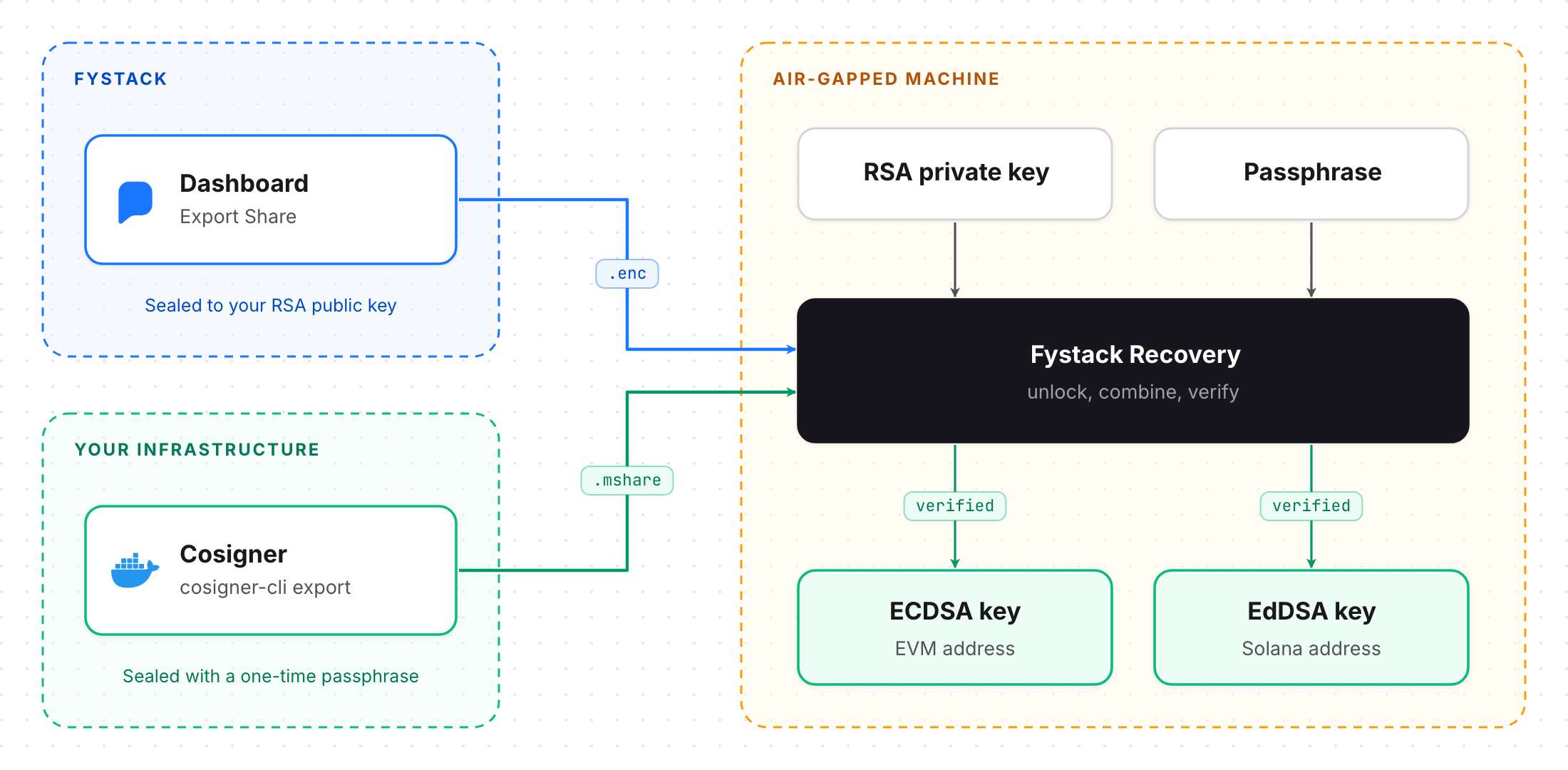
Each signer exports its own share, encrypted:
- Fystack share: exported from the dashboard as an
.encRSA bundle, sealed to an RSA public key you provide. - Cosigner share: exported with
cosigner-cli exportas an.msharefile, sealed with a six-word passphrase.
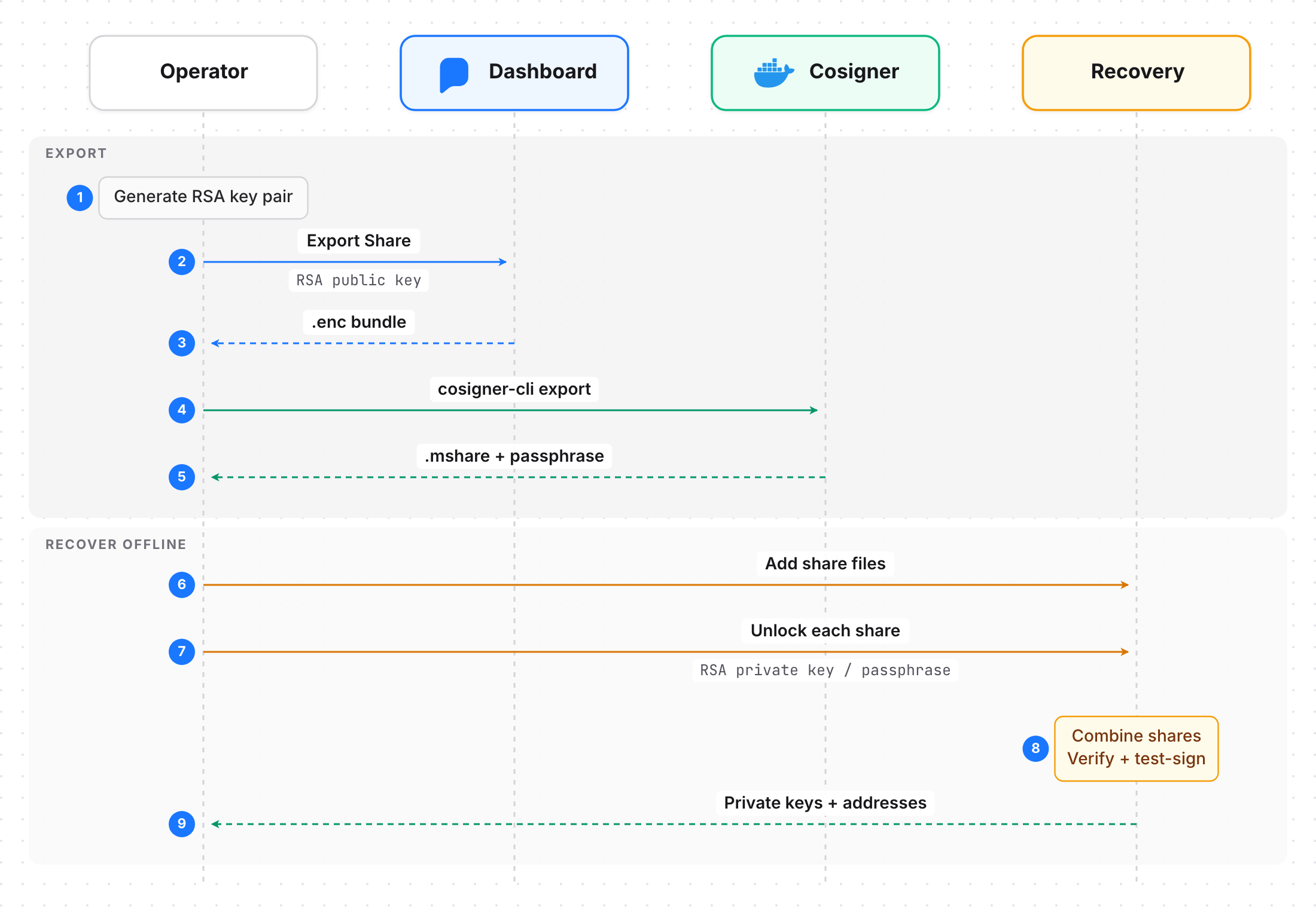
Fystack Recovery unlocks each file, combines the shares and checks the result against the wallet's public keys. One share alone cannot rebuild a key.
Before you start
Download the latest Fystack Recovery release while you are still online, then move it to the offline machine. It is open source, so you can review and build it yourself.
Step 1: Generate an RSA key pair
The Fystack share is sealed to your RSA public key. Generate the key pair on the offline machine and keep the private key there.
openssl genpkey -algorithm RSA -pkeyopt rsa_keygen_bits:4096 -out recovery.key
openssl rsa -in recovery.key -pubout -out recovery.pub
Only recovery.pub leaves the offline machine.
Step 2: Export the Fystack share
Open the wallet in the dashboard and go to the Signers tab. The Fystack signer has an Export Share button.
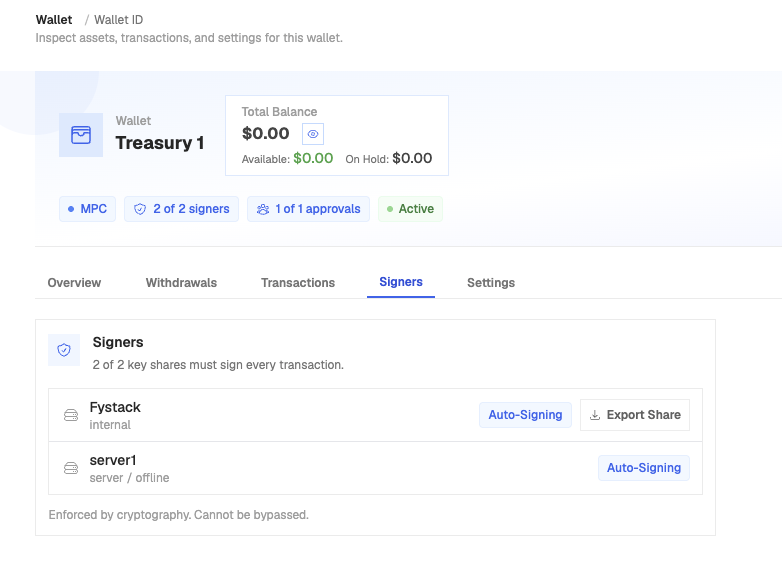
- Click Export Share.
- Paste the contents of
recovery.pubinto Recipient RSA public key (PEM). - Type the wallet name to confirm and tick the acknowledgement.
- Click Export Share to download the
.encbundle.
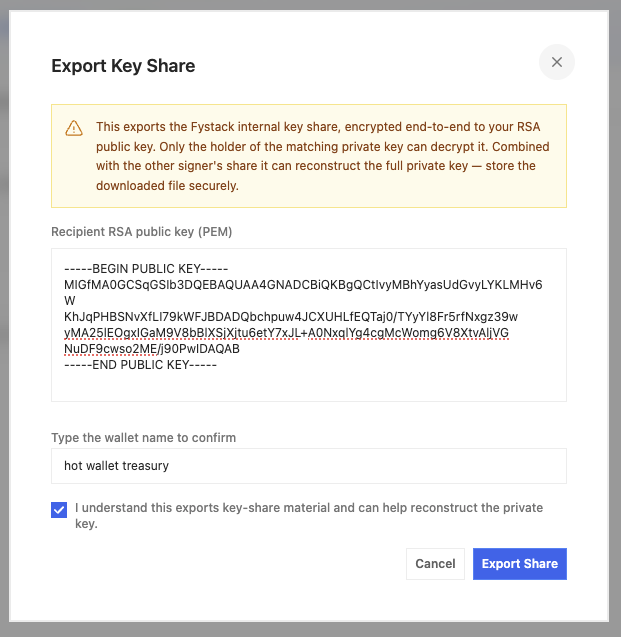
Only the holder of the matching RSA private key can decrypt the bundle.
Step 3: Export the cosigner share
On the cosigner host, stop the cosigner and run export. It writes one .mshare per wallet and prints a recovery passphrase once. See Operations for details.
cosigner-cli stop
cosigner-cli export --out-dir /secure/recovery
cosigner-cli start

Each file is named <wallet-id>-<cosigner>-<date>.mshare. Copy the file for the wallet you are recovering to the offline machine.
The passphrase is shown only once and unlocks every file in the export. Store it separately from the files.
Step 4: Add and unlock shares
Open Fystack Recovery on the offline machine and click Add share file.
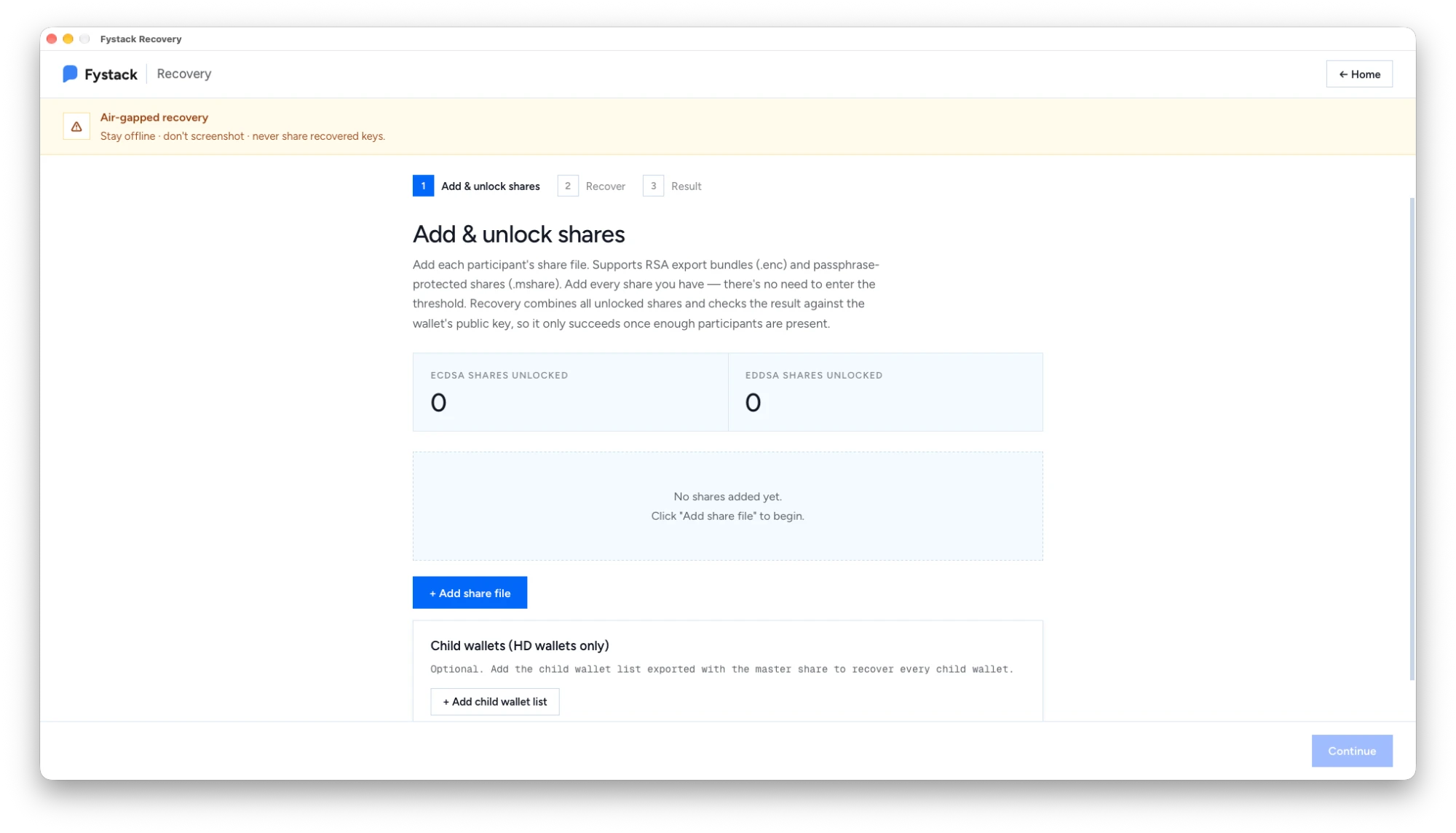
Recovery supports both formats:
- RSA bundle (
.enc): unlocked with the RSA private key from Step 1. - Passphrase (
.mshare): unlocked with the six-word passphrase from Step 3.
Add every share you have. There is no threshold to enter: the counters show how many ECDSA and EdDSA shares are unlocked out of the wallet's participants.
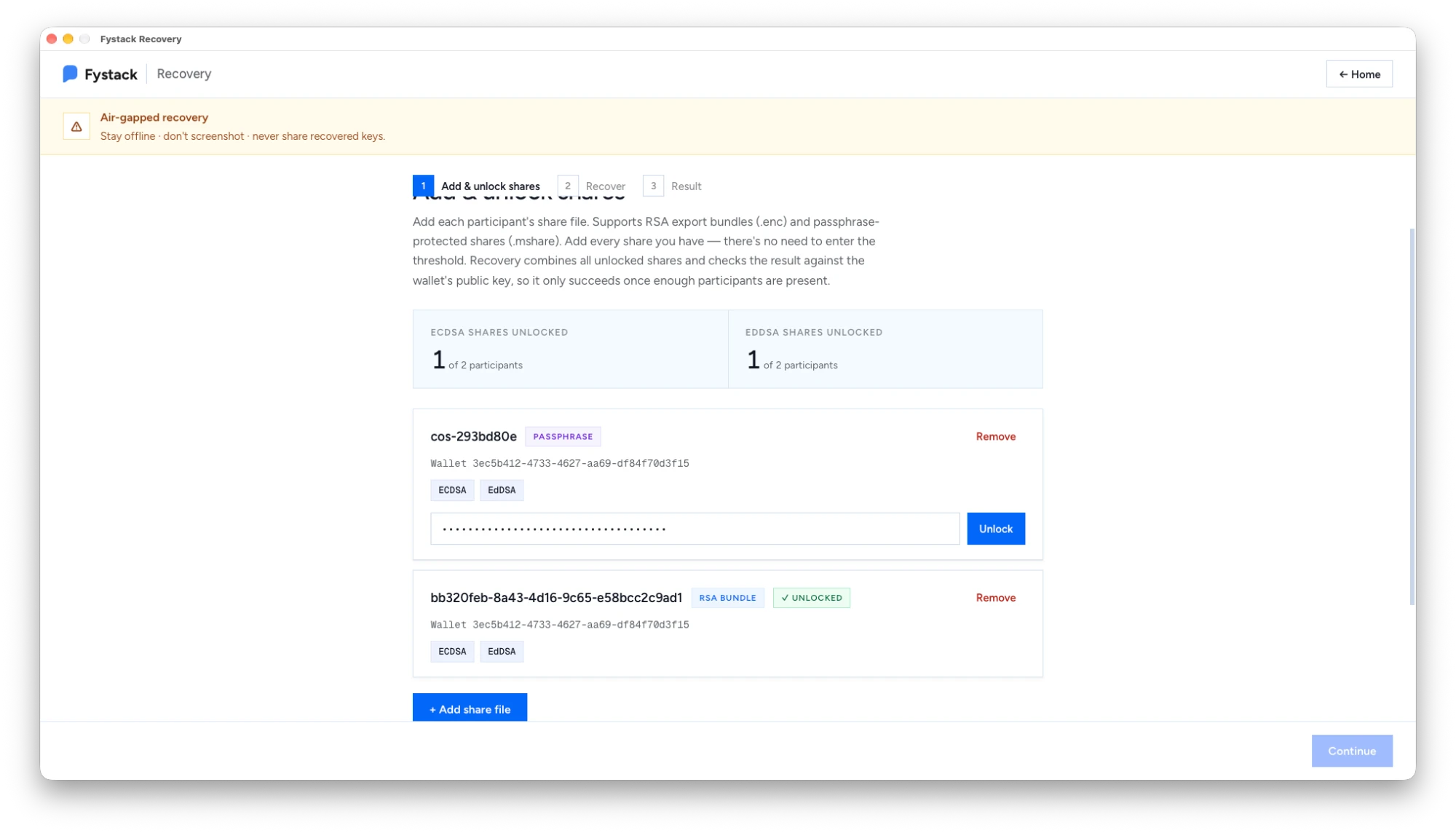
Enter the passphrase and click Unlock. When every share shows Unlocked, click Continue.
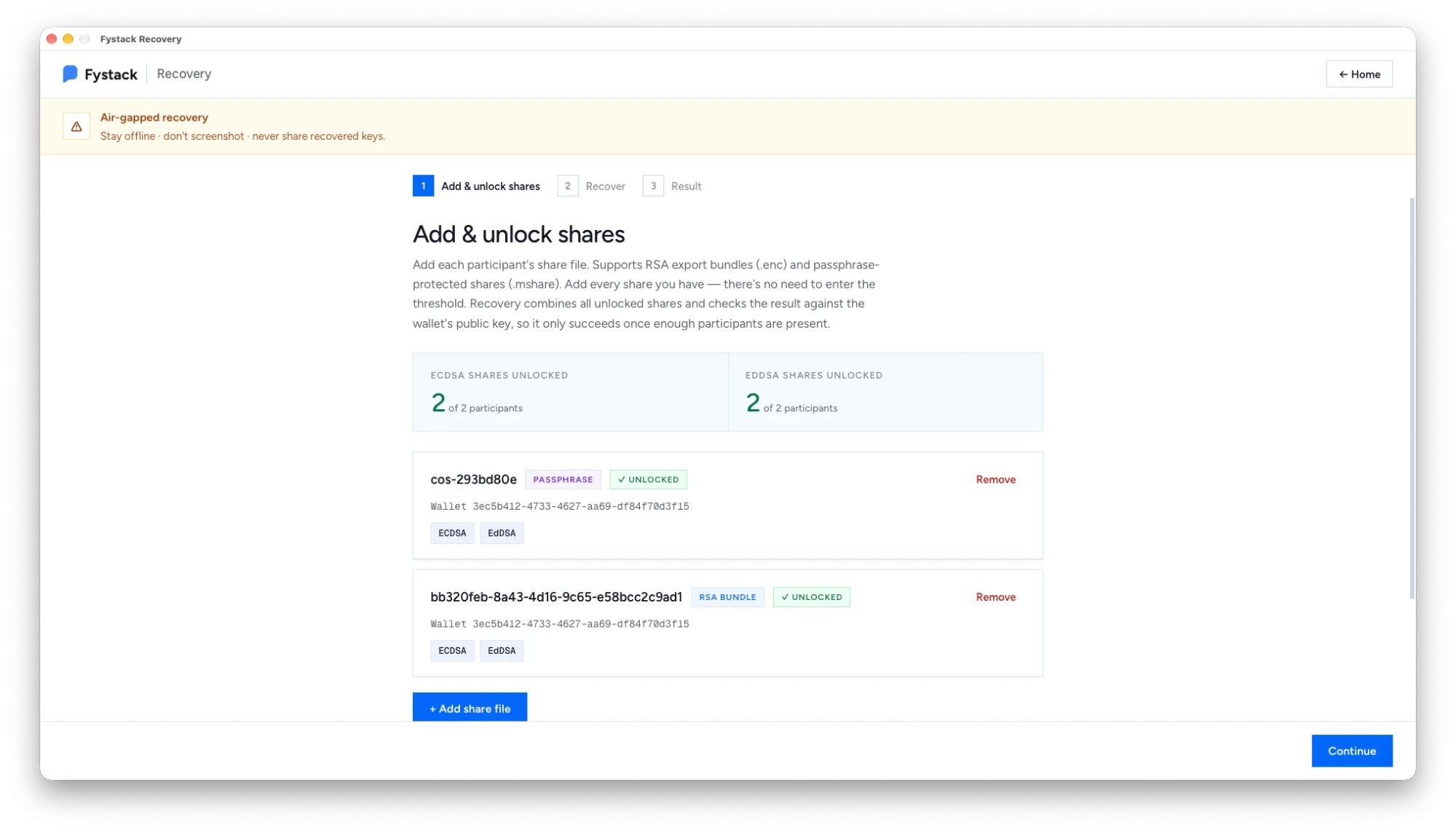
For HD wallets, also add the child wallet list exported with the master share under Child wallets to recover every child wallet.
Step 5: Recover
Review the wallet ID and the share counts, then click Recover keys.
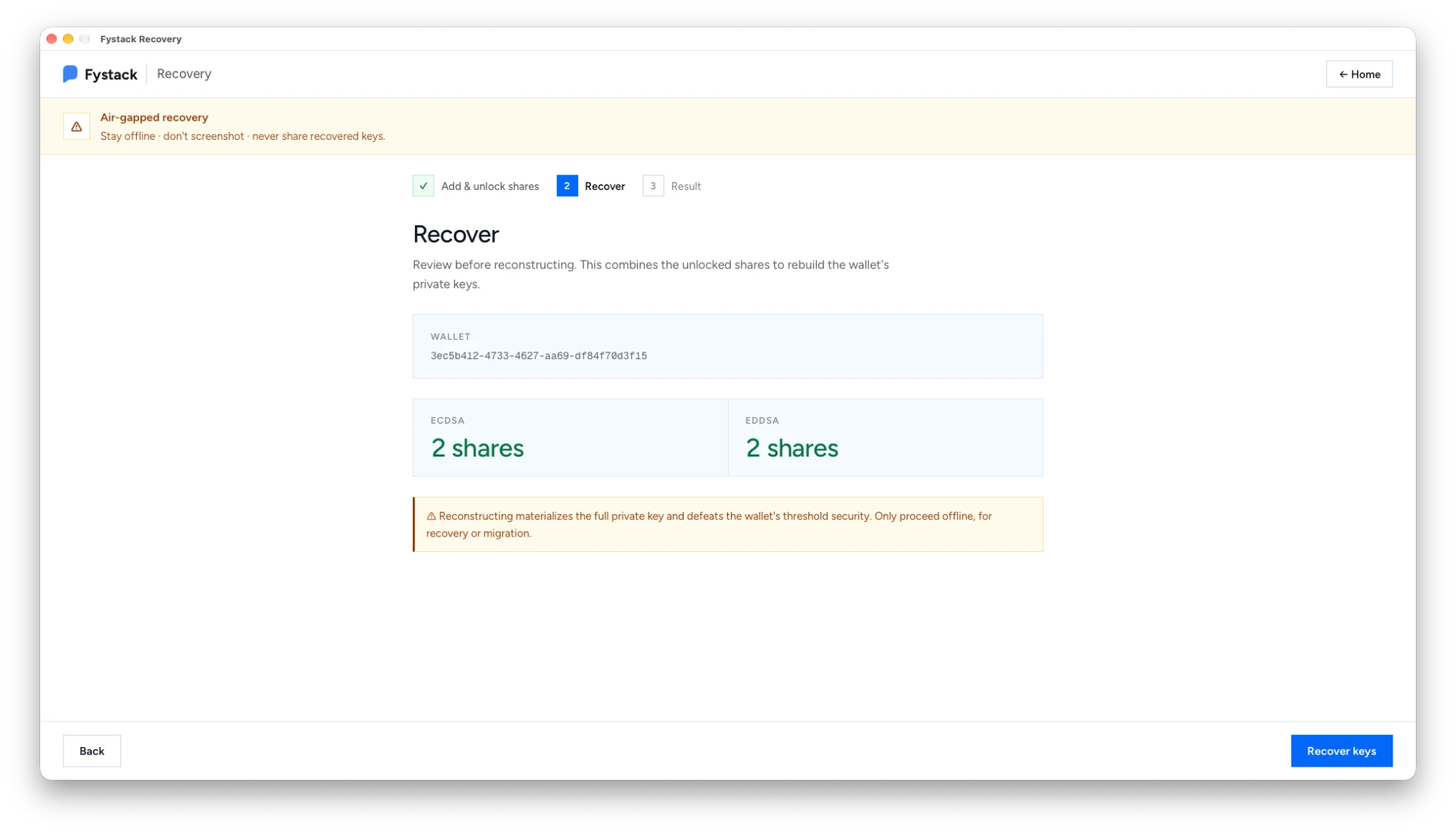
Step 6: Use the recovered keys
Recovery combines the shares, then checks each key against the wallet's public key and test-signs with it. Both checks must pass.
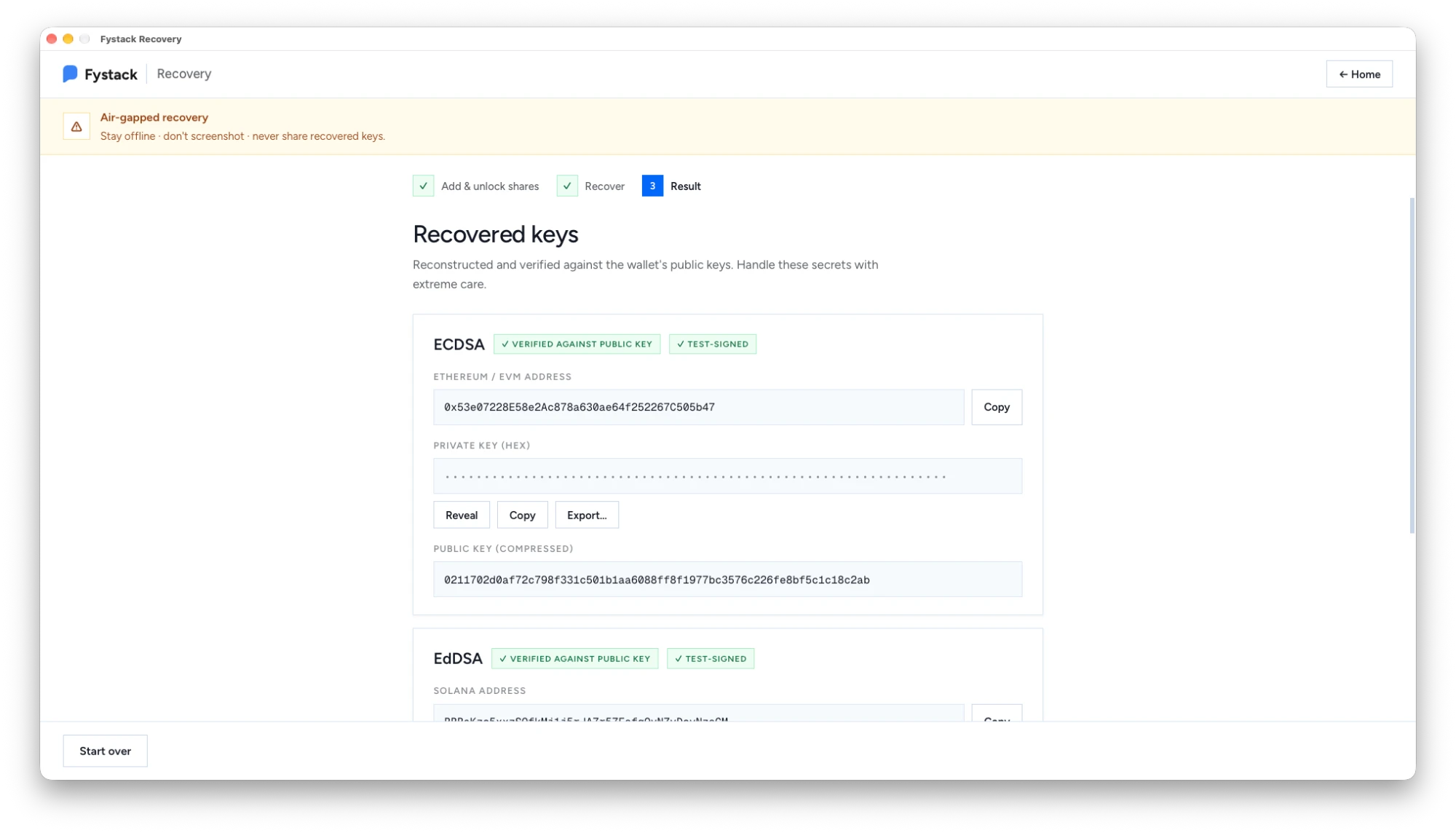
For each curve the result shows:
- ECDSA: the Ethereum / EVM address, the private key (hex) and the compressed public key.
- EdDSA: the Solana address, the private key and the public key.
The private key stays hidden until you click Reveal. Use Copy or Export... to move it into the destination wallet, then click Start over to clear it from memory.
Security checklist
- Run Recovery on an air-gapped machine. Stay offline and never screenshot recovered keys.
- Keep the RSA private key and the cosigner passphrase apart from the share files.
- Move funds to a new wallet once recovered. The old wallet no longer has threshold protection.
- Delete share files, the RSA private key and any exported keys when you are done.