Alerts
The Alerts module lets you monitor wallet activity in real time and receive instant notifications through external channels like Telegram. Set up event-based or condition-based alerts on specific wallets, route them to your team's communication channels, and get notified the moment something happens without watching a dashboard.
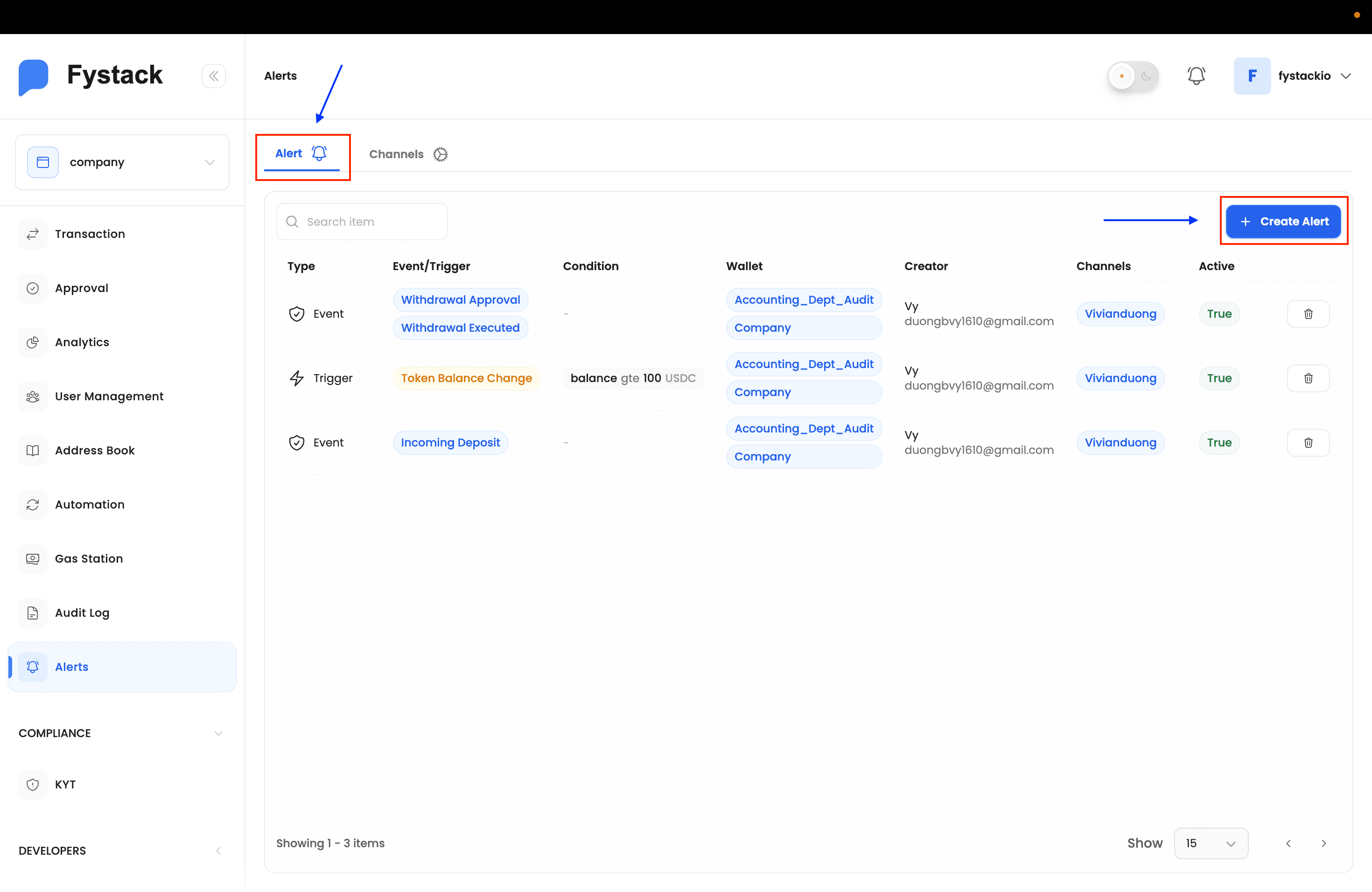
Alerts are organized into two tabs:
- Alert: the alerts you have configured and their current status
- Channels: the notification destinations (e.g. Telegram groups) that receive alert messages
Set Up a Notification Channel
A notification channel is the delivery destination for your alerts. Currently, Fystack supports Telegram channels and groups.
Step 1: Navigate to Alerts and Open the Channels Tab
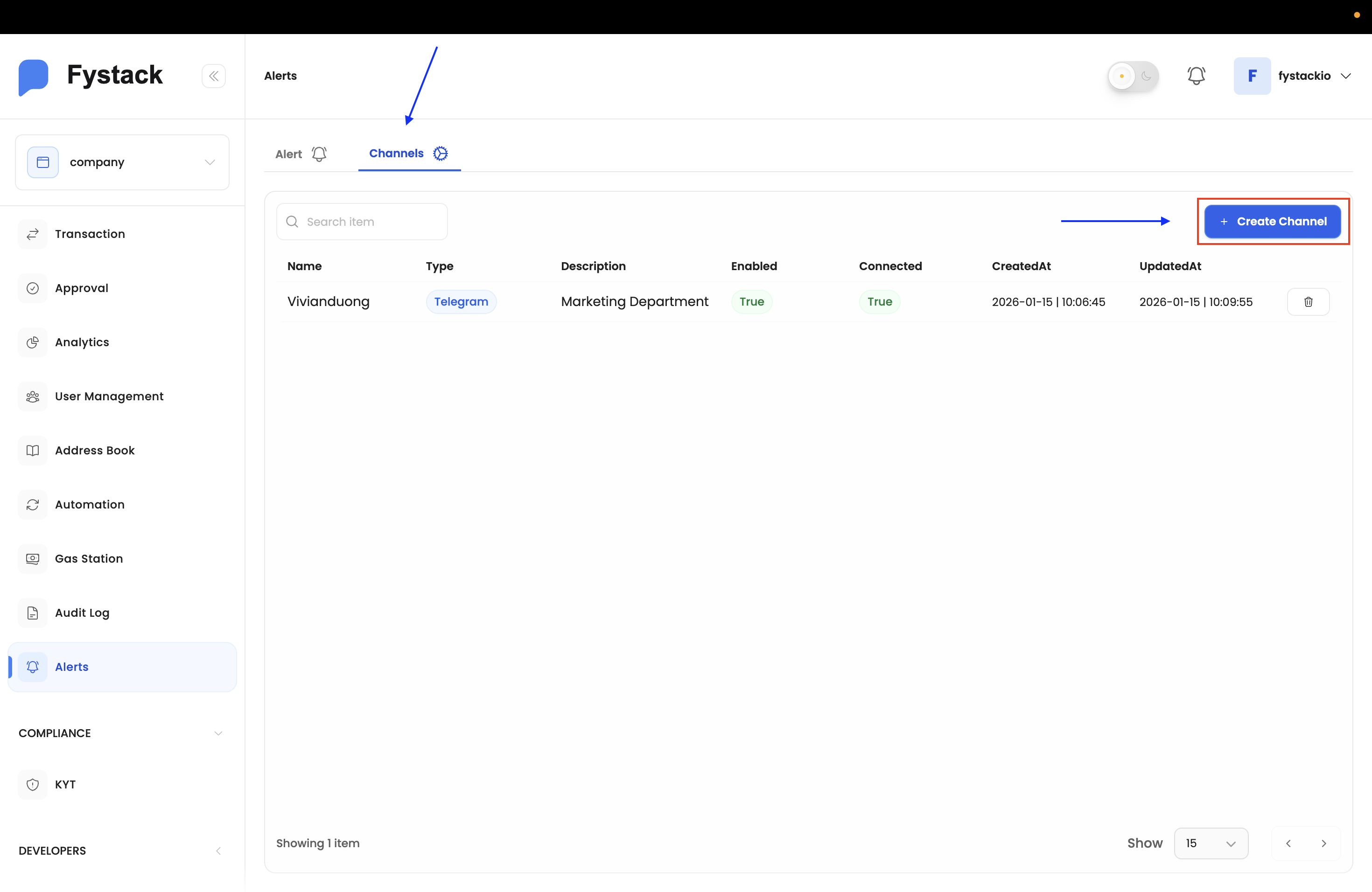
Click Alerts in the left sidebar, then select the Channels tab. Any existing channels appear here. Click + Create Channel to add a new one.
Step 2: Fill in Channel Details
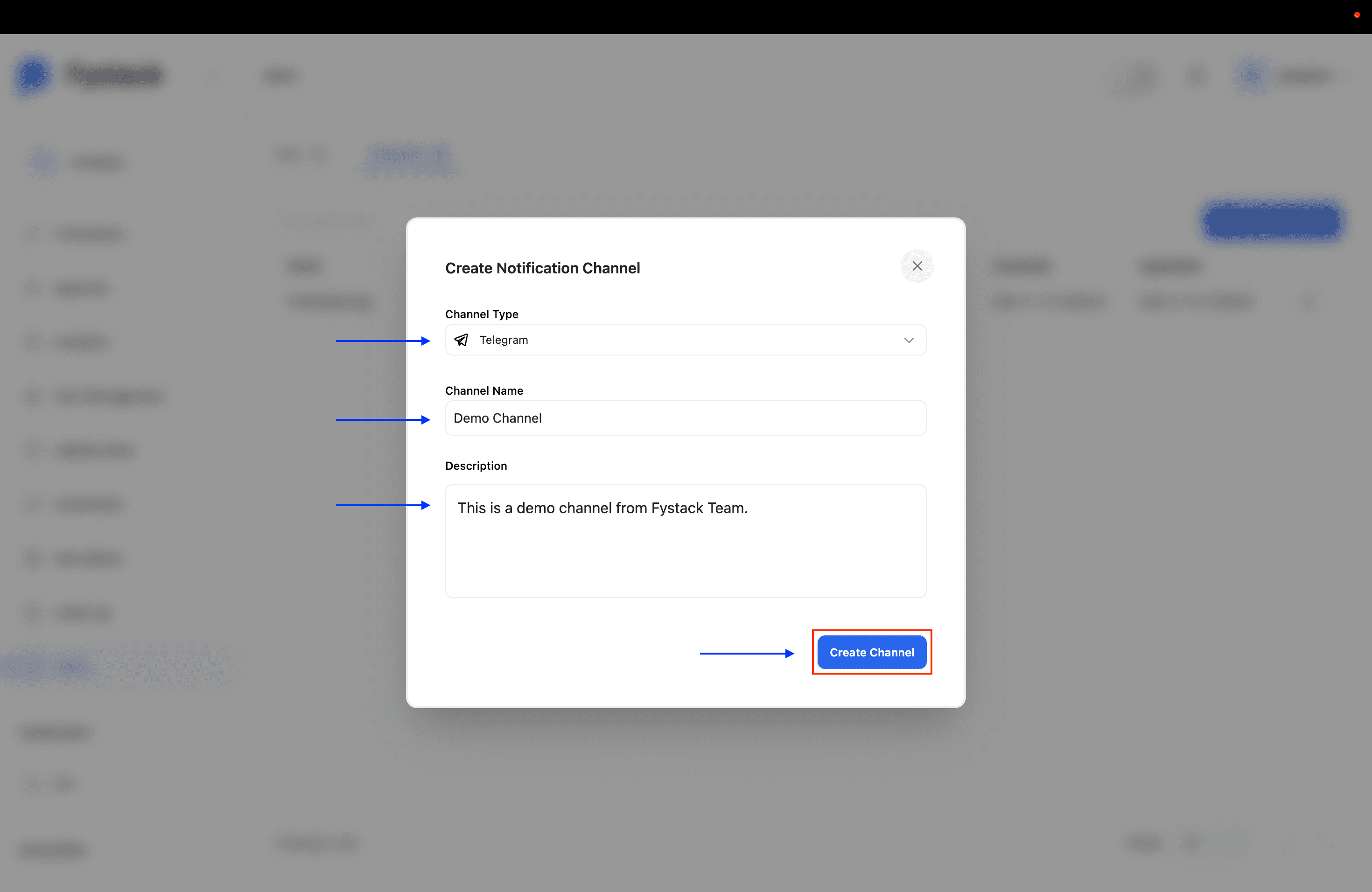
In the Create Notification Channel modal, complete the following fields:
- Channel Type: select
Telegramfrom the dropdown - Channel Name: a label to identify this channel within Fystack (e.g.
Marketing Department,Ops Team) - Description: an optional note explaining what this channel is for
Click Create Channel to save.
Step 3: Connect the Channel to Telegram
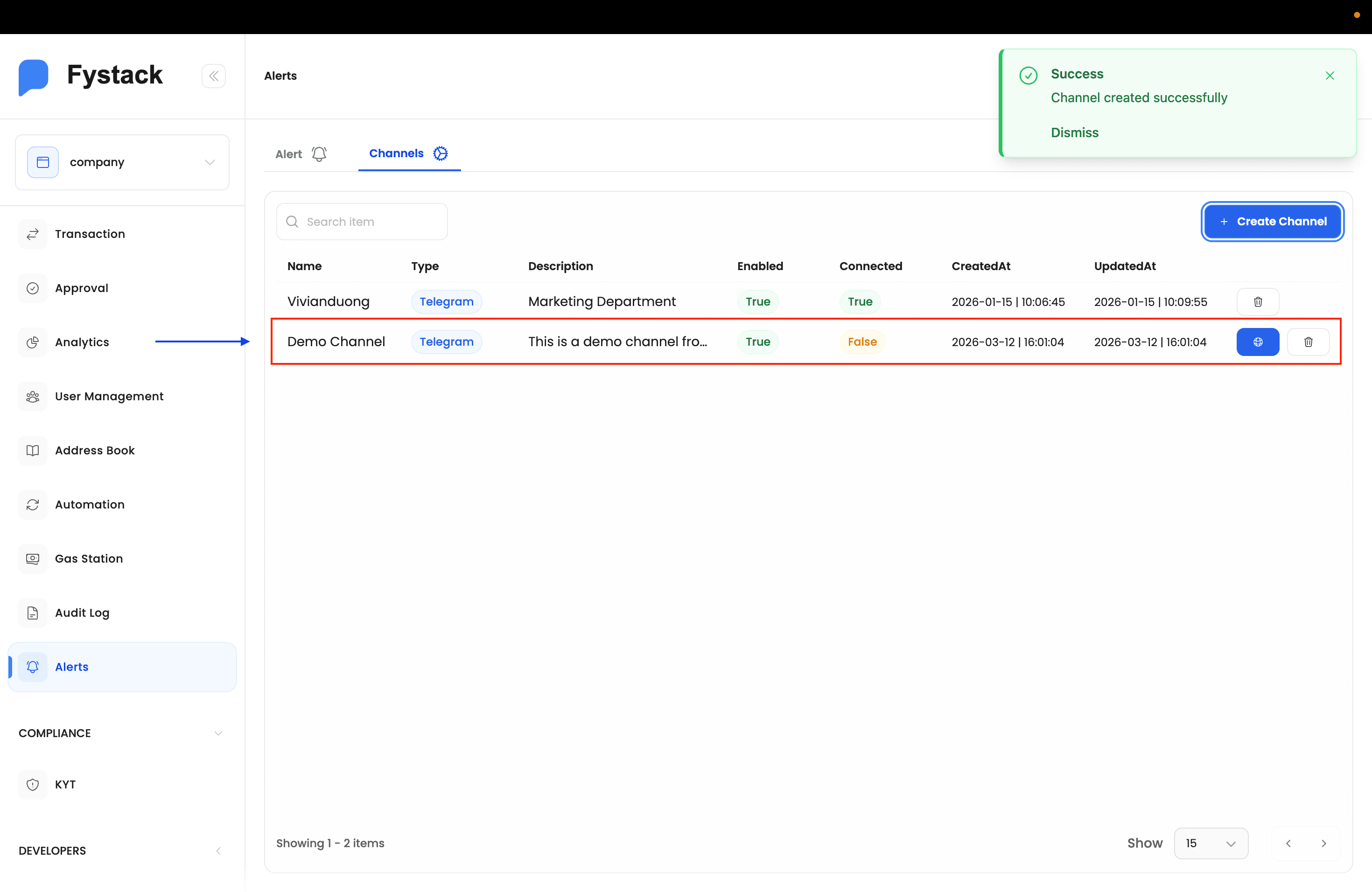
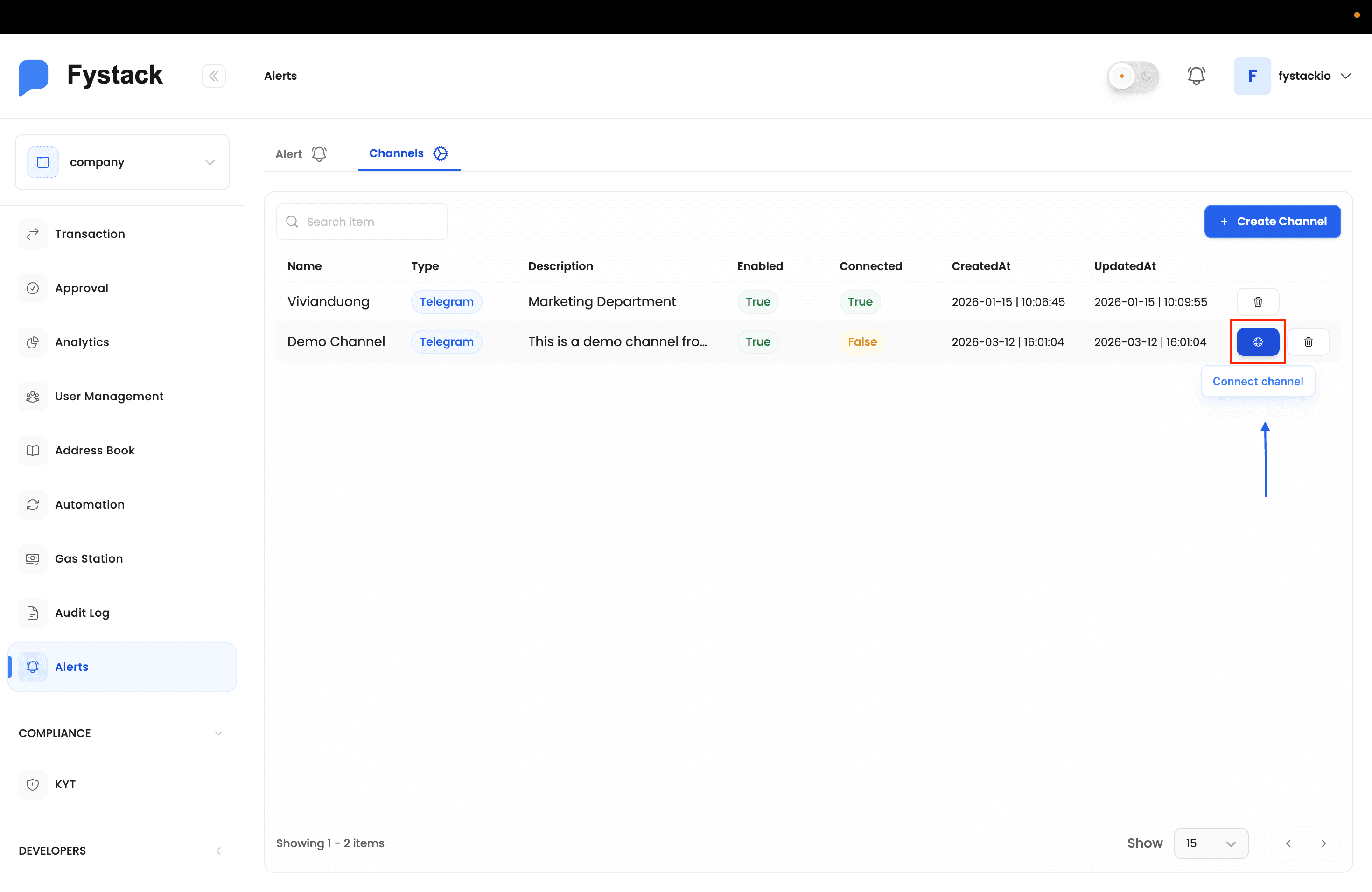
After creation, the channel appears in the list with Connected: False. It needs to be linked to a Telegram chat before it can deliver alerts. Click the Connect channel icon (the link icon) on the right side of the row.
Step 4: Link the Fystack Alert Bot in Telegram
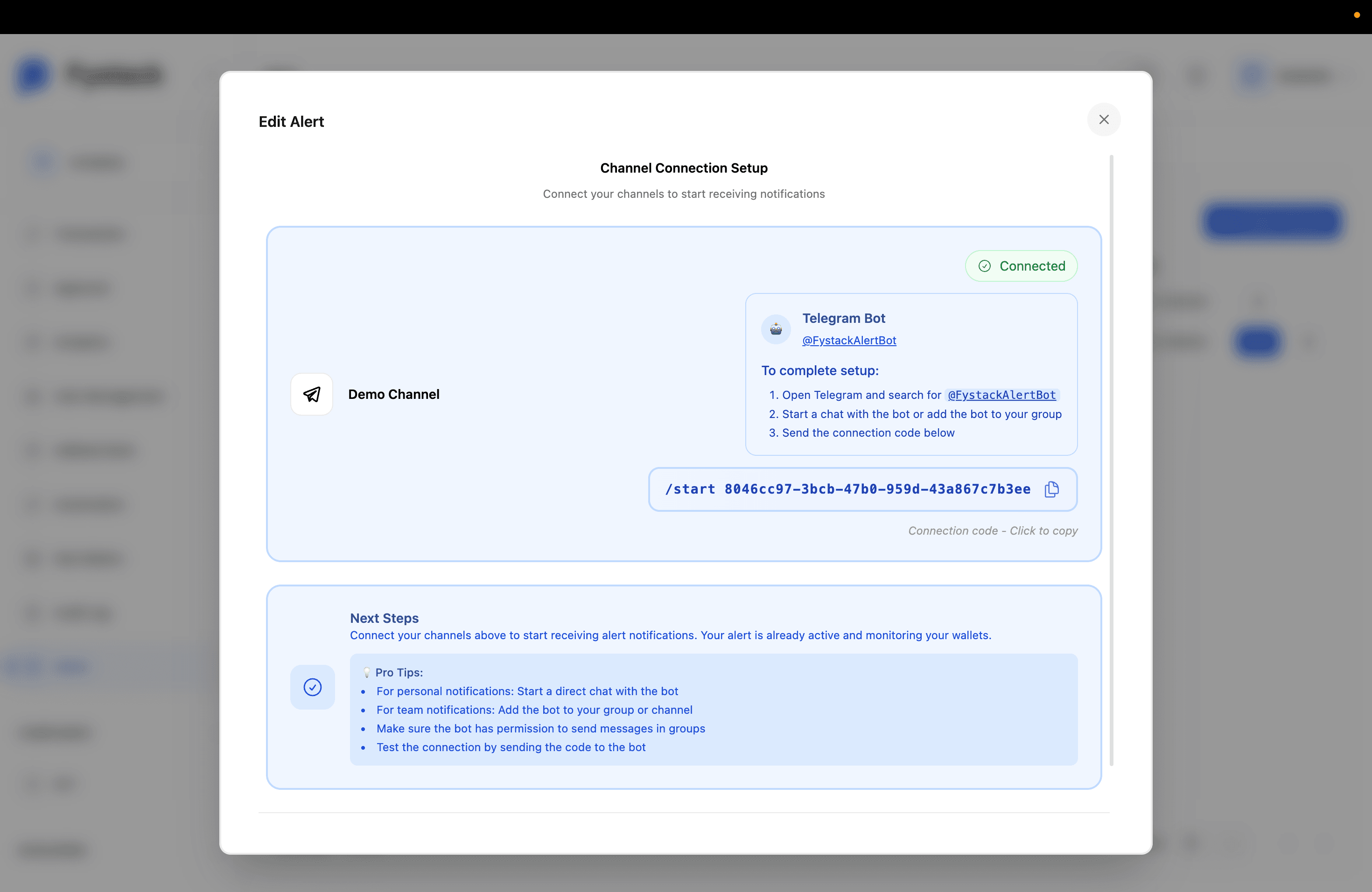
The Channel Connection Setup dialog opens with a unique connection code and instructions. To link the channel:
- Open Telegram and search for @FystackAlertBot
- Start a direct chat with the bot, or add it to the group or channel you want to receive notifications in
- Send the connection code shown in the dialog: click the code field to copy it, then paste it as a message to the bot
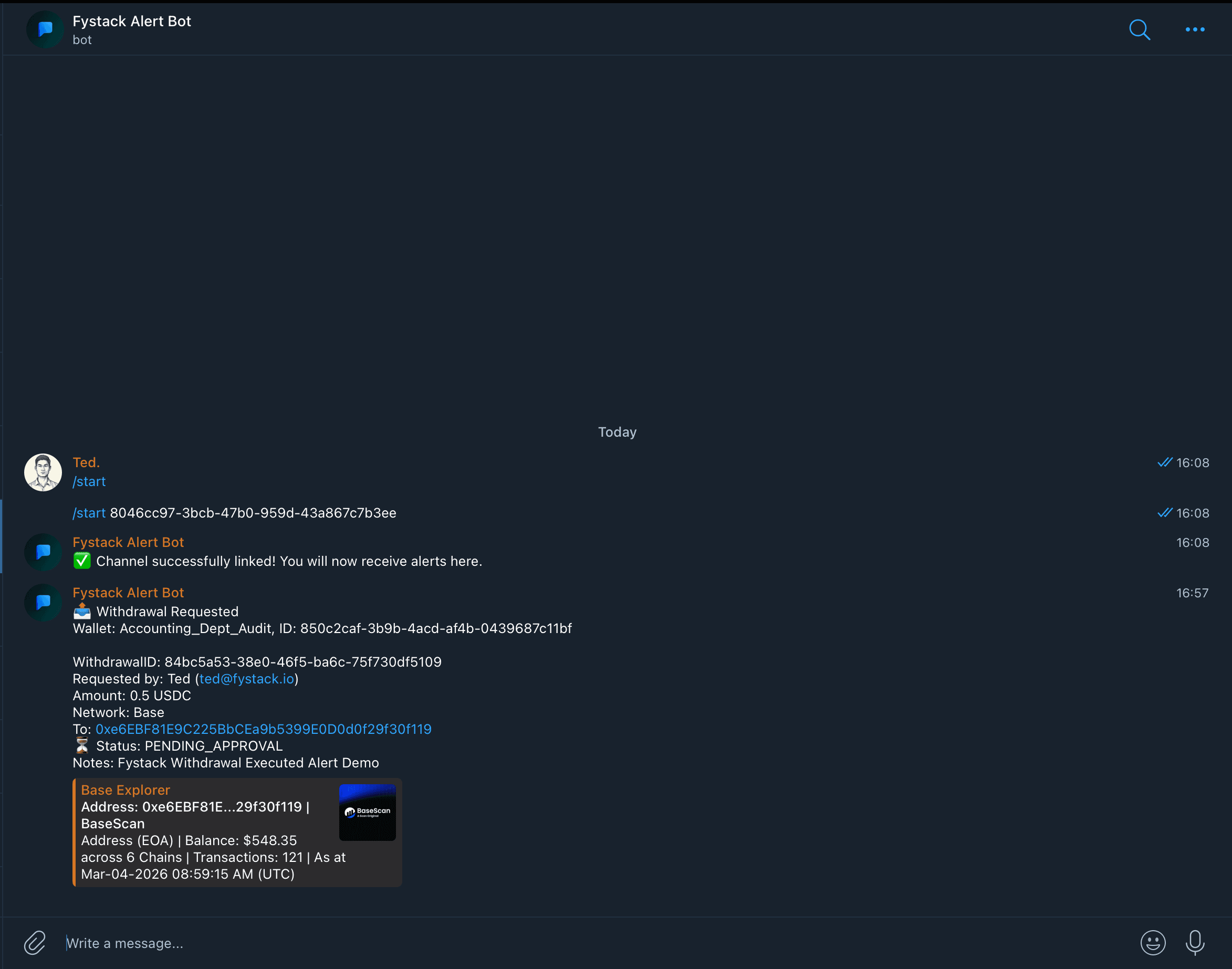
The bot replies with a confirmation: "Channel successfully linked! You will now receive alerts here."
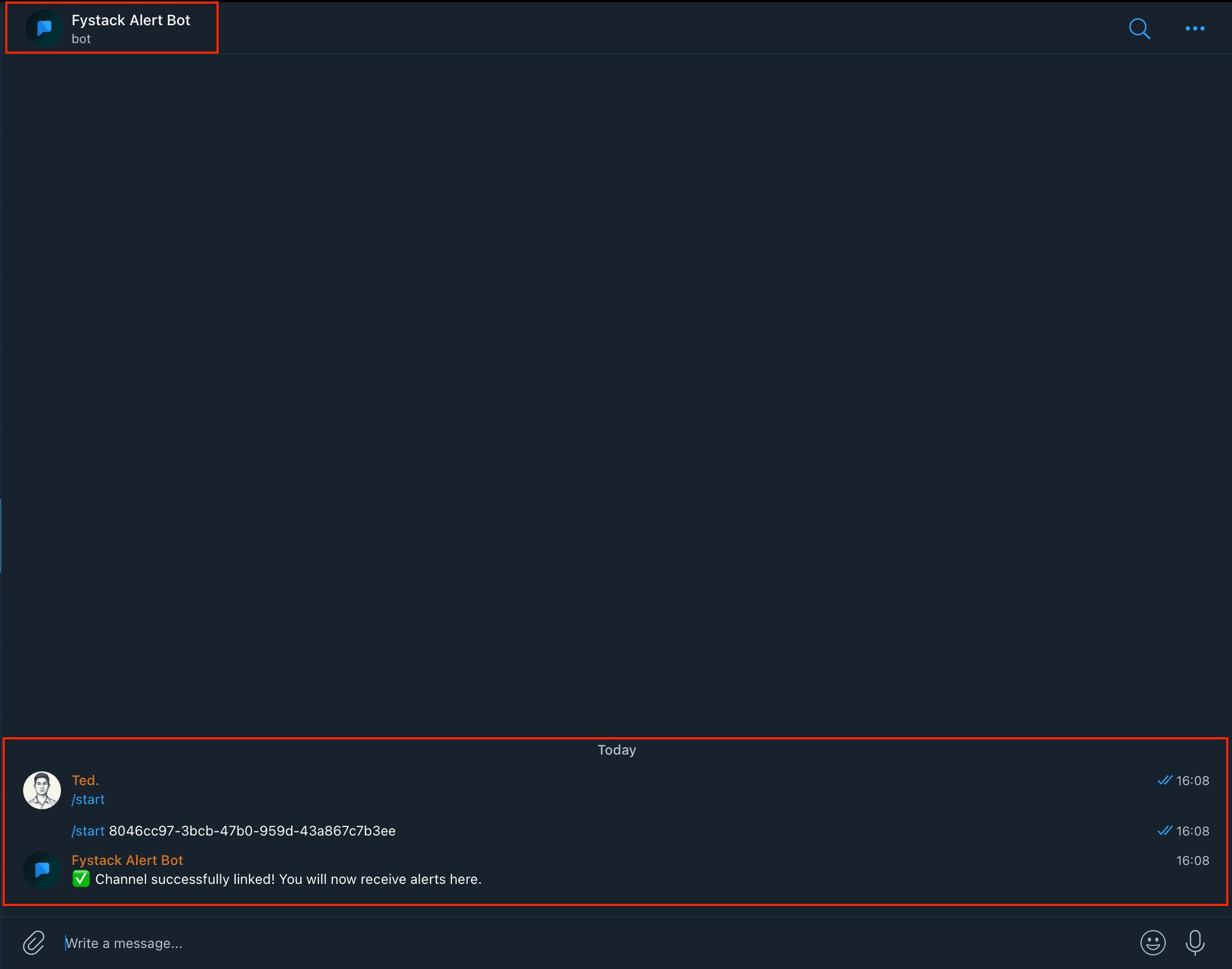
For team notifications, add @FystackAlertBot to a Telegram group or channel and make sure it has permission to send messages. For personal notifications, a direct chat with the bot is sufficient.
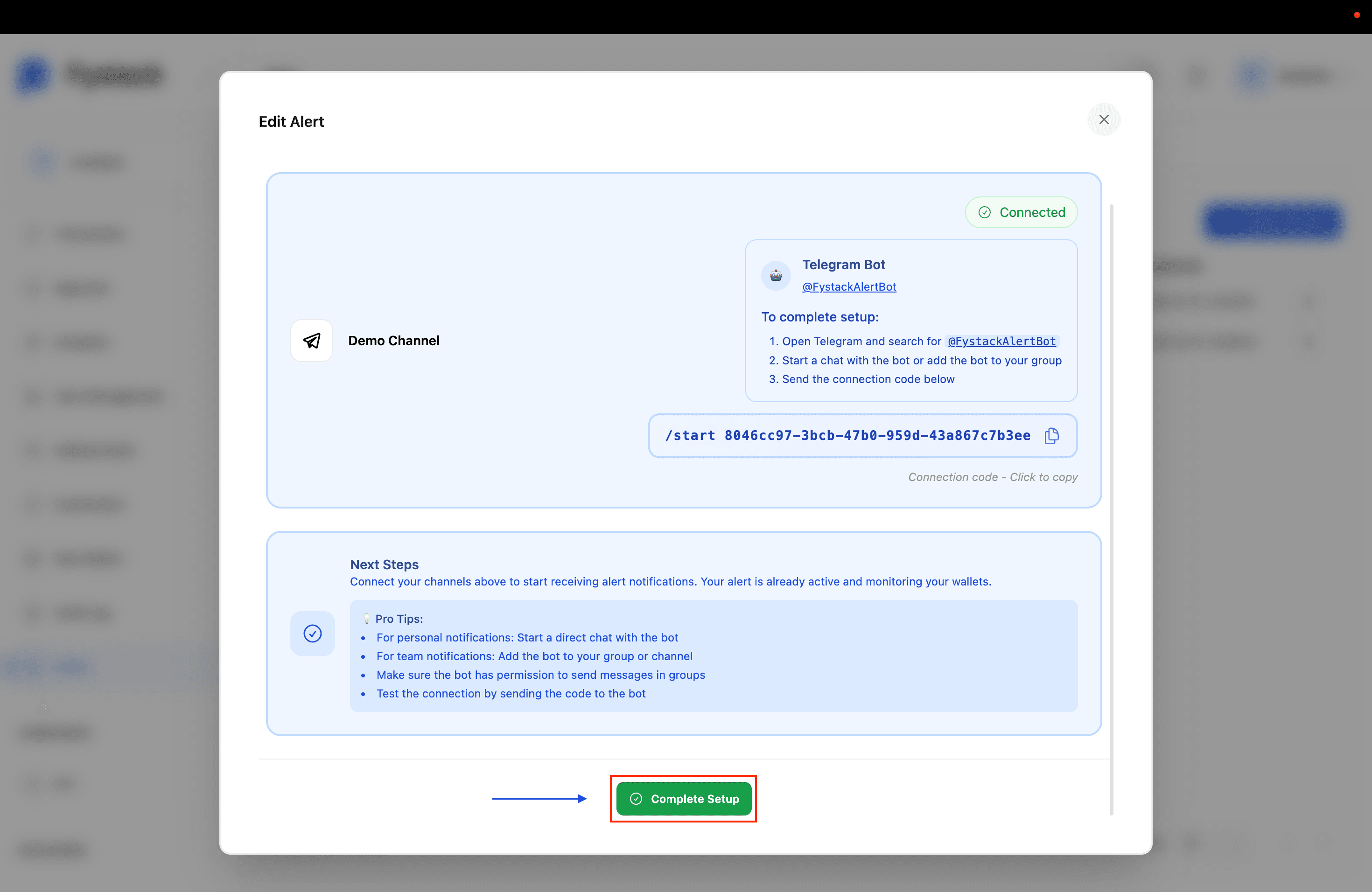
Step 5: Click Complete Setup
Back in the Channel Connection Setup dialog, the status indicator now shows Connected. Click Complete Setup to finalize the configuration.
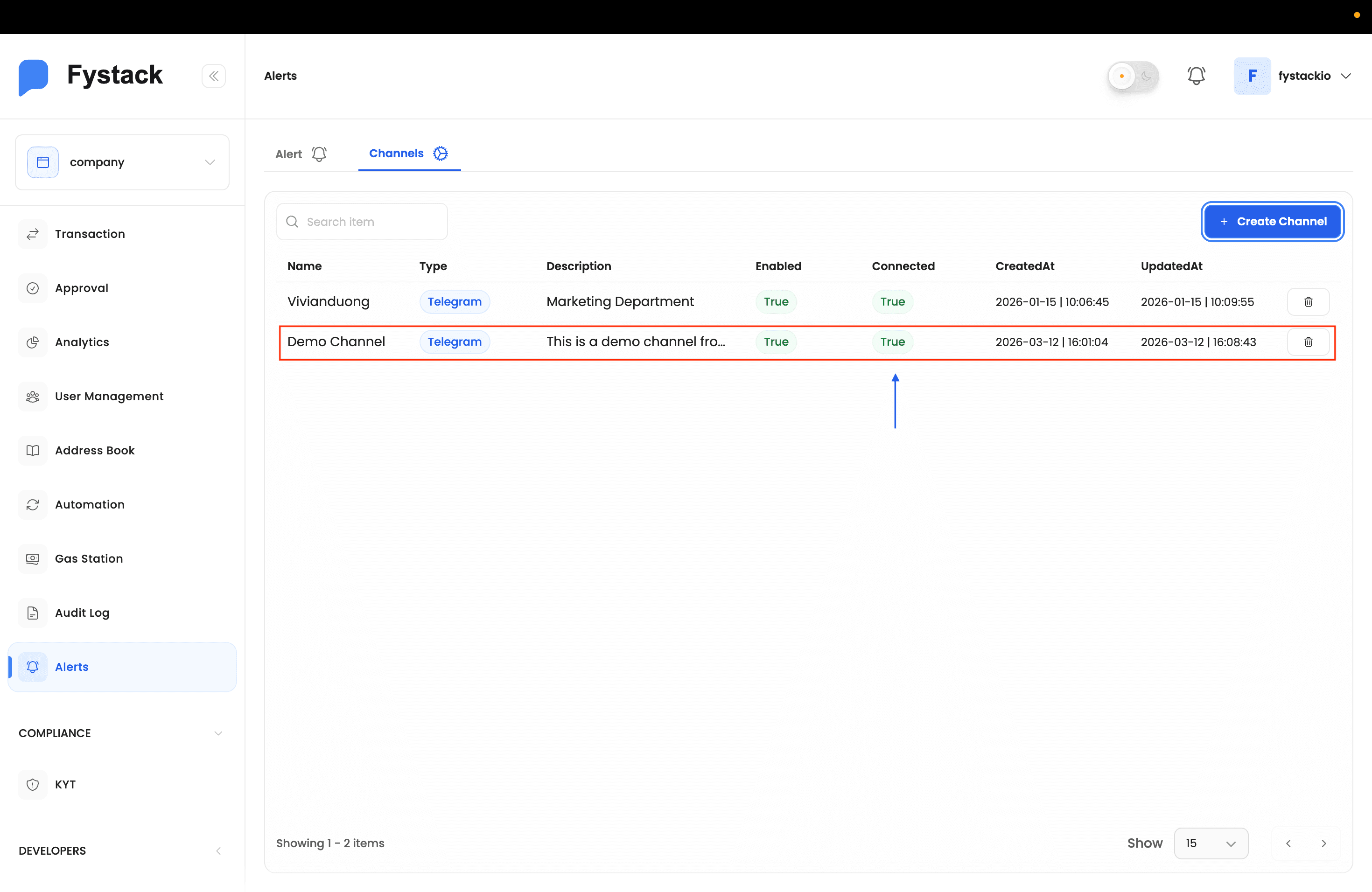
The Channels list now shows Connected: True for this channel. It is ready to receive alert notifications.
Create an Alert
You must have at least one connected channel before creating an alert. If you have not set one up yet, follow the steps above first.
Go to the Alert tab and click + Create Alert to set up a monitoring rule.
Step 1: Choose the Alert Type
The Create Alert wizard begins by asking what you want to monitor. Select the type that fits your use case, then click Next.
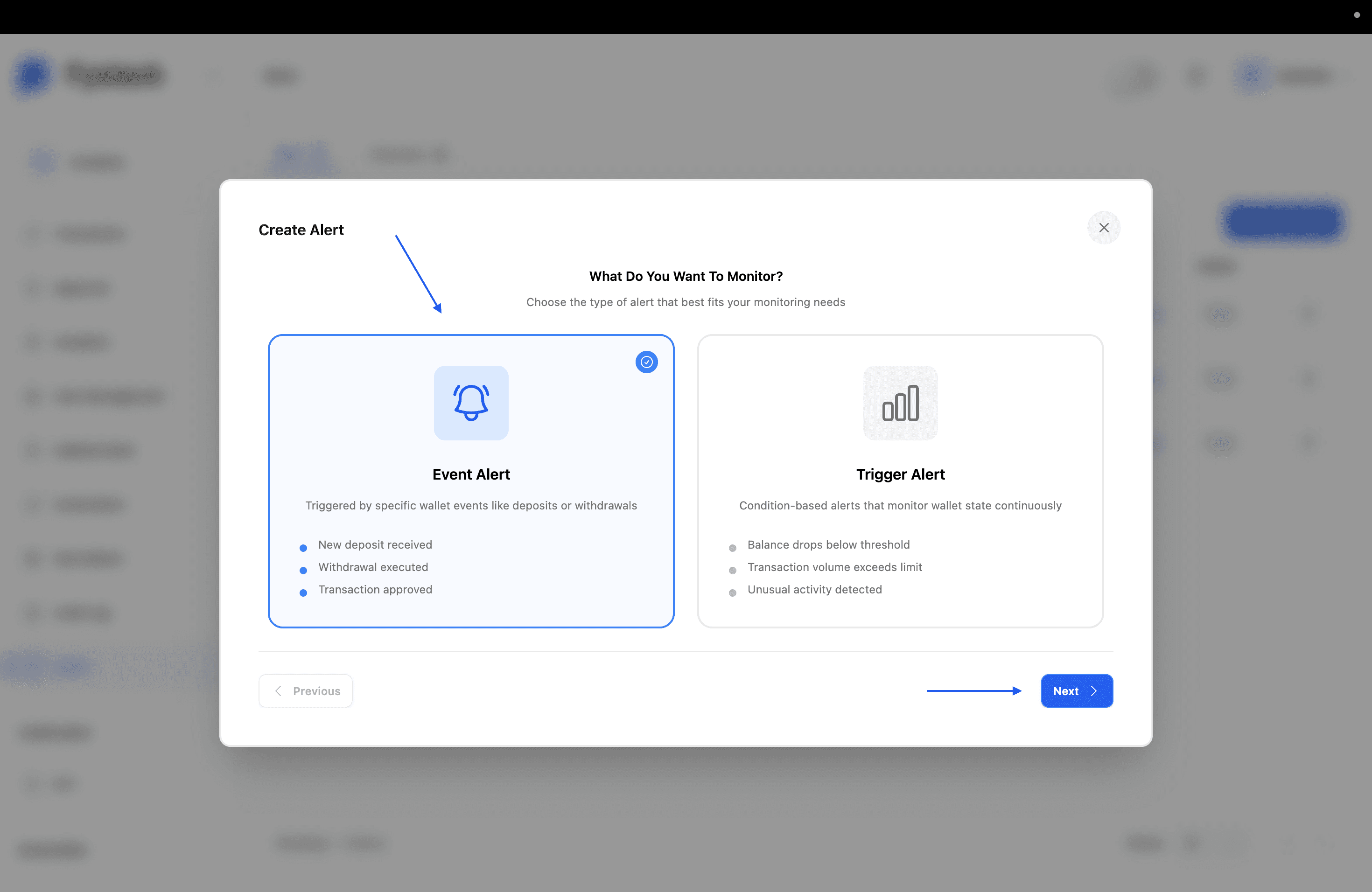
| Type | When it fires | Example use cases |
|---|---|---|
| Event Alert | A specific wallet action occurs: deposit received, withdrawal requested, withdrawal approved, withdrawal cancelled, or withdrawal executed | Notify the ops team every time a withdrawal is executed on a hot wallet |
| Trigger Alert | A wallet state crosses a defined condition: balance drops below a threshold, transaction volume exceeds a limit, or unusual activity is detected | Alert when USDC balance on a treasury wallet drops below 100 |
Step 2: Select Event Types and Target Wallets
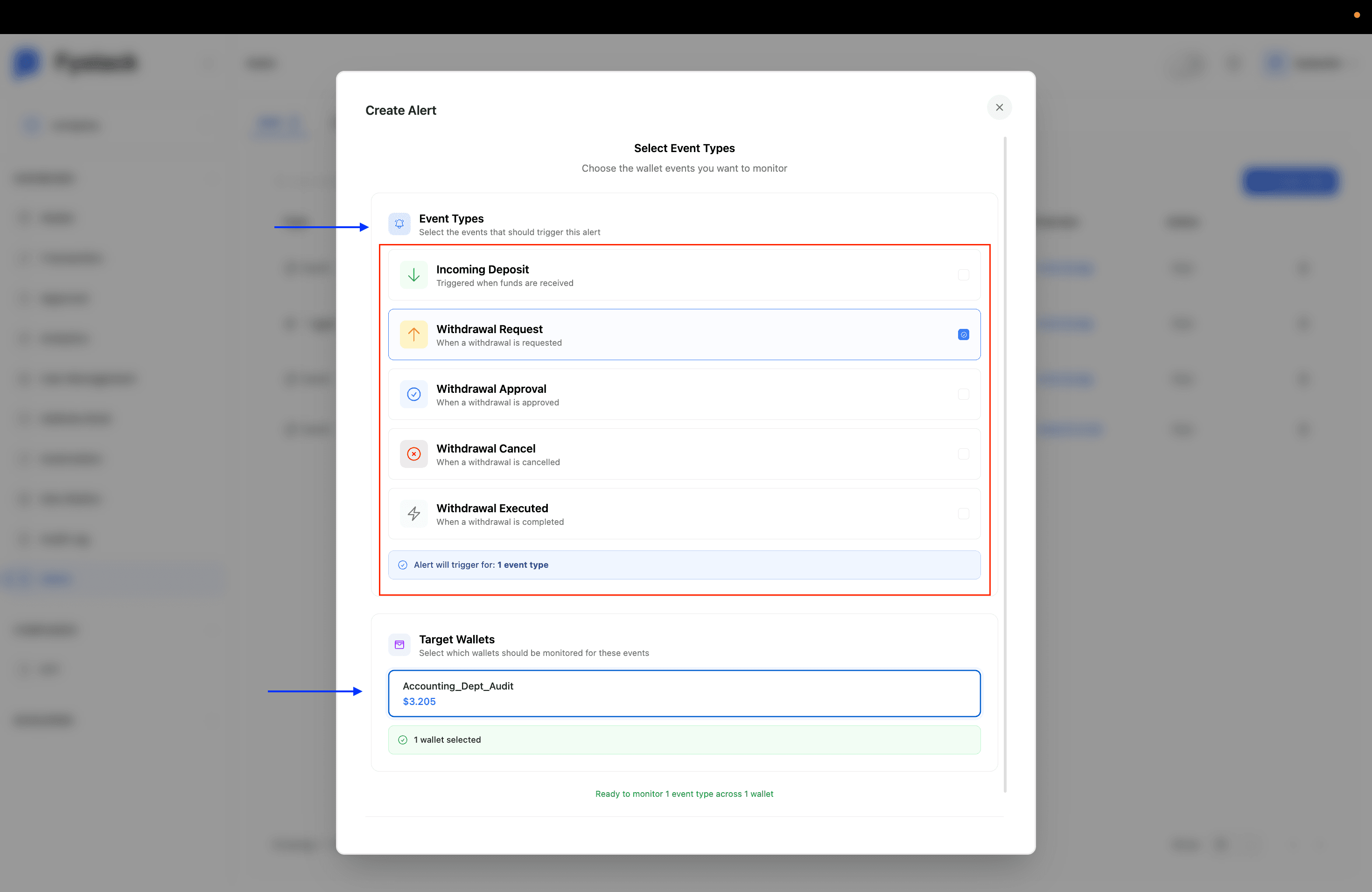
For an Event Alert, choose one or more wallet events to monitor from the list:
- Incoming Deposit: triggered when funds are received
- Withdrawal Request: when a withdrawal is submitted
- Withdrawal Approval: when a withdrawal is approved by a Signer
- Withdrawal Cancel: when a withdrawal is cancelled
- Withdrawal Executed: when a withdrawal is completed on-chain
Then select one or more Target Wallets to scope the alert. The summary at the bottom confirms how many event types and wallets will be monitored.
For Trigger Alerts, this step instead asks you to define the condition (e.g. balance gte 100 USDC) and the wallet to evaluate. The condition is checked continuously against live wallet state.
Step 3: Select Notification Channels
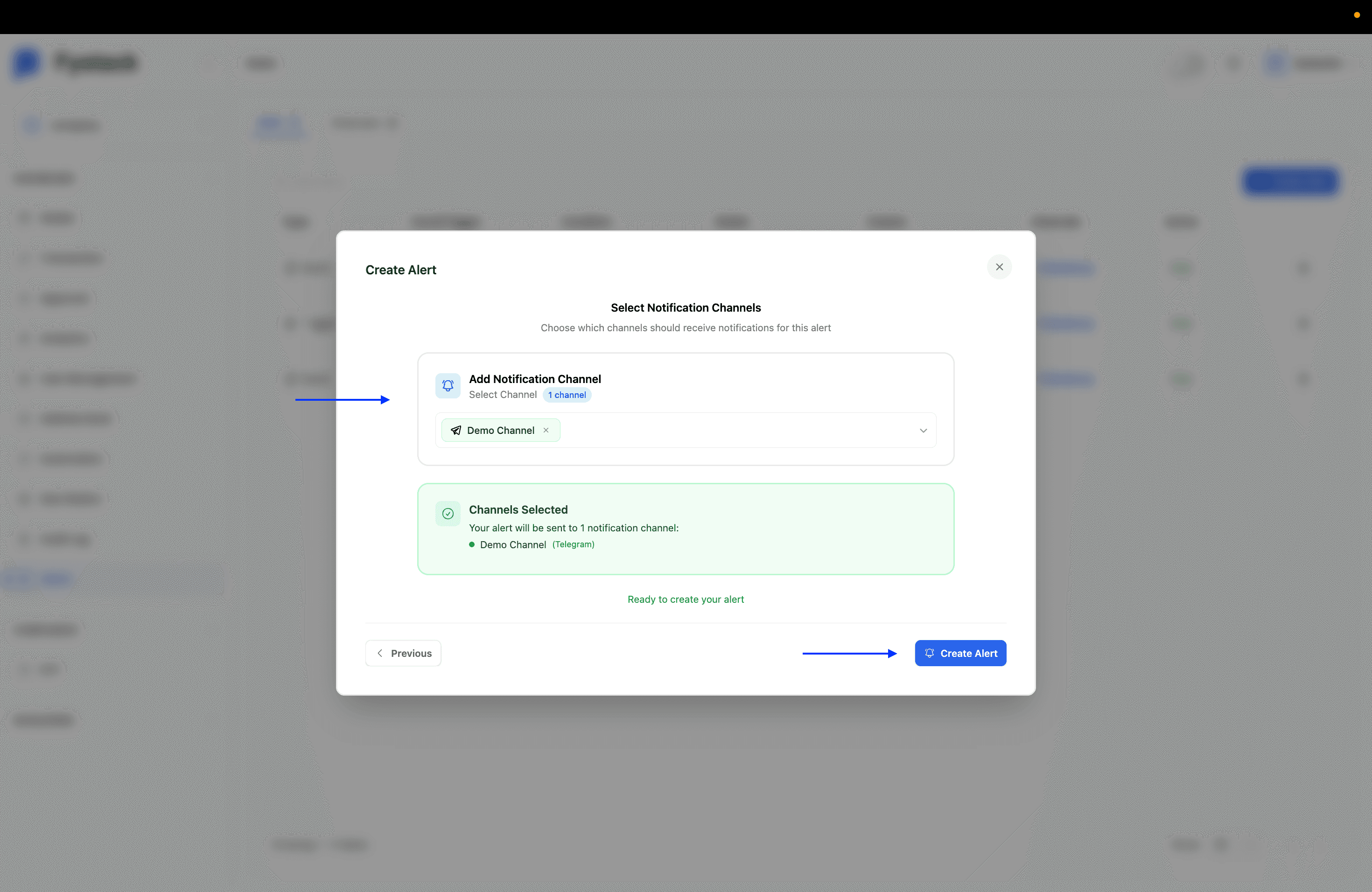
Choose which notification channels should receive messages for this alert. All connected channels appear in the Add Notification Channel picker. Select one or more, confirm the summary at the bottom, then click Create Alert.
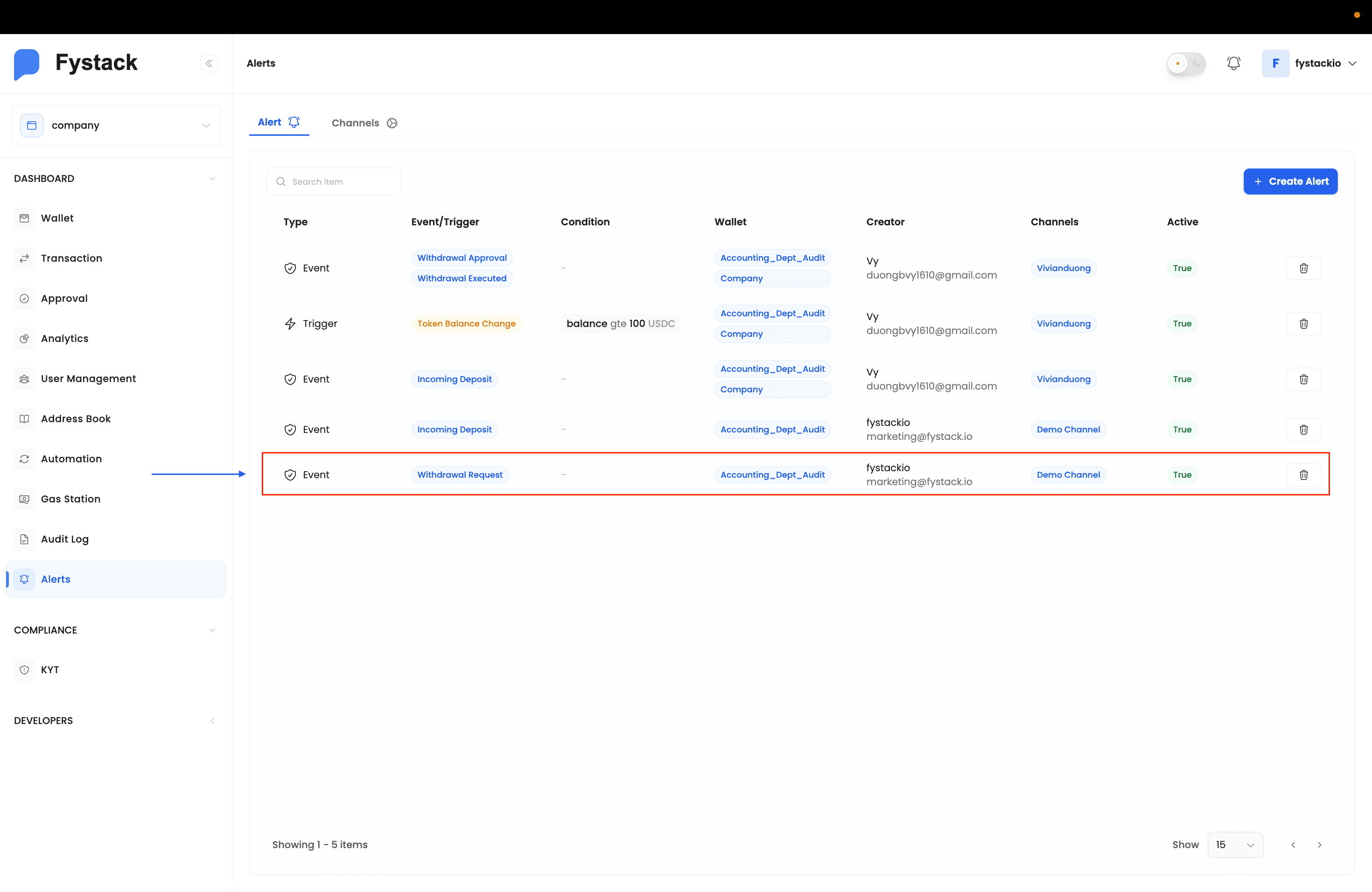
Alert is Active
The new alert appears in the Alert list with Active: True. Each row shows the alert type, the event or trigger condition, the wallets being monitored, the creator, and the linked channels.
Testing Your Alerts
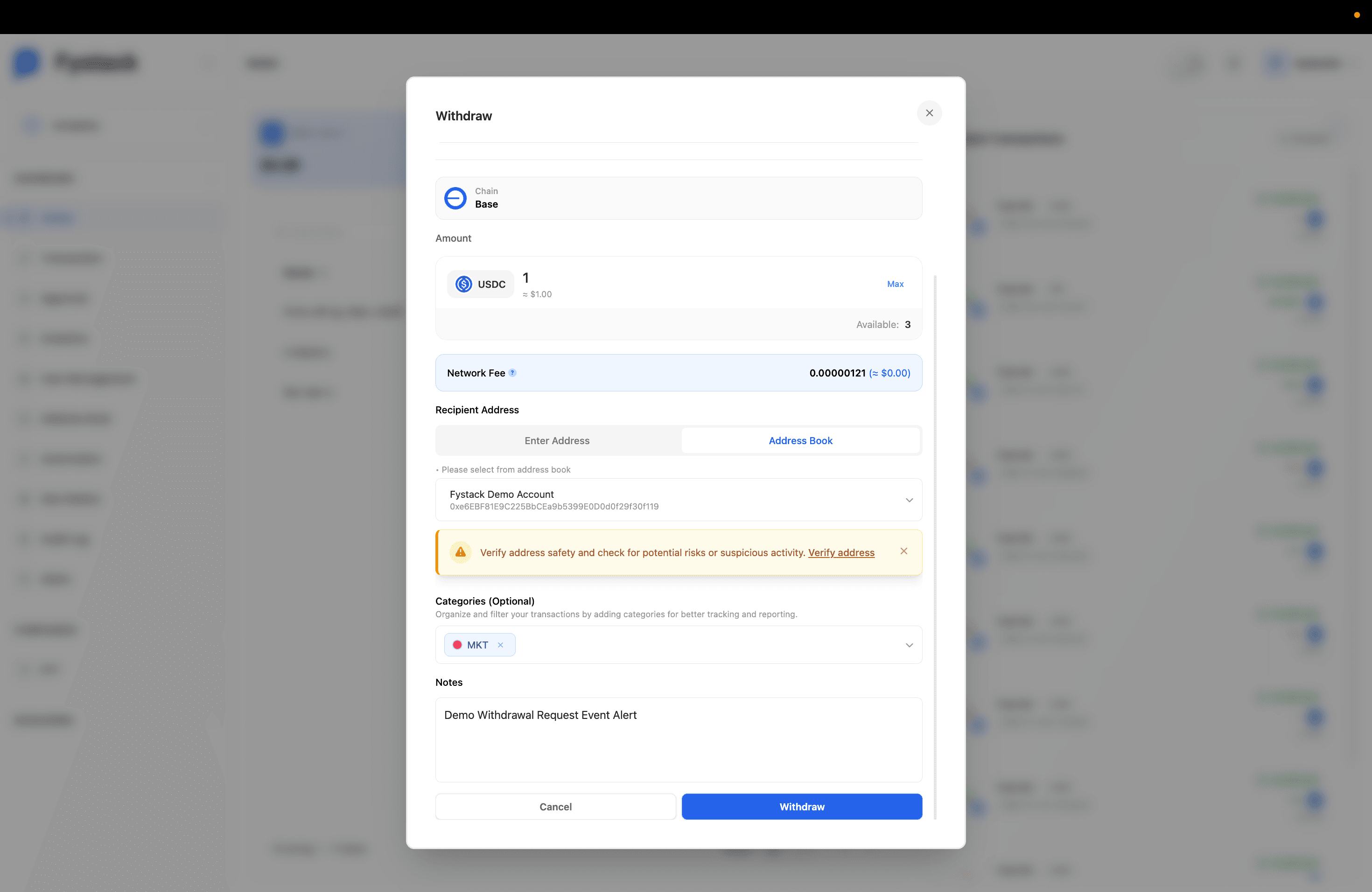
The fastest way to verify an alert is working is to trigger one of the monitored events manually. For a Withdrawal Request or Withdrawal Executed event alert, initiate a withdrawal from one of the target wallets.
Once the event fires, the Fystack Alert Bot delivers a structured message to your Telegram channel within seconds. The message includes the event type, wallet name, transaction ID, amount, network, recipient address, and a link to the block explorer.
Best Practices
- Create one channel per team or function: separate channels for ops, finance, and compliance make it easier to route the right alerts to the right people without noise.
- Use Event Alerts for audit trails: pairing Withdrawal Approval and Withdrawal Executed alerts gives your team a real-time record of every transaction, complementing the workspace Audit Log.
- Use Trigger Alerts for balance monitoring: set a minimum balance threshold on wallets used with Automation sweep tasks, so you catch low-balance situations before they block automated transfers.
- Test every new alert before relying on it: trigger the monitored event manually right after setup to confirm the bot message arrives in the expected Telegram chat.
- Add the bot to a group for team visibility: individual DMs are easy to miss. A shared Telegram group ensures the whole team sees critical events in real time.