Gas Station
The Gas Station is Fystack's built-in gas management hub. It provides a dedicated Gas Tank wallet that holds native tokens across multiple chains, ensuring your wallets always have enough gas to execute transactions without manual top-ups.
Gas Station works hand-in-hand with Automation. When a sweep task consolidates funds across wallets, Gas Station ensures each source wallet always has enough gas to execute those automated transfers, with no manual top-ups required.
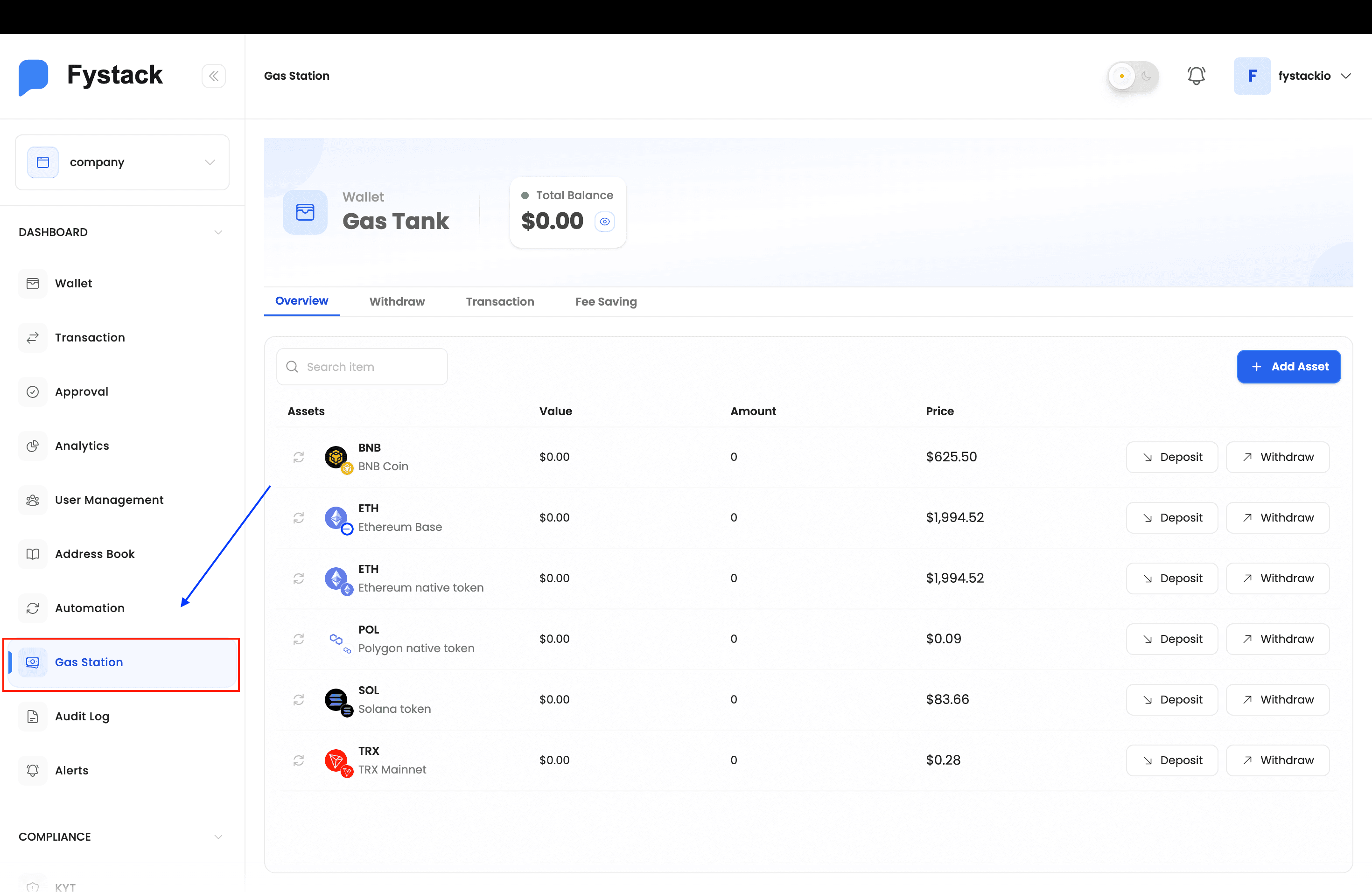
Gas Tank Overview
The Gas Tank is a special wallet inside Gas Station that holds gas tokens for each supported network. From the Overview tab you can see your balance per asset, deposit gas funds, or withdraw them.
| Tab | Description |
|---|---|
| Overview | Total balance and per-asset breakdown across all supported networks (BNB, ETH, POL, SOL, TRX, and more) |
| Withdraw | Move gas funds out of the Gas Tank back to any external address |
| Transaction | Full history of gas deposits and withdrawals for the Gas Tank wallet |
| Fee Saving | Configure energy-renting providers (e.g. TronZap) to reduce transaction fees on supported networks |
The Gas Tank must hold native tokens before it can cover transaction fees. Follow the steps below to add assets and deposit funds.
How to Fund the Gas Tank
Step 1: Add an Asset
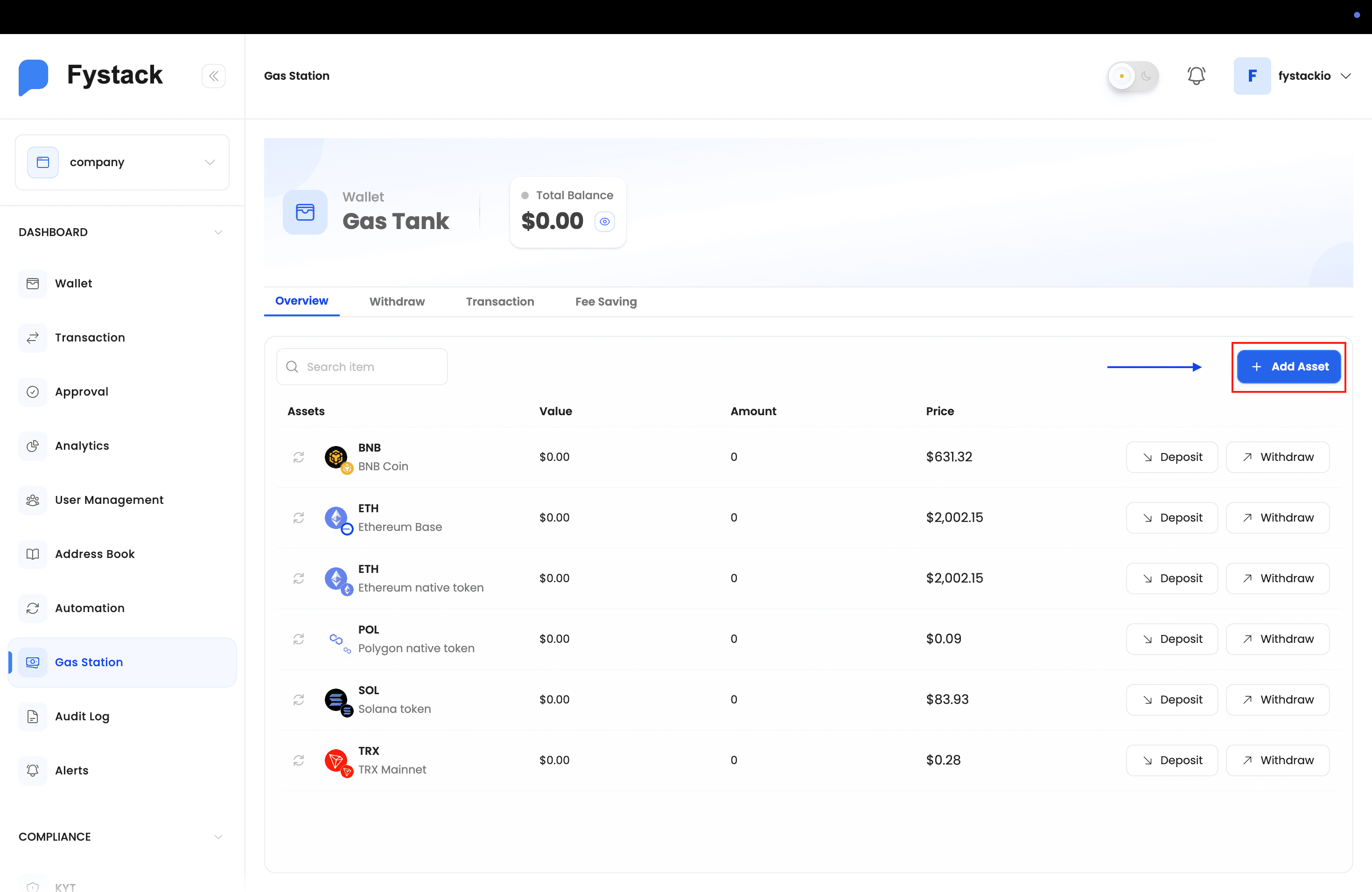
On the Overview tab, click + Add Asset in the top-right corner to open the asset picker.
Step 2: Choose from the List or Add a Custom Token
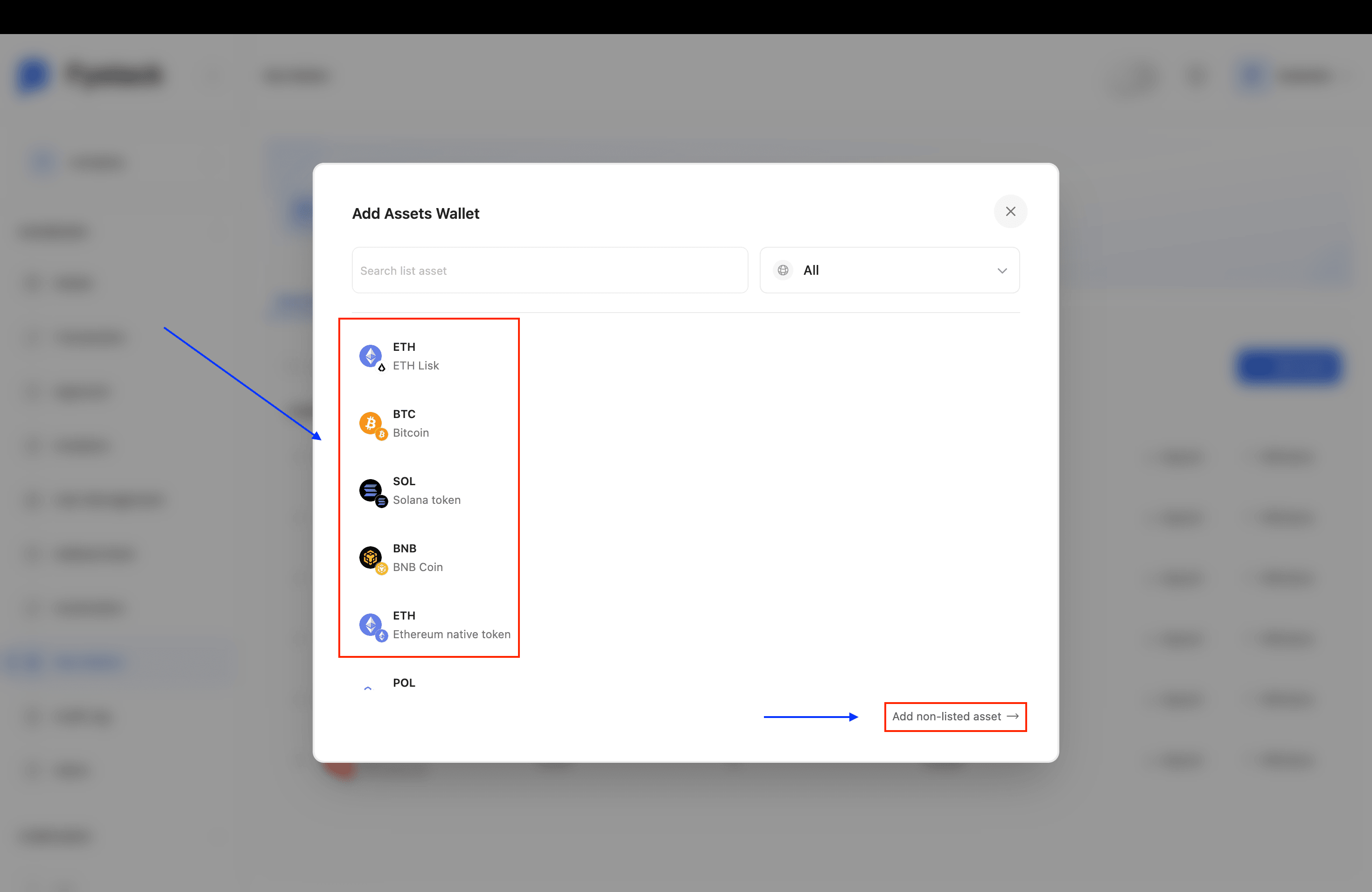
The Add Assets Wallet modal shows all supported assets (ETH, BTC, SOL, BNB, POL, and more). Select the one you need. If the token you want is not in the list, click Add non-listed asset → at the bottom to add a custom token instead.
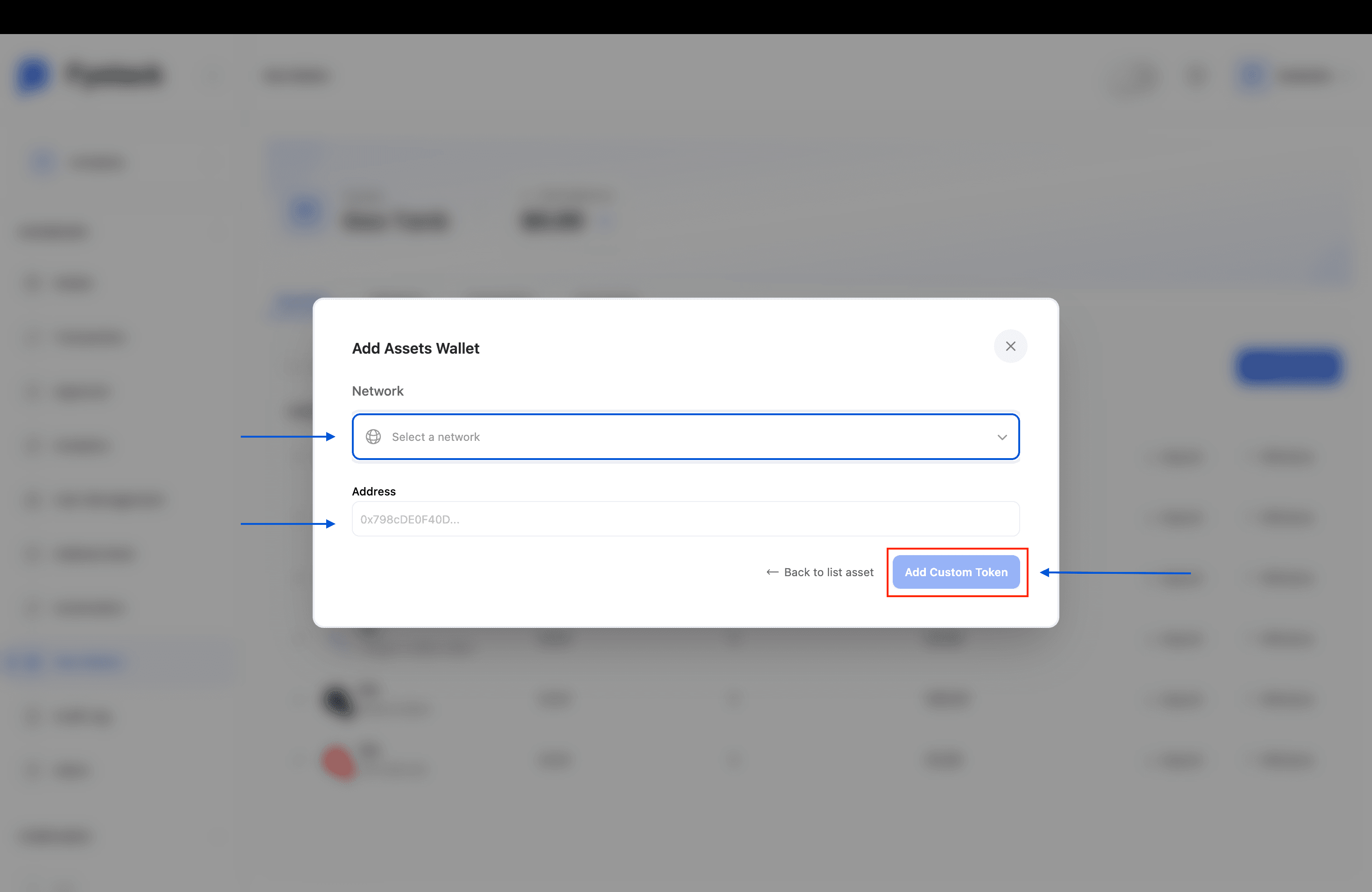
For a custom token, select the network and paste the token contract address, then click Add Custom Token.
Step 3: Deposit Funds
Once the asset appears in the Overview list, click Deposit on its row. A modal displays the Gas Tank deposit address and a QR code. Send the native token to this address from any external wallet or exchange.
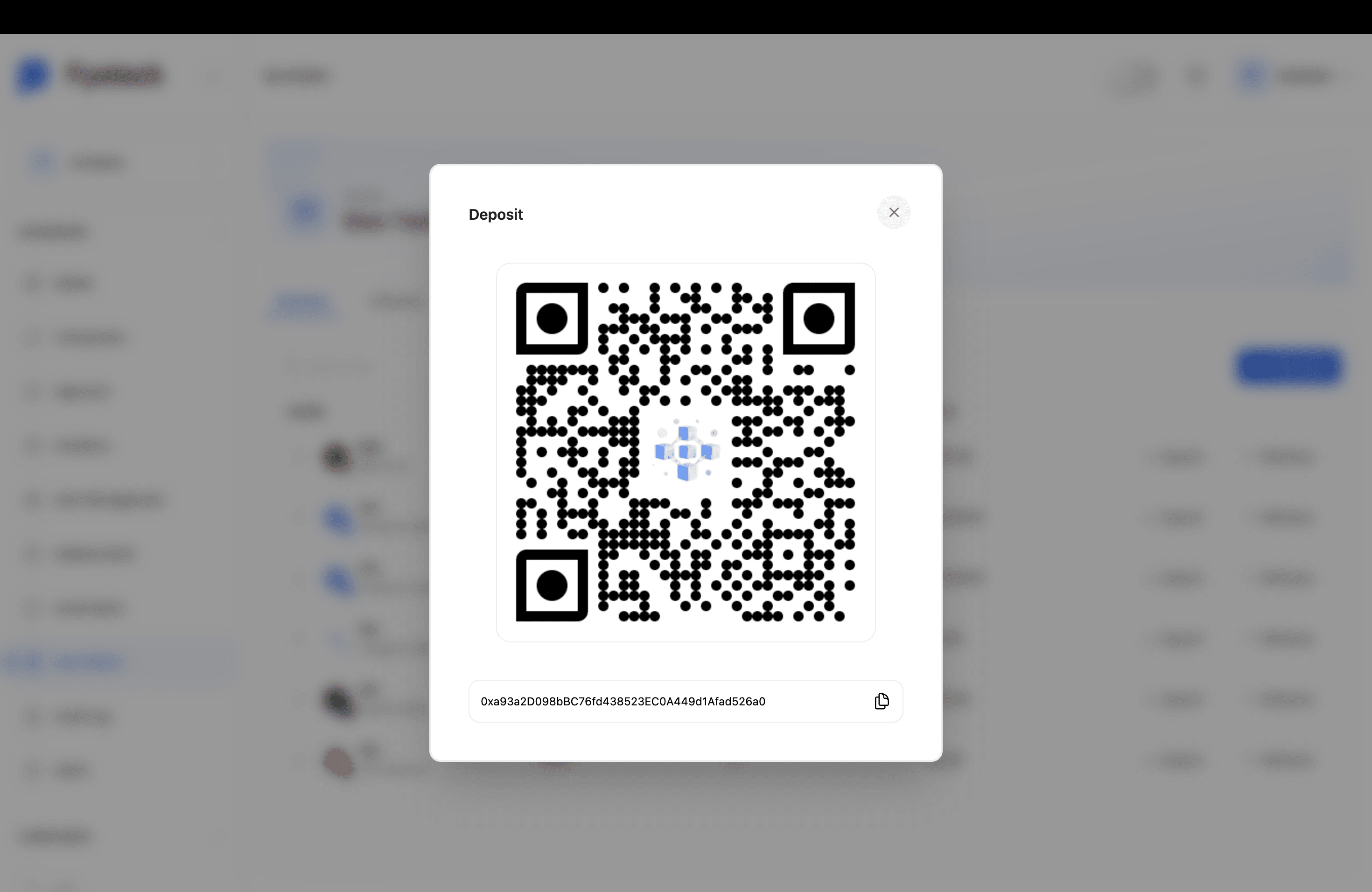
The deposit address only accepts the corresponding native token. Sending a different token to this address may result in permanent loss of funds.
Fee Saving: Tron Energy Renting with TronZap
TRON Mainnet transactions require Energy: the resource that powers smart contract execution. Without energy, the network deducts TRX directly from the sender's wallet as a fee. By integrating TronZap, Fystack automatically rents the required energy on your behalf before each transaction, reducing fees by up to 60% with zero network fee charged to the sender.
How it works
When a TRON withdrawal is triggered, Fystack checks if a Fee Saving configuration is active. If so, it calls TronZap to rent the exact amount of energy needed for that transaction. The withdrawal goes through gasless with Network Fee: 0, and TronZap deducts only the energy rental cost in TRX from your TronZap balance.
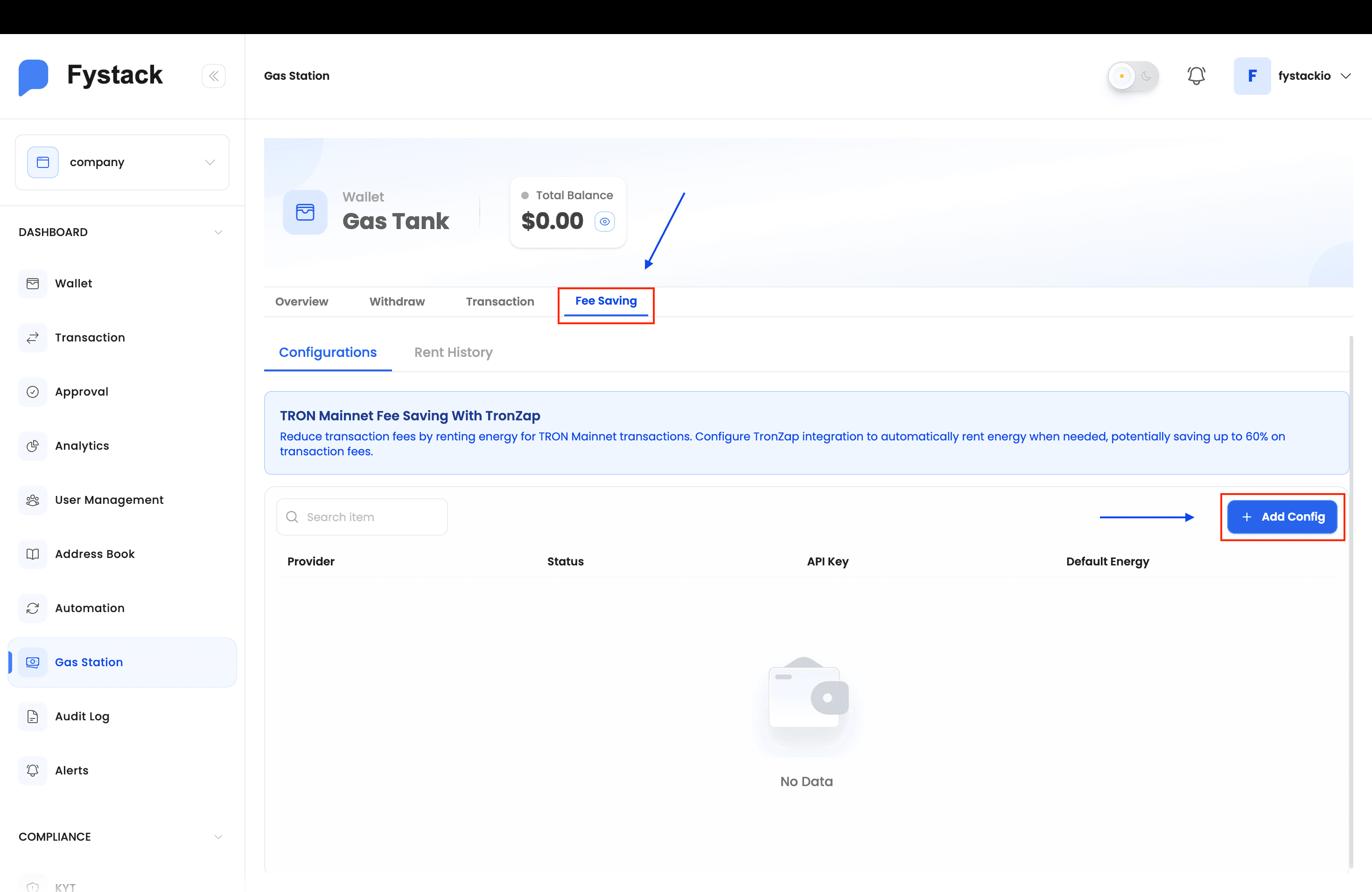
Step 1: Navigate to Gas Station and Open Fee Saving
Click Gas Station in the left sidebar, then select the Fee Saving tab. You will see the TRON Mainnet Fee Saving section with an empty configuration list. Click + Add Config to start.
Step 2: Get Your API Key from TronZap
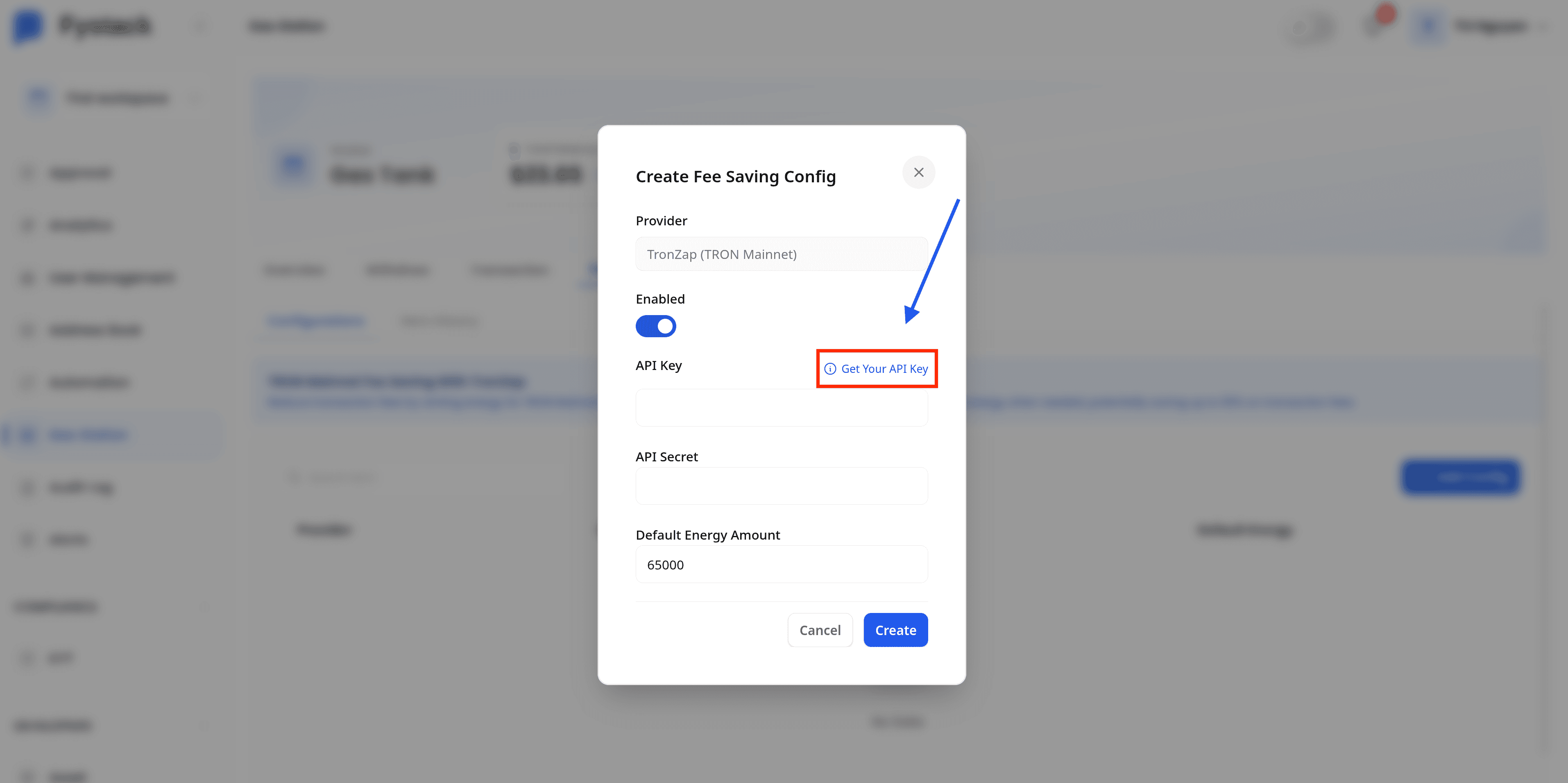
In the Create Fee Saving Config modal, click Get Your API Key next to the API Key field. This opens the TronZap platform where you will retrieve your credentials.
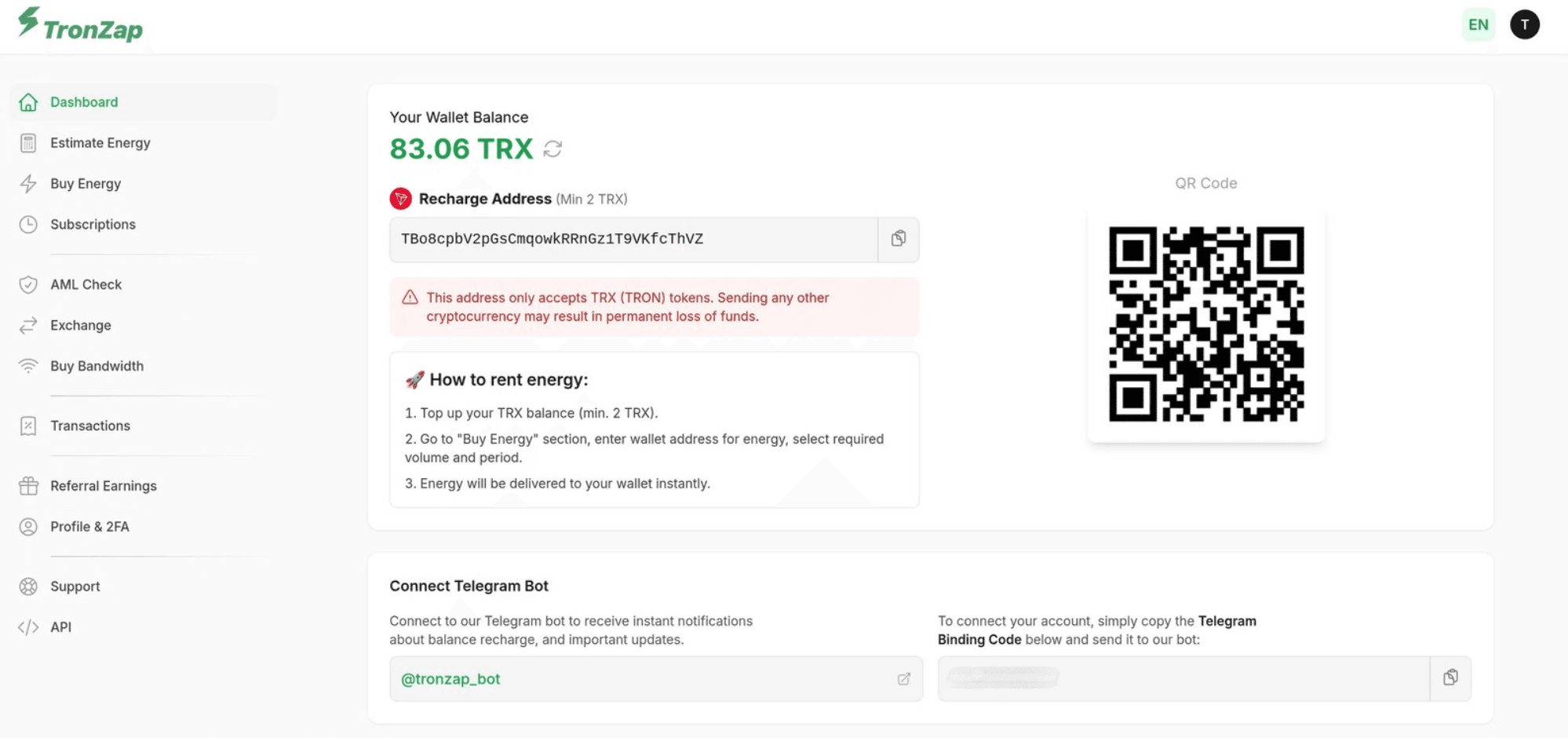
On the TronZap dashboard, make sure your account has a TRX balance (minimum 2 TRX to start renting energy). Top up via the Recharge Address shown on your dashboard if needed.
Then go to API in the TronZap sidebar to find your API Token and API Secret. Copy both values, as you will need them in the next step.
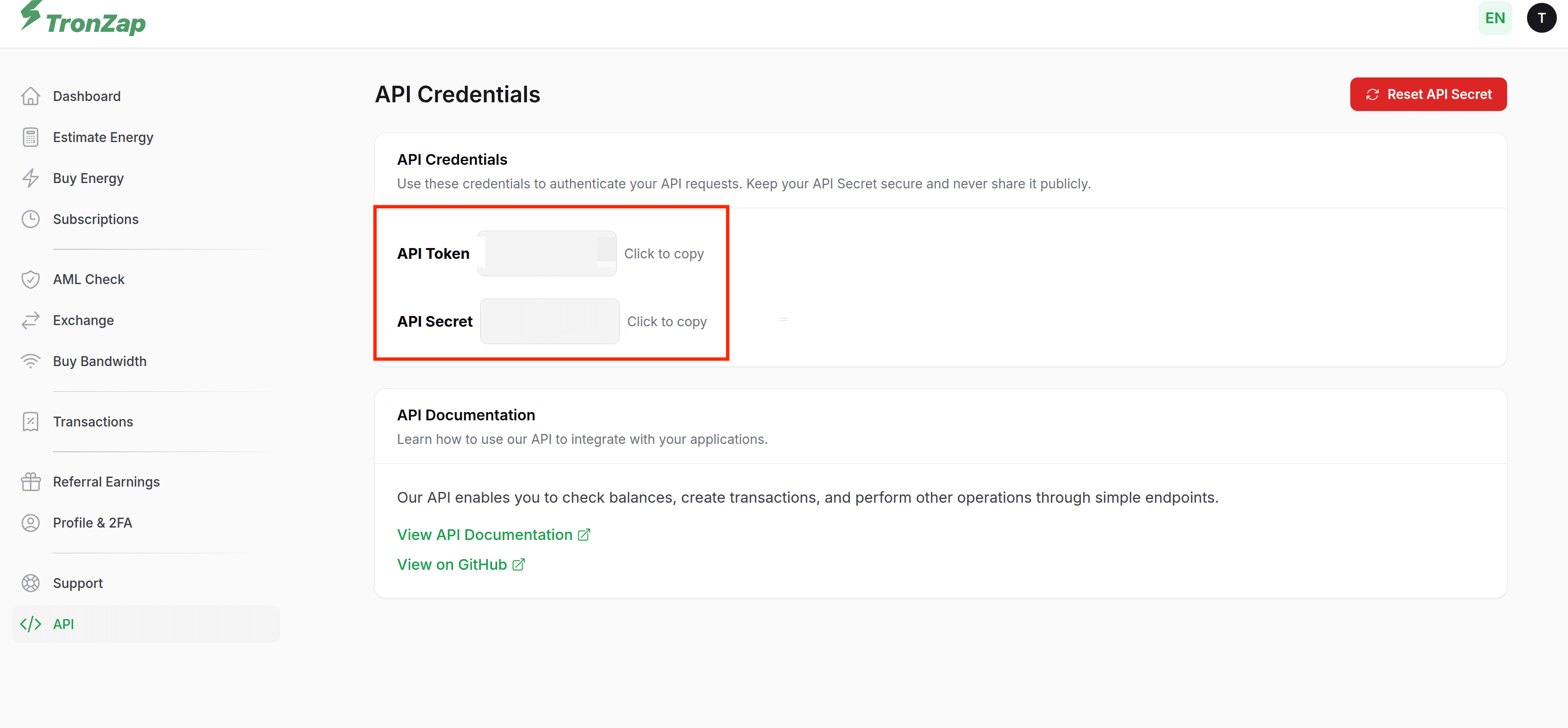
Keep your API Secret private. Never share it or commit it to source control. You can reset it from the TronZap API page at any time.
Step 3: Enter API Credentials in Fystack
Back in the Create Fee Saving Config modal, fill in the following fields:
- Provider: pre-filled as
TronZap (TRON Mainnet) - Enabled: toggle on to activate immediately after saving
- API Key: paste the API Token copied from TronZap
- API Secret: paste the API Secret copied from TronZap
- Default Energy Amount: the amount of energy to rent per transaction (default:
65,000, which covers a standard USDT transfer on TRON)
Click Create to save the configuration.

Step 4: Verify the Configuration is Active
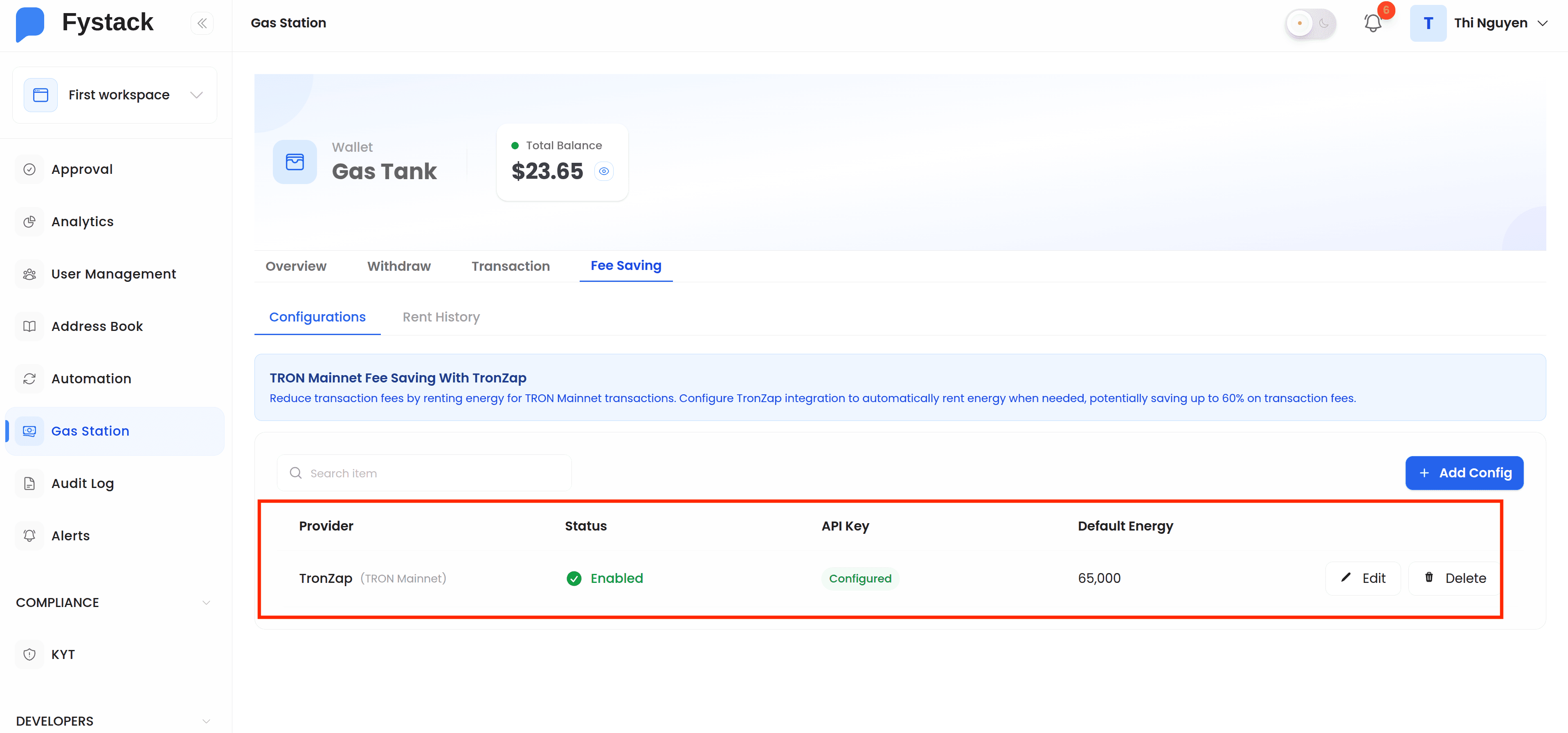
After saving, the Configurations list shows TronZap with:
- Status: Enabled
- API Key: Configured
- Default Energy: 65,000
Your TRON fee saving is now live. You can edit or delete the config at any time from this screen.
Fee Saving in Action: Gasless Withdrawals
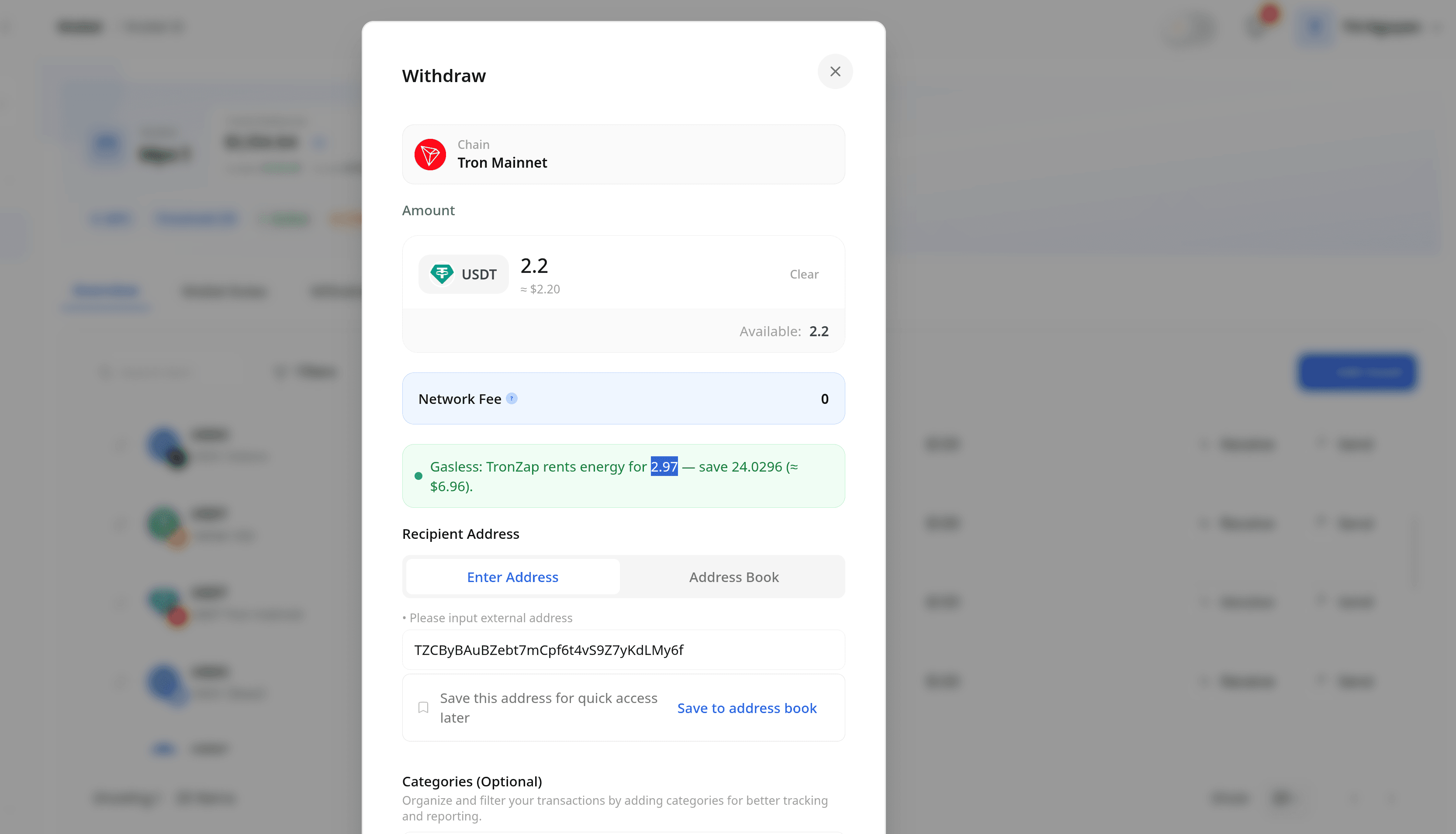
When you initiate a TRON Mainnet withdrawal, Fystack detects the active TronZap config and automatically rents the required energy. The withdrawal modal shows Network Fee: 0 with a green notice confirming the energy rental and the amount saved.
Monitoring Rent History
The Rent History sub-tab logs every energy rental attempt with full details: wallet, network, status, energy amount, cost in TRX, order ID, and on-chain transaction hash. Use this to audit usage and troubleshoot any failed rentals.
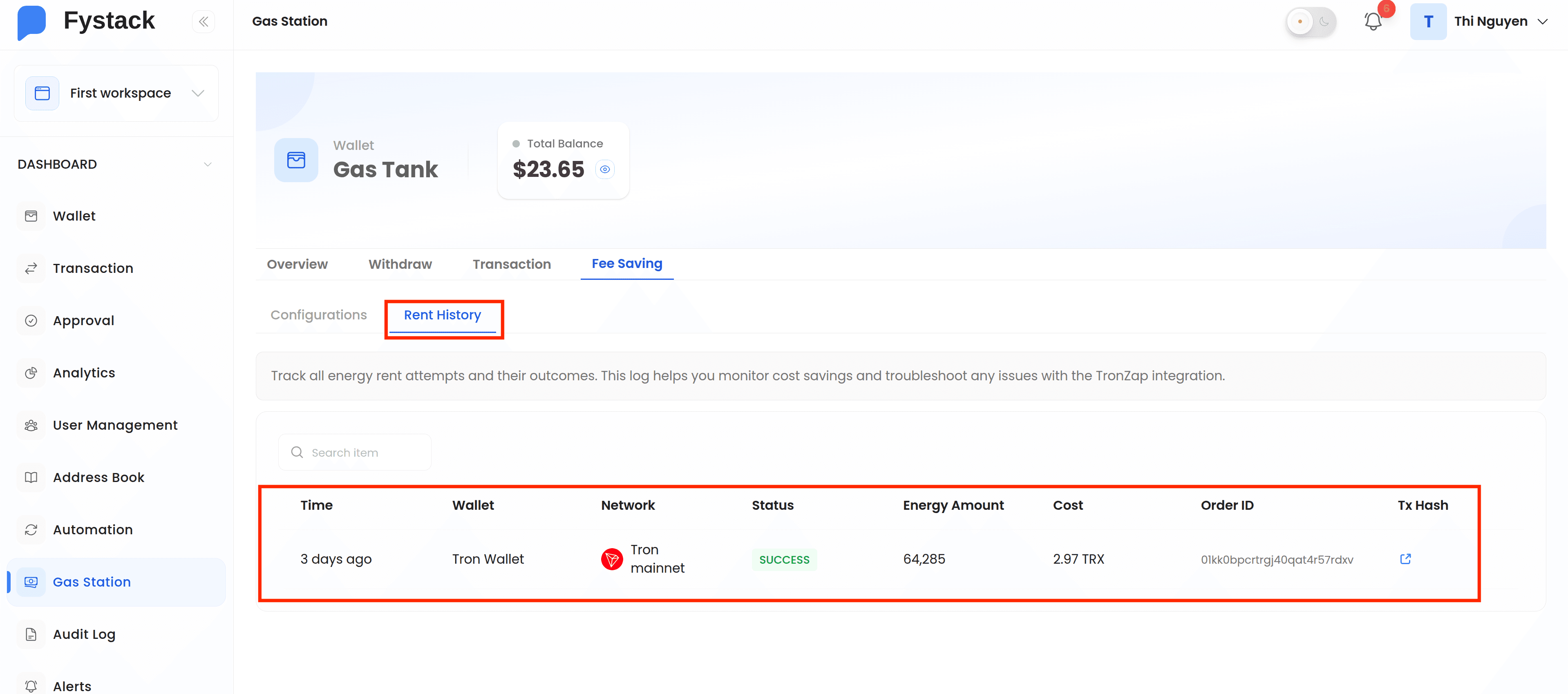
| Column | Description |
|---|---|
| Time | When the energy rental was triggered |
| Wallet | The Fystack wallet that initiated the transaction |
| Network | The chain on which energy was rented (e.g. Tron Mainnet) |
| Status | SUCCESS or FAILED. Failed rentals fall back to standard network fees. |
| Energy Amount | Units of energy rented for that transaction |
| Cost | TRX spent on energy rental |
| Order ID / Tx Hash | TronZap order reference and on-chain transaction hash for verification |
Best Practices
- Keep your TronZap balance topped up: if the TRX balance on TronZap runs out, energy rental fails and transactions fall back to standard fees.
- Set Default Energy Amount appropriately:
65,000covers a standard USDT TRC-20 transfer. Complex smart contract interactions may require more; adjust based on your transaction types. - Monitor Rent History regularly: any FAILED entries mean that transaction paid full network fees. Investigate via the Order ID or Tx Hash.
- Rotate your API Secret periodically: treat it like a password and regenerate it from TronZap's API page on a regular schedule.